2. Products Menu
Within the ‘Products’ menu, users can define purchasable products and
their variants using the Products and Product Variants options.
2.1 Products Management
The ‘Products’ menu in Odoo 18 Purchase module serves as a central place to manage items
for procurement, allowing users to configure products, set vendor prices, define units
of measure, and track inventory, lead times, and variants for streamlined purchasing
operations.
Upon opening the menu, we can see the kanban dashboard of the product catalog that are
used in various purchase or sales purposes in the Purchase database.
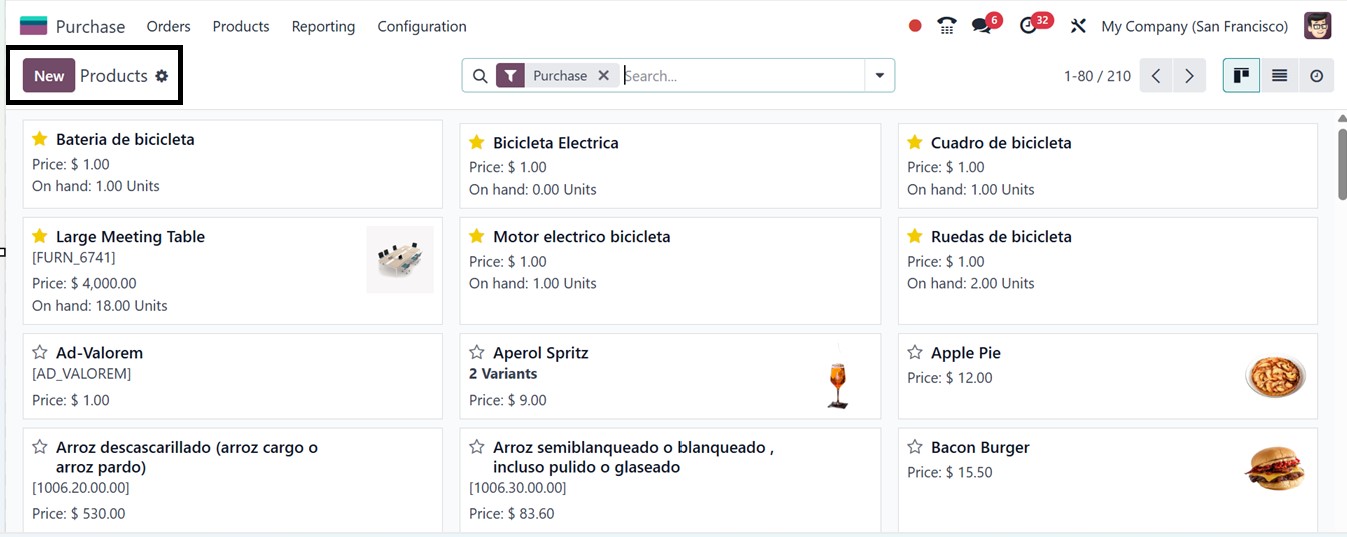
You can change the kanban view into a List or Activity view using the respective icons
provided in the top right corner of the window. To view a list of items available for
procurement, simply apply the "Can be Purchased" filter from the advanced search bar
filter area.To designate a product as purchasable, enable the Can be Purchased option
when configuring the product in the Purchase module.
To add a new product click on the New button, which opens a form where you can enter all
relevant product details. Begin by providing the Product Name, and optionally upload a
product image using the camera icon. You can then select applicable checkboxes such as
Sales, Purchase, Expenses, and Point of Sale, based on how the product will be used.
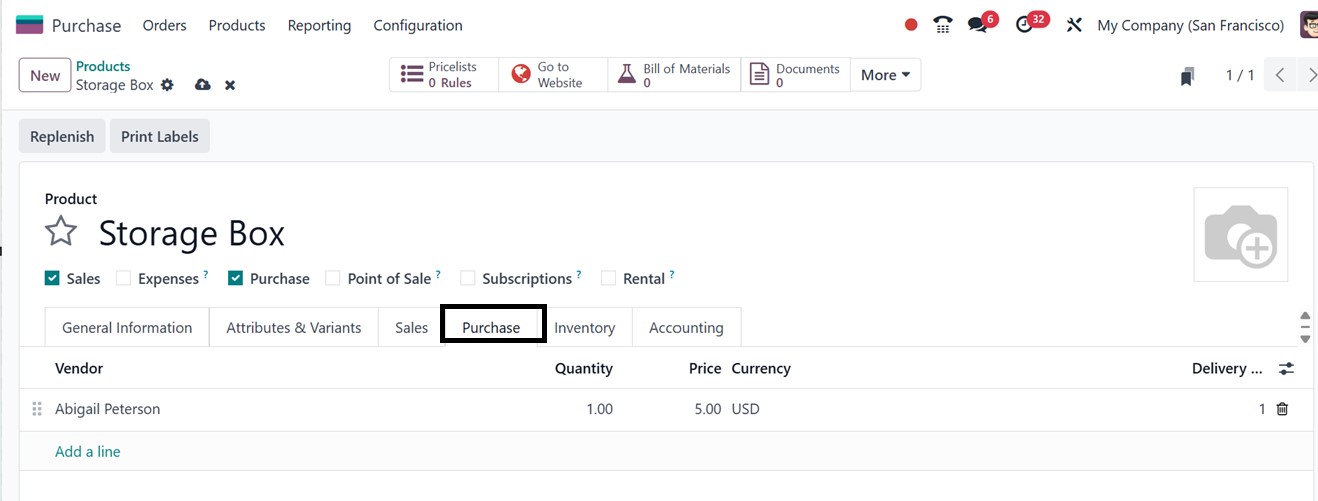
Next, choose the appropriate Product Type such as Goods, Service, or Combo to reflect its
purpose. You’ll also set the Invoicing Policy, either as Ordered Quantities (invoice
created at order time) or Delivered Quantities (invoice generated upon delivery).
Additional fields allow you to define specific product attributes, including Track
Inventory, Create Repair, Purchase Taxes, Sales Price, Sales Taxes, Cost, Product
Category, Internal Reference, and Bar Code. If your business operates in a multi-company
setup, you can assign the product to a specific company using the Company dropdown,
ensuring accurate product configuration across different business units.
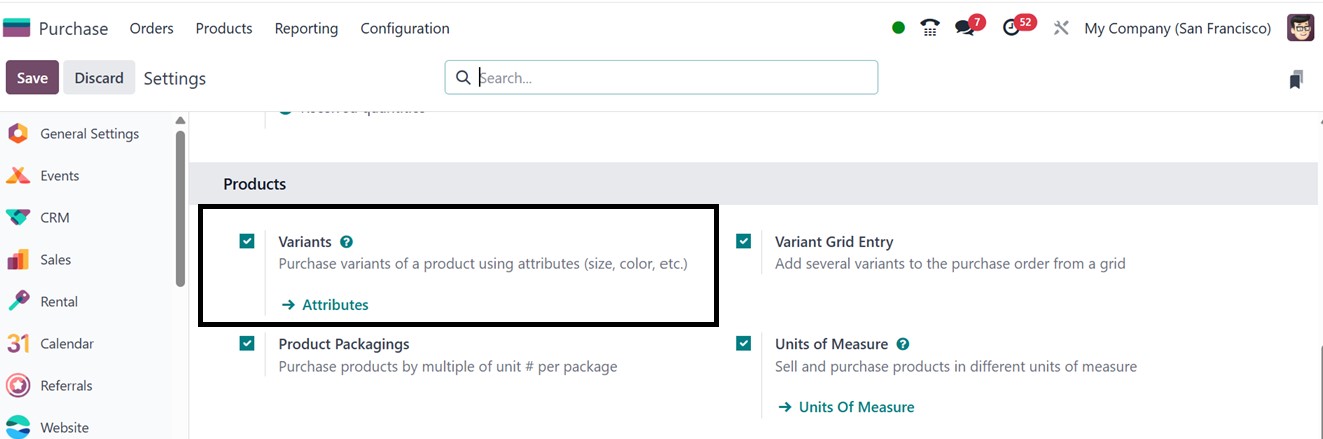
If there are several sizes or colors available for a product, you may adjust these
settings under the ‘Attributes & Variants’ page. By enabling the ‘Variants’ and the
other product related features from the ‘Settings’ window of the purchase module, you
can handle product variations in the Purchase database using the same procedure as in
the Sales module with Odoo’s integration properties.
The ability to link several vendors to a single product is a noteworthy feature of the
Purchase module. To enter vendor-specific information, click Add a Line under the
Purchase tab. Your purchasing procedure may be fluid and adaptive by allowing you to
choose the Lead Time for Delivery, Minimum Quantity, and Purchase Price for each vendor.
Businesses may use this configuration to evaluate vendors and make well-informed
decisions about purchases based on factors like price, delivery time, or stock
availability.
Assigning Vendors to Products
Under the ‘Purchase’ tab in the product settings window, users can specify the vendors
supplying the product. By clicking on the ‘Add a line’ button, multiple vendors can be
linked to a single product with different vendor currencies and prices, as depicted in
the screenshot below.
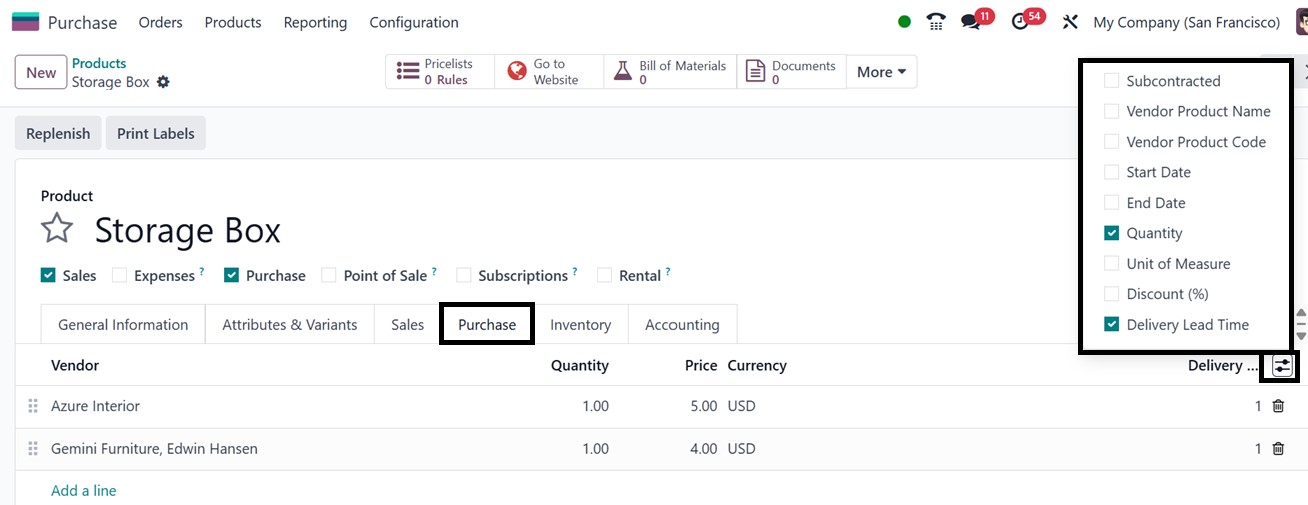
The Purchase tab section allows you to define key procurement parameters for each vendor.
You can specify the Currency used for transactions, set the minimum Quantity required
for ordering, and you can enter the Unit price agreed upon with the vendor and define
the Delivery lead time, which indicates the number of days expected between confirming a
purchase order and receiving the products in the warehouse.
Vendors can be chosen from an existing list or created as new contacts. Additional field
options, available at the top-right corner of the tab, allow you to add custom fields to
set more vendor-specific purchasing details. If the vendor also acts as a subcontractor,
you can enable the Subcontractor option. Subcontracting features and configurations are
further covered in the Manufacturing module.
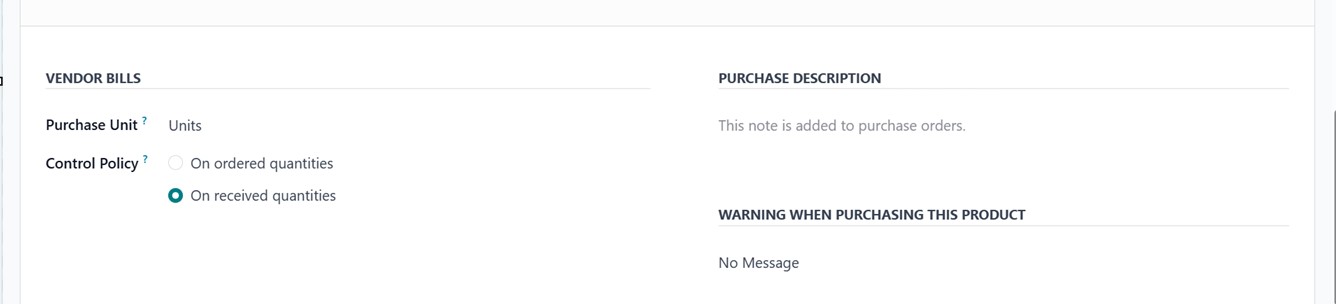
The form fields inside the ‘VENDOR BILLS’ area helps for controlling the way invoices are
produced during the purchase procedure. Whether vendor invoices are generated based on
ordered amounts or just after the items are received is determined by the ‘Control
Policy’ feature. You can also specify the Purchase Units for a product, indicating the
default quantity in which it is procured such as individual Units, Cartons, Dozens, or
any other applicable unit of measure.
The ‘Settings’ window in the Purchase module allows you to change this default policy by
specifying a default invoicing method for all products using the ‘Bill Control’ option,
but they can also change this setting for particular products. Users can include remarks
or information that will be automatically included in purchase orders in the ‘PURCHASE
DESCRIPTION’ field as an additional Purchase Configuration.
After providing all the product specifics and saving the data, you can utilize them for
various sales and purchase operations in Odoo. To get more details on configuring
products, product variants, attributes, and categories, refer to the Sales or Inventory
Modules of the Odoo.
Assigning your product items to certain vendors is another feature of the purchase
module. This lets you provide vendor-specific information like prices, lead times for
deliveries, and conditions of purchase. This configuration guarantees precise and
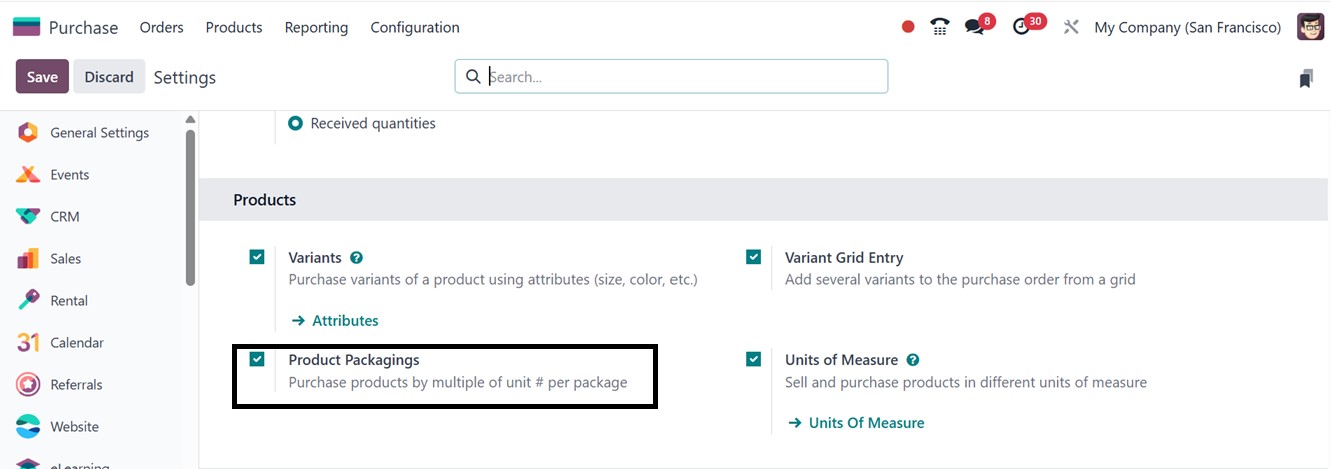
adaptable procurement management. Furthermore, the Purchase module's Product Packagings’
functionality from the ‘Settings’ window provides a productive method for managing
package options during the procurement process.
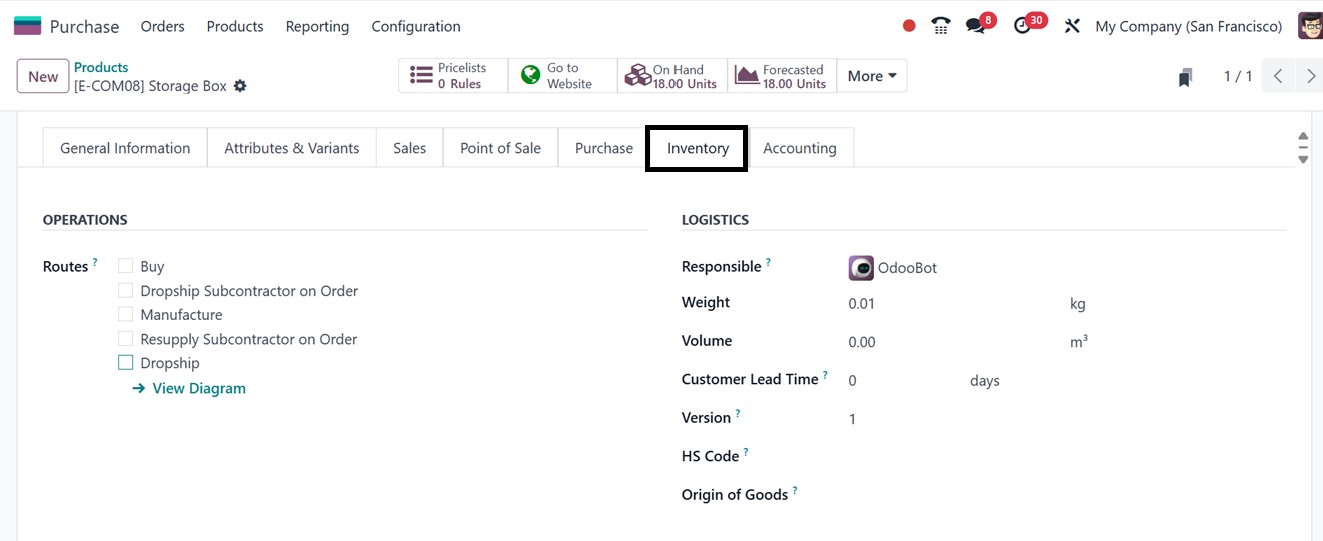
Then, you can specify comprehensive package details right inside the ‘Inventory’ tab of
the product configuration form once the packaging option is enabled. This enables them
to define the grouping, bundling, or packaging of particular things for reasons of
purchase.
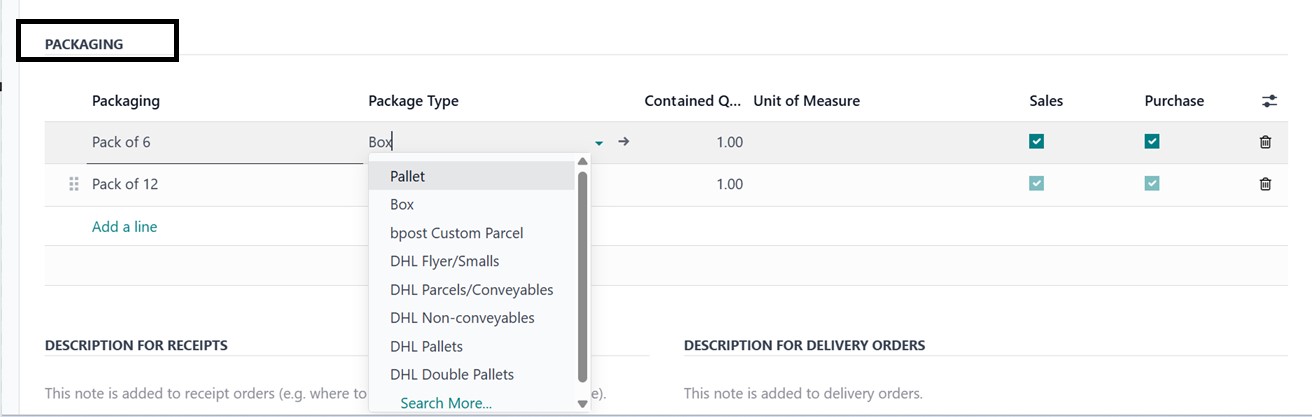
For instance, a product can be set up to be sold on pallets made up of several boxes or
in boxes with a specific number of units using the ‘Add a line’ button provided under
the ‘PACKAGING’ section of the Inventory tab.
In this section, you can begin by entering a name for the package in the ‘Packaging’
field. Next, select the appropriate ‘Packaging Type’ from the available options, such as
Box, Unit, Pallet, Parcel, or any other predefined type. After that, specify the
quantity of products included in the package under the ‘Contained Quantities’ section.
Then, define the ‘Unit of Measure’ that applies to the packaged items. Finally, choose
whether the packaging should be used in Sales and/or Purchase operations by enabling or
disabling the corresponding options, as illustrated in the screenshot below.
In summary, the ‘Packaging’ feature is especially helpful when suppliers provide products
in predetermined forms. So, the companies can guarantee precise handling of product
quantities and optimize buying processes by enabling and designing product packaging.
2.2 Product Variants
The ‘Product Variants’ menu in Odoo 18's Purchase module is crucial for handling items
that have several versions, such as various sizes, colors, or materials. In order to
ensure precise selection during purchase orders, it enables users to inspect and modify
specific variants created from product templates.

In Odoo 18, creating a new product variant follows the same configuration process as
creating a new product, making it familiar and easy to manage. The functionality and
configuration process of product variants are similar with those in the Sales and
Inventory modules.
You can customize each variant's details, including SKU, barcode, pricing, and vendor
information, to ensure accurate product identification and supplier coordination.
Additionally, the Product Variants menu supports variant-specific procurement rules and
precise inventory tracking, which helps improve purchasing accuracy and enhances
reporting efficiency across procurement operations.