5. Configuration
The Configuration section is used to set up and
manage all payroll rules and system settings
before processing payroll.
It allows users to define how the payroll system
works, including salary structures, work schedules,
employee settings, attendance rules, and other key
configurations. This ensures that all payroll
calculations are based on correct and
consistent rules.
Users use this section to prepare and maintain the
payroll system so that all processes such as payslips,
work entries, and reports run properly and accurately.
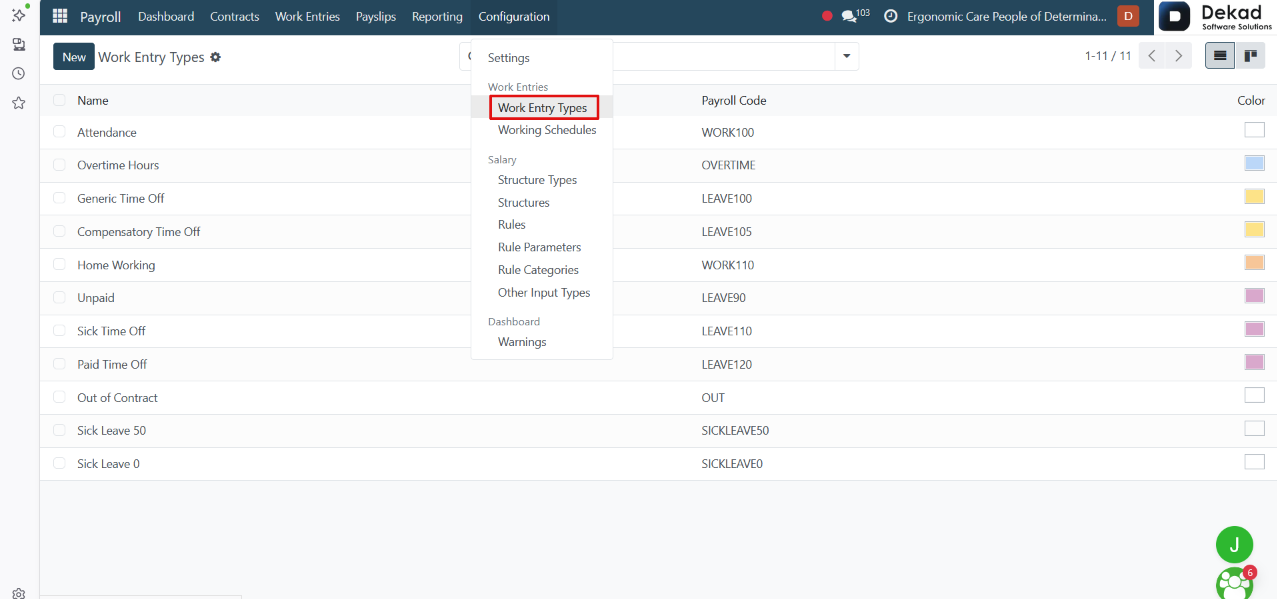
5.1 Work Entry Types
The Work Entry Types section is used to define the
different categories of work entries that appear
in payroll.
It allows users to classify employee time into types
such as normal working hours, overtime, paid time
off, sick leave, and unpaid absence. Each type helps
the system correctly calculate payroll by applying
the appropriate rules for payment, deduction,
or reporting.
These types ensure that all employee working time and
absences are properly categorized and accurately
reflected in payroll calculations.
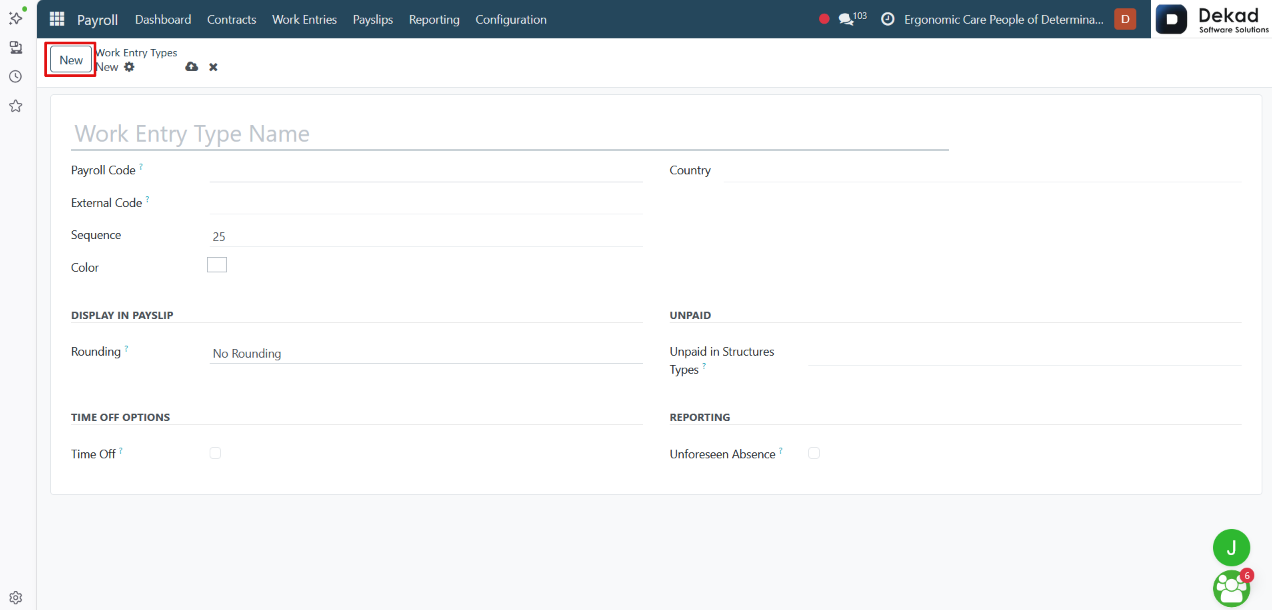
New Work Entry Type
By clicking the New button, a form is
opened to create a new work entry type.
Users can define the name of the work entry
type and configure how it should behave in
payroll calculations. This includes setting
whether it represents working time, paid absence,
unpaid absence, or overtime, along with rules
that determine how it affects salary computation.
Once saved, the new work entry type becomes available
for use in work entries and payroll processing.
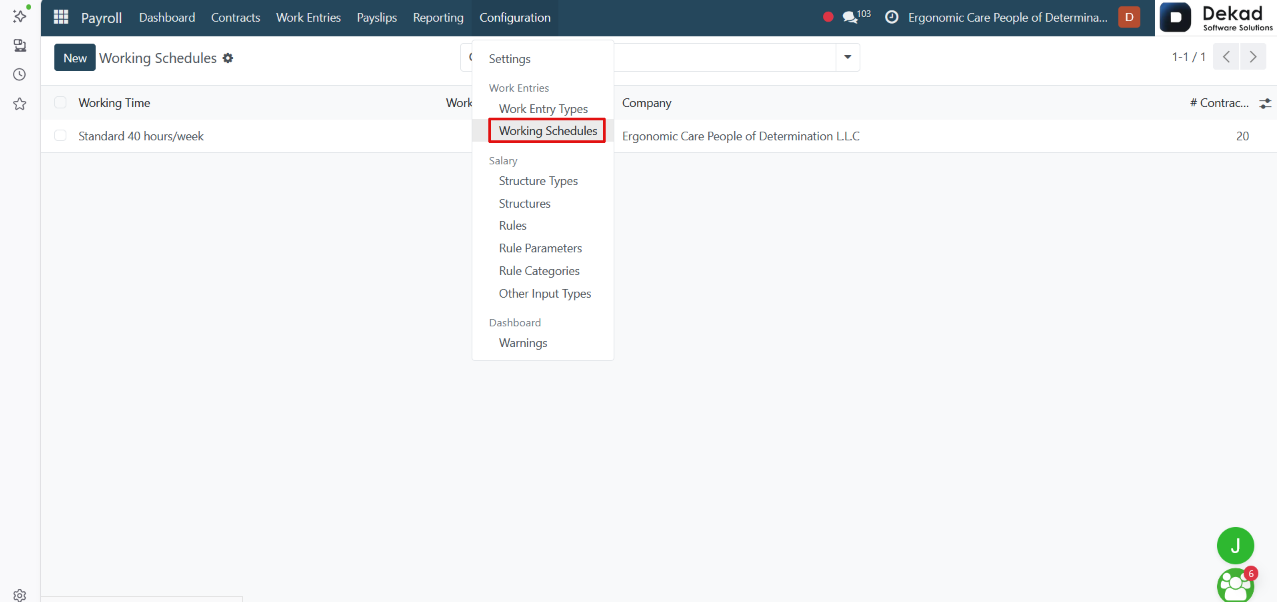
5.2 Working Schedules
The Working Schedules section is used to define the
standard working time structure for employees.
It allows users to set the weekly working hours,
working days, and daily time slots that employees
are expected to follow. These schedules are used
by the payroll system to calculate worked days,
absences, and overtime based on attendance and
work entries.
Working schedules ensure that employee working time is
organized and consistently applied across payroll
calculations.
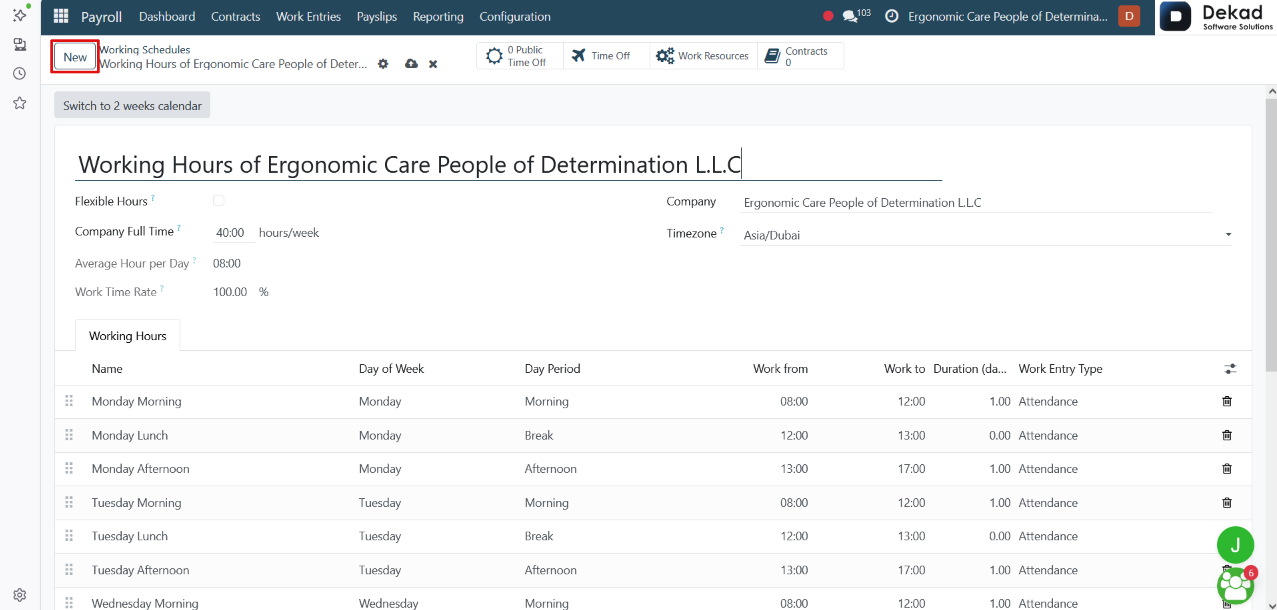
New Working Schedule
By clicking the New button, a form is displayed
where users can create a new working schedule.
The form allows users to define the schedule name,
weekly working hours, working days, and daily working
time. Users can also configure attendance rules by
specifying the start and end times for each
working period.
Once saved, the working schedule can be assigned to
employees and used for attendance tracking, work
entries, and payroll calculations.
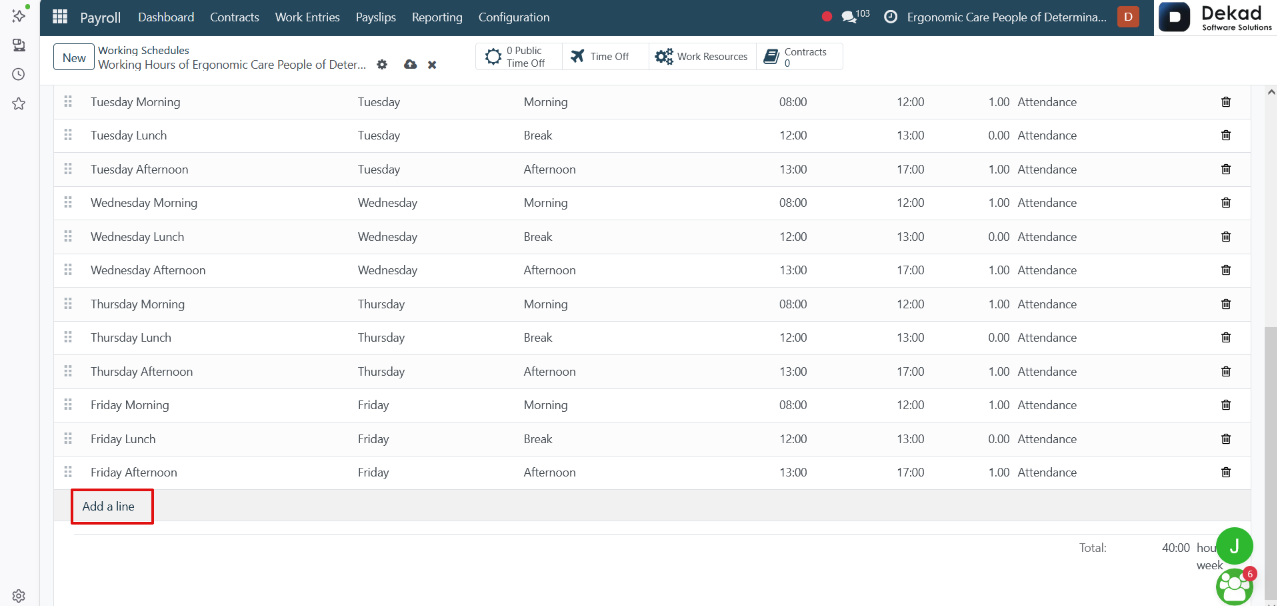
Add a Line
The Add a Line option allows users to add a
new attendance period to the working schedule.
Each line defines a specific working period by
specifying the day of the week, the working hours
(start and end time), and whether it is a morning
or afternoon shift. Users can add multiple lines
to create complete daily or weekly work schedules.
This provides flexibility for defining different
working patterns and shift arrangements.
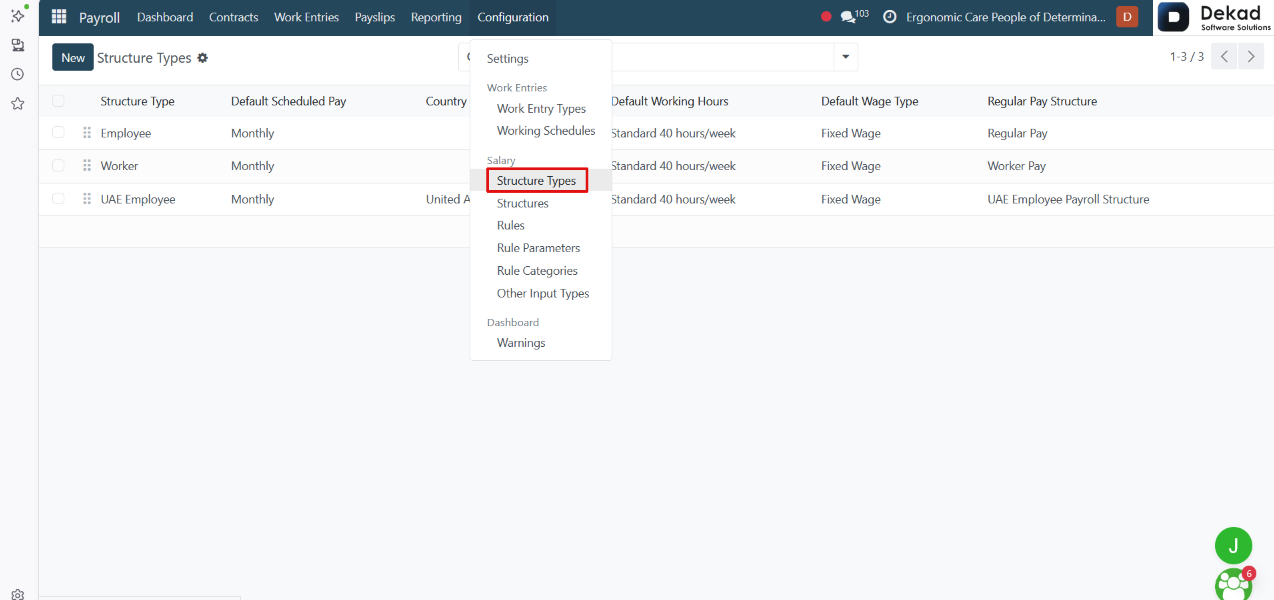
5.3 Structure Types
The Structure Types section is used to define
different categories of salary structures in payroll.
It allows users to group salary rules and configurations
based on employee categories or payment models. Each
structure type can include multiple salary structures
that determine how an employee’s salary is calculated,
including allowances, deductions, and other payroll
rules.
Structure Types help organize payroll configurations and
ensure that each employee is linked to the correct
salary calculation method.
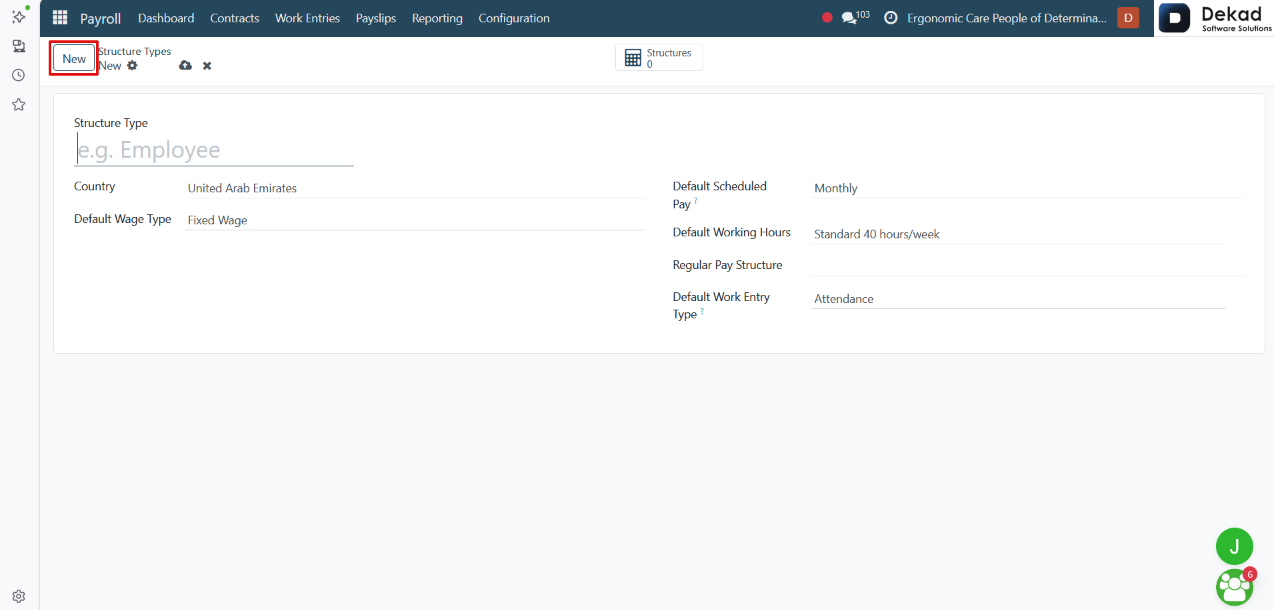
New Structure Type
By clicking the New button, a form is opened
to create a new structure type.
Users can enter the name of the structure type
and define its purpose within the payroll system.
This helps categorize salary structures and link
them to the correct employee groups or payroll rules.
Once saved, the new structure type can be used to
organize salary structures and control how
employee salaries are calculated.
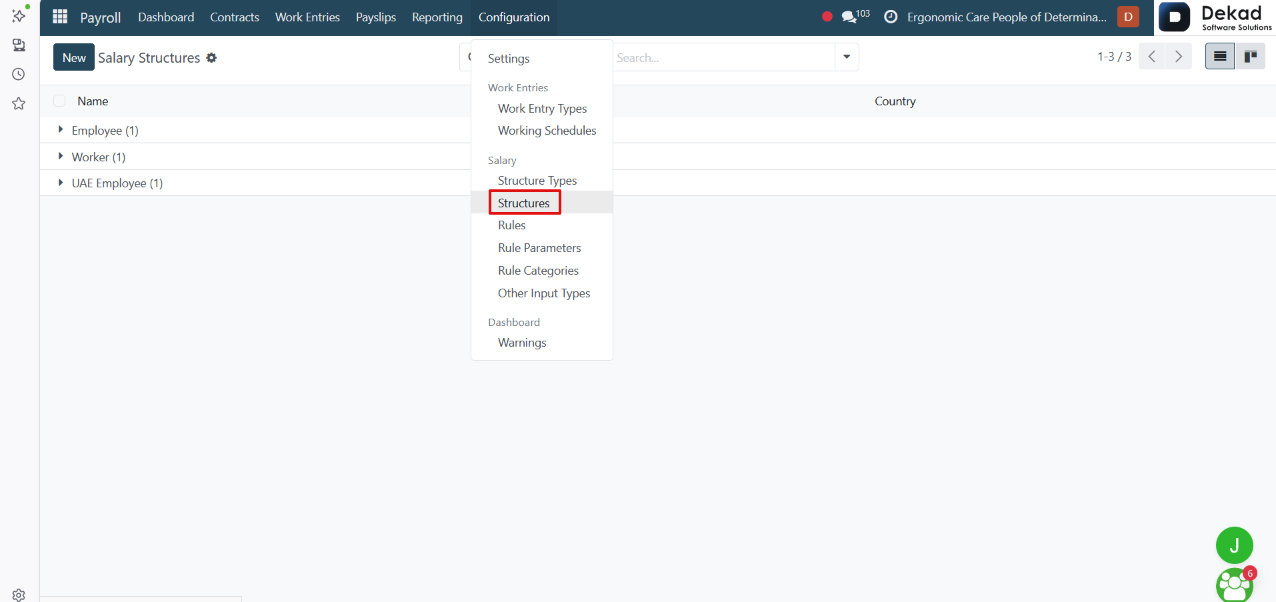
5.4 Salary Structures
The Salary Structures section is used to define
how employee salaries are calculated in the
payroll system.
It contains a set of salary rules such as basic
salary, allowances, deductions, bonuses, and
other components that together form the final
salary. Each structure is linked to a structure
type and is assigned to employees through
their contracts.
Salary Structures ensure that payroll calculations
are consistent and automated based on predefined rules.
New Salary Structure
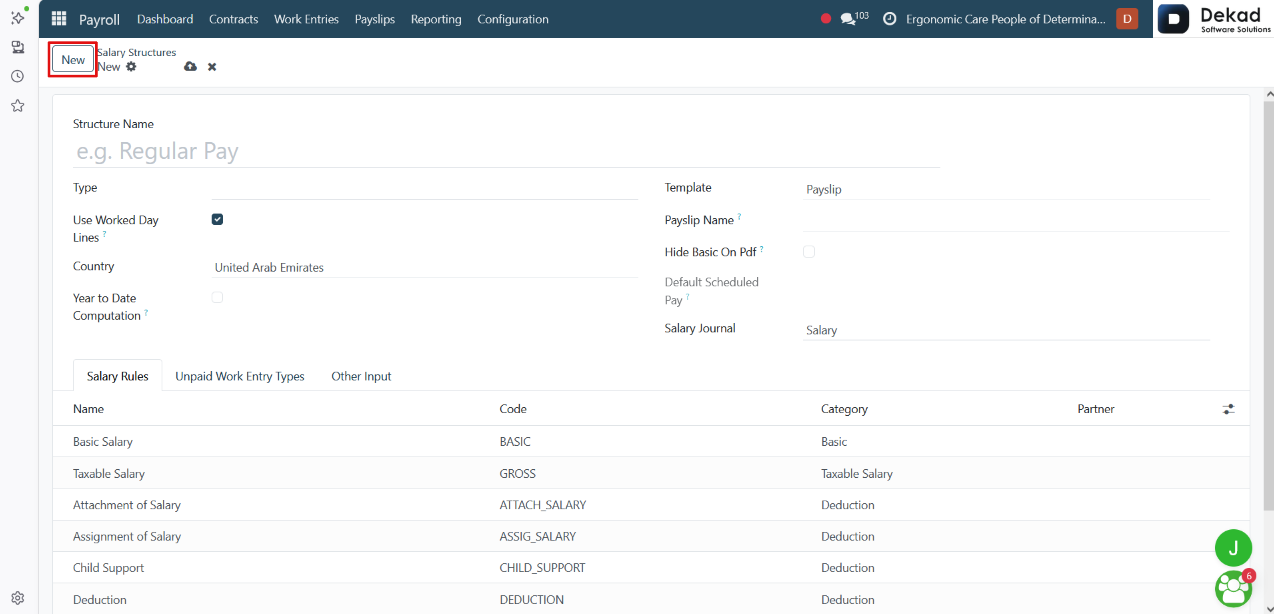
By clicking the New button, a form is opened
to create a new salary structure.
Users can define the structure name, select the
structure type, and configure how the salary
should be calculated. This includes adding salary
rules such as basic pay, allowances, deductions,
and other components.
Once saved, the new salary structure can be assigned to
employees through their contracts to determine how
their salary is computed in payroll.
Unpaid Work Entry Types
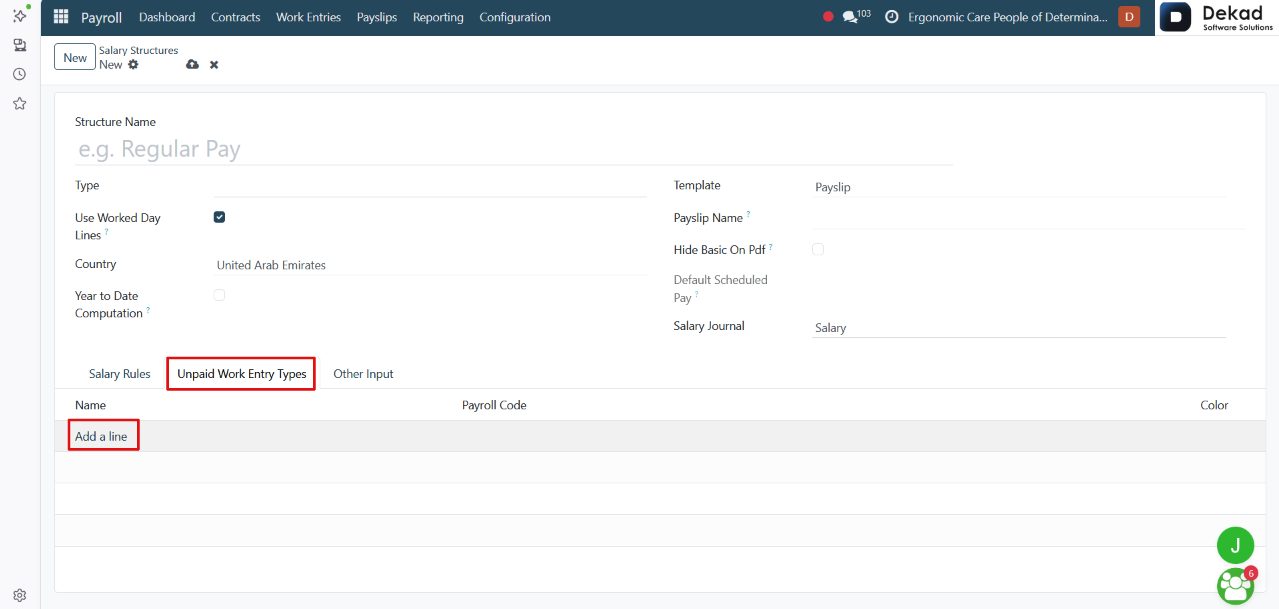
The Unpaid Work Entry Types section is used
to define work entry categories that represent
unpaid time in the payroll system.
It allows users to specify types such as unpaid
leave or unpaid absence, which are not included
in salary calculations. These entries help the
system correctly deduct time from employee payroll
based on attendance and absence records.
Users can add multiple unpaid work entry types
to ensure all non-paid scenarios are properly
tracked and reflected in payroll.
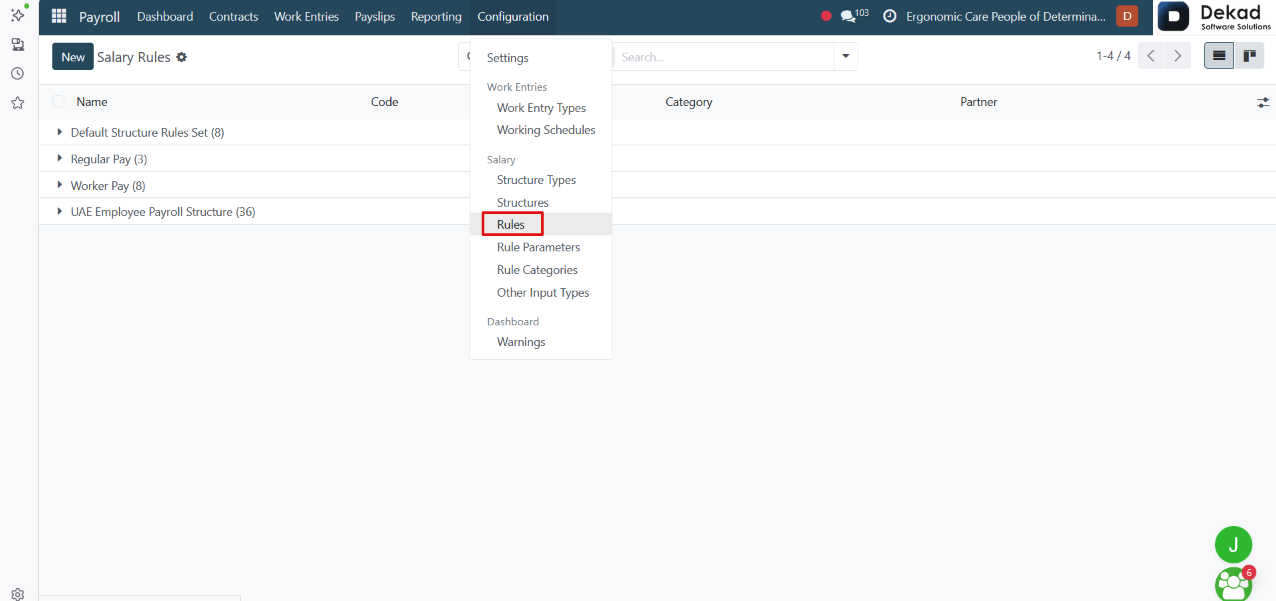
5.5 Salary Rules
The Rules section is used to define how different
parts of an employee’s salary are calculated
in the payroll system.
Each rule represents a specific component such as
basic salary, allowances, deductions, bonuses,
or taxes. These rules are used inside salary
structures to automatically compute the final
salary based on employee contracts and
work entries.
Salary rules ensure that payroll calculations are
consistent, automated, and follow the company’s
payroll policy.
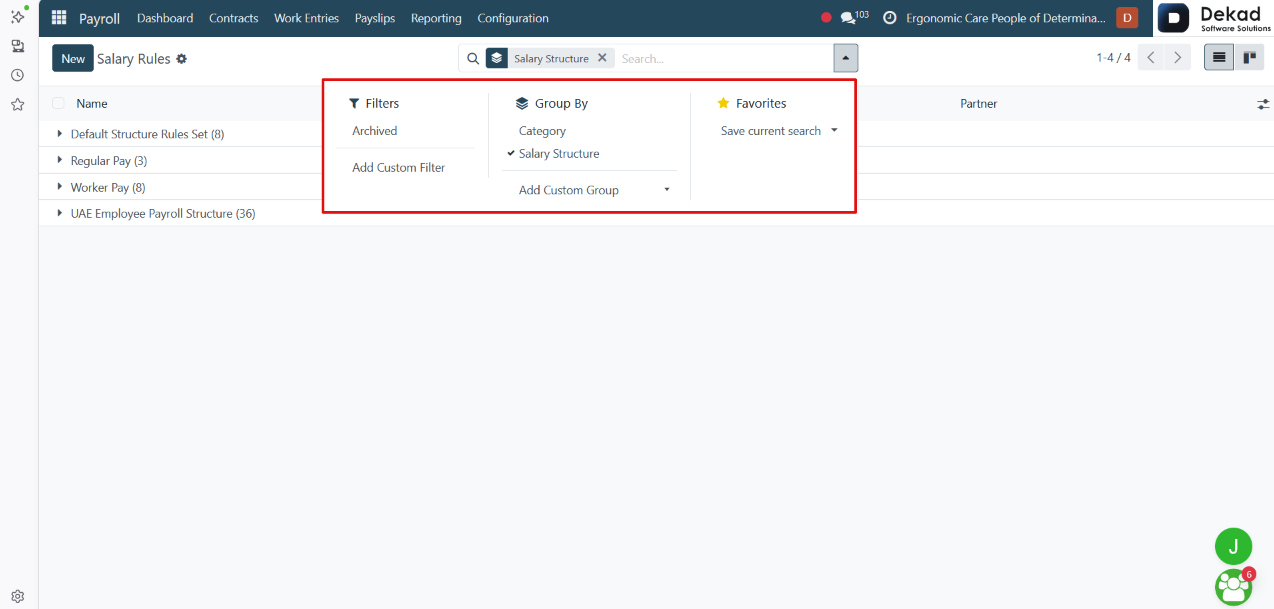
Search and Filtering
The Search and Filtering feature allows users
to quickly locate specific salary rules in
the payroll system.
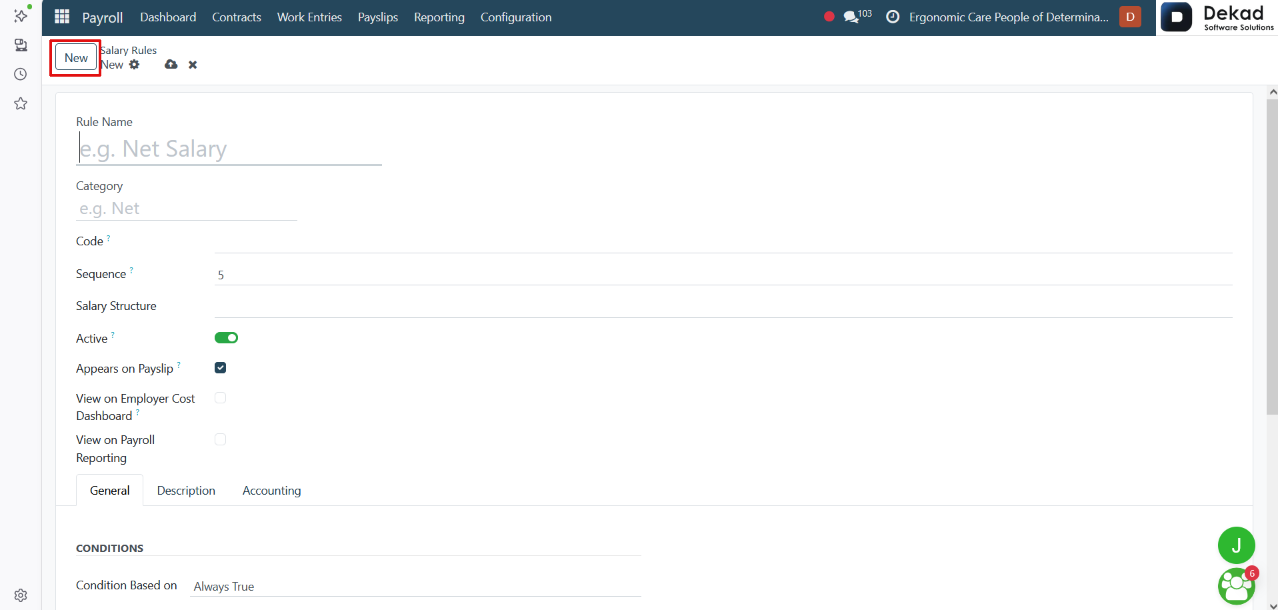
New Salary Rule
When creating a Salary Rule, the system shows
a set of basic fields to define how the rule
works in payroll.
• Rule Name: The name of the rule.
• Category: The type of salary component (allowance, deduction, etc.).
• Code: A short identifier used in calculations.
• Sequence: The order in which the rule is applied.
• Salary Structure: Links the rule to a salary structure.
• Active: Enables or disables the rule.
Options
• Appears on Payslip: Shows the rule on the employee payslip.
• View on Employer Cost Dashboard: Includes it in cost reporting.
• View on Payroll Reporting: Makes it visible in reports.
Tabs
• General
• Description
• Accounting
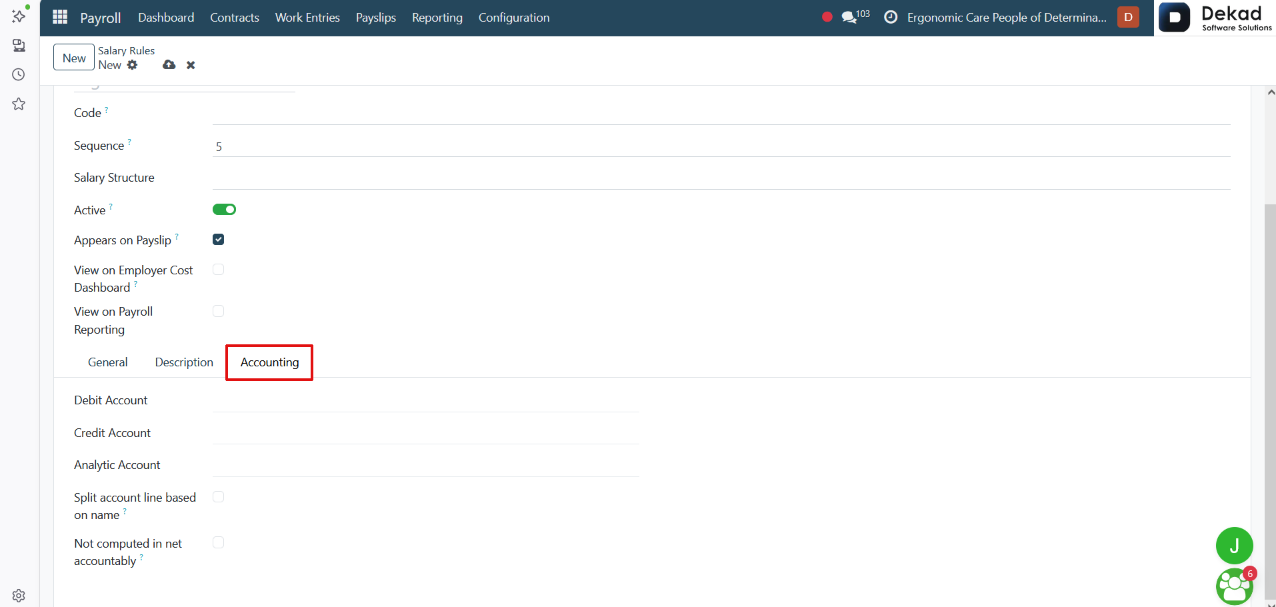
Accounting View
The Accounting view defines how the salary
rule is recorded in financial accounts.
• Debit Account: The account where the expense is recorded.
• Credit Account: The account used for the balancing entry.
• Analytic Account: Used for cost tracking and internal
analysis (e.g. department or project costs).
• Split account line based on name: Splits accounting entries
based on employee or rule name for clearer reporting.
• Not computed in net accounting: Excludes this
rule from net salary accounting calculations.
This section connects payroll rules with accounting
entries to ensure correct financial posting.
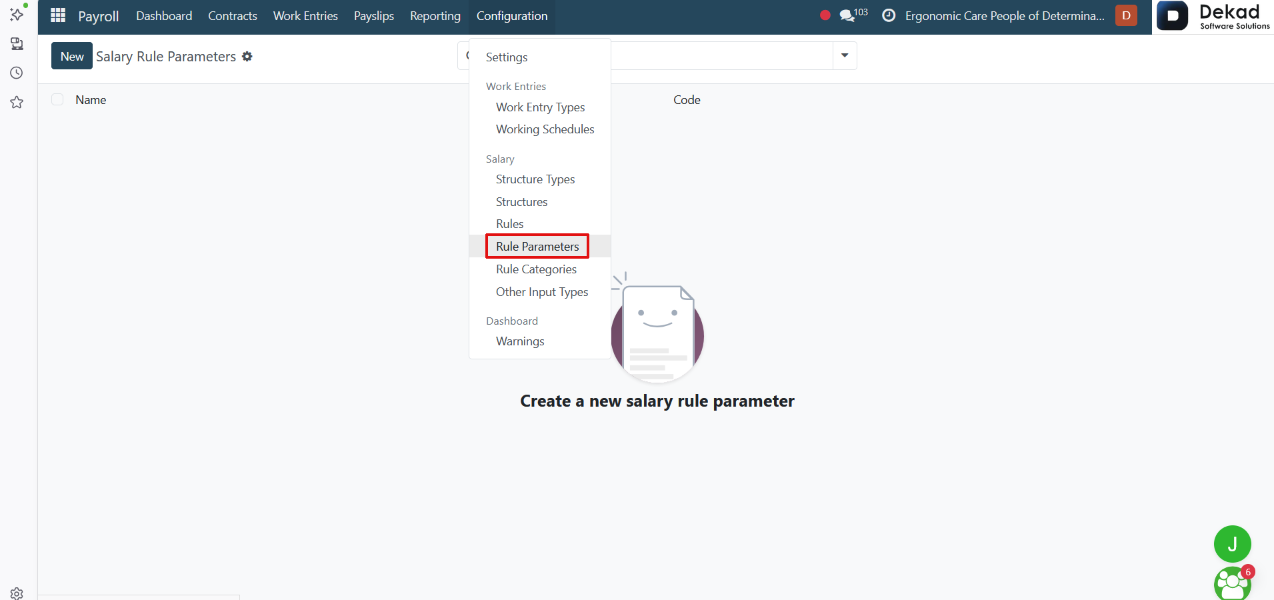
5.6 Rule Parameters
The Rule Parameters section is used to define
values that can be reused in salary rule calculations.
It allows users to create variables or inputs that
can be referenced in salary rules instead of
hardcoding values. These parameters make payroll
calculations more flexible and easier to maintain
when changes are needed.
They are commonly used in formulas, allowances, and
deductions to control how salary components are calculated.
New Rule Parameter
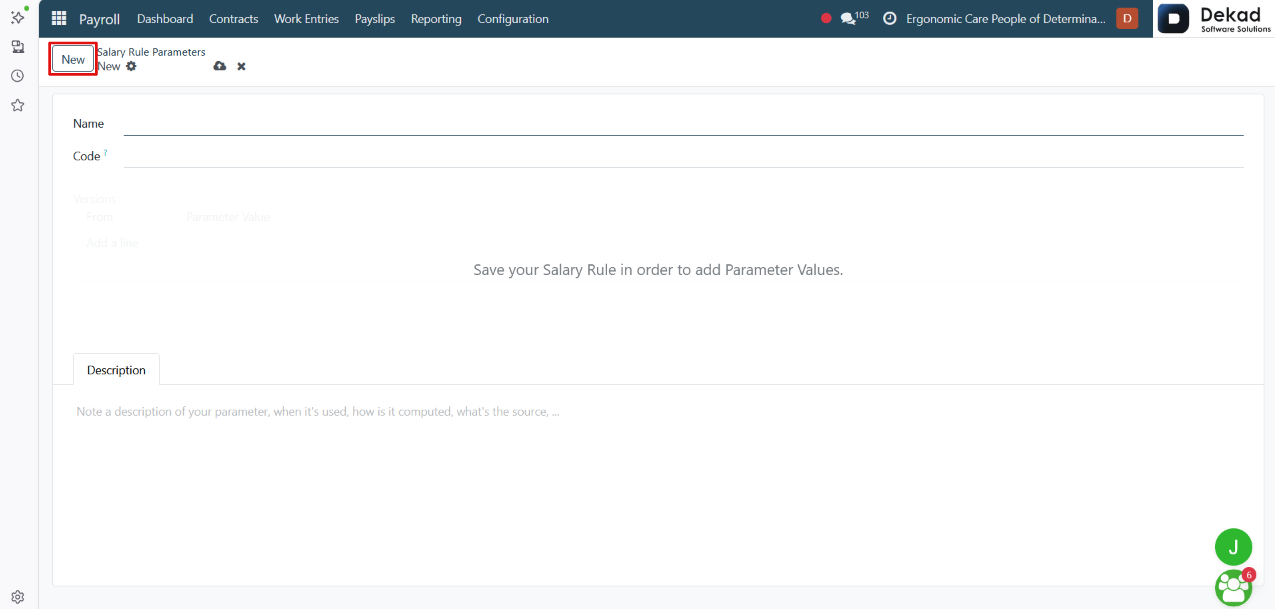
By clicking the New button, a form is
opened to create a new rule parameter.
Users can define the parameter name and set its
value, which will later be used in salary rule
calculations. This helps make payroll formulas
more flexible and easier to manage without
changing the rules themselves.
Once saved, the parameter becomes available for
use in salary rules and payroll computations.
5.7 Rule Categories
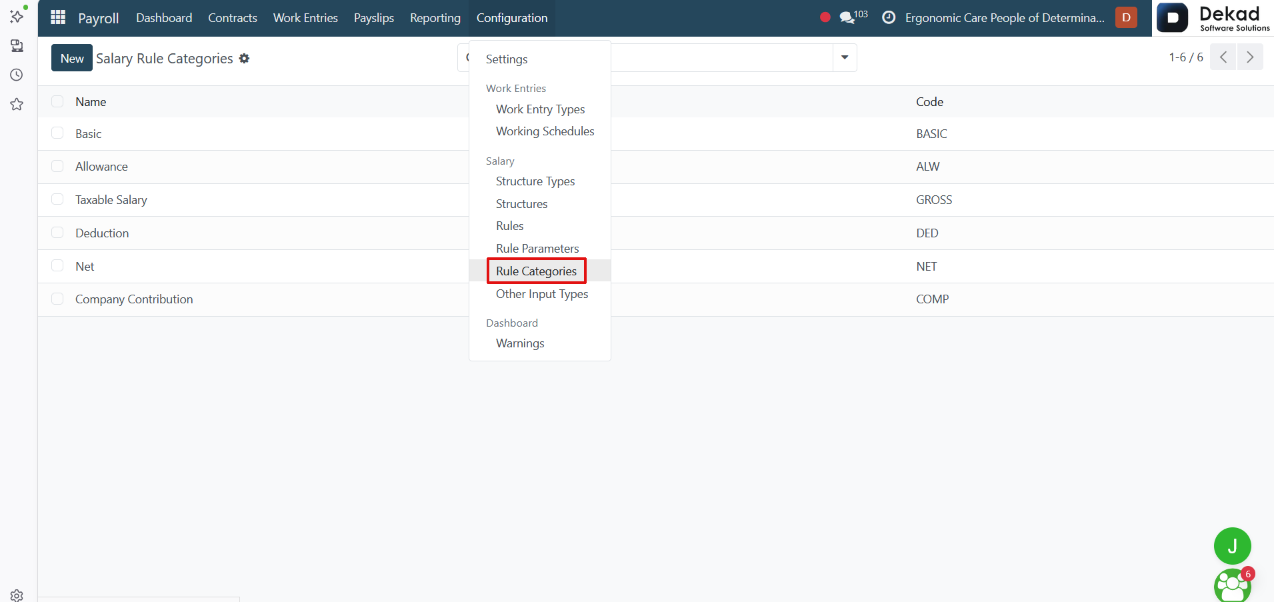
The Rule Categories section is used to group
salary rules into logical categories within
the payroll system.
It helps organize rules such as basic salary,
allowances, deductions, bonuses, and other
payroll components. Each category defines how
related rules are structured and displayed in
payroll calculations and reports.
This makes it easier to manage salary rules and
understand how different parts of the salary
are classified.
New Rule Category
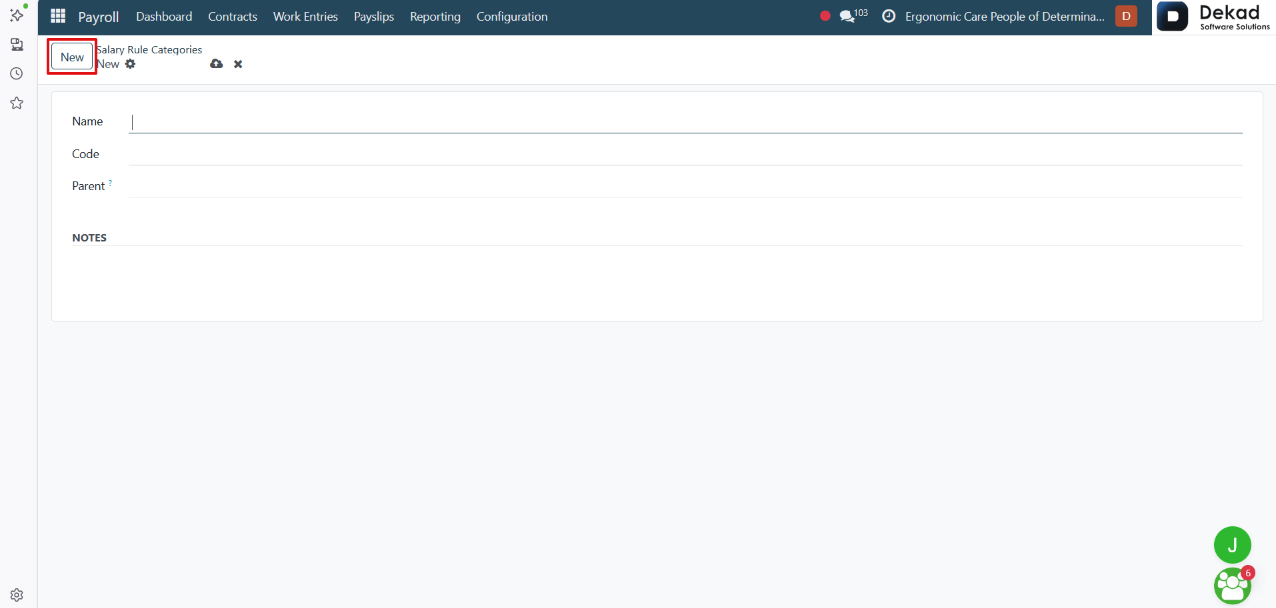
By clicking the New button, a form is
opened to create a new rule category.
Users can define the category name and its purpose
in the payroll system. This category will be used
to group related salary rules such as allowances,
deductions, or other payroll components.
Once saved, the new category becomes available for
organizing salary rules in payroll configurations
and reports.
5.8 Other Input Types
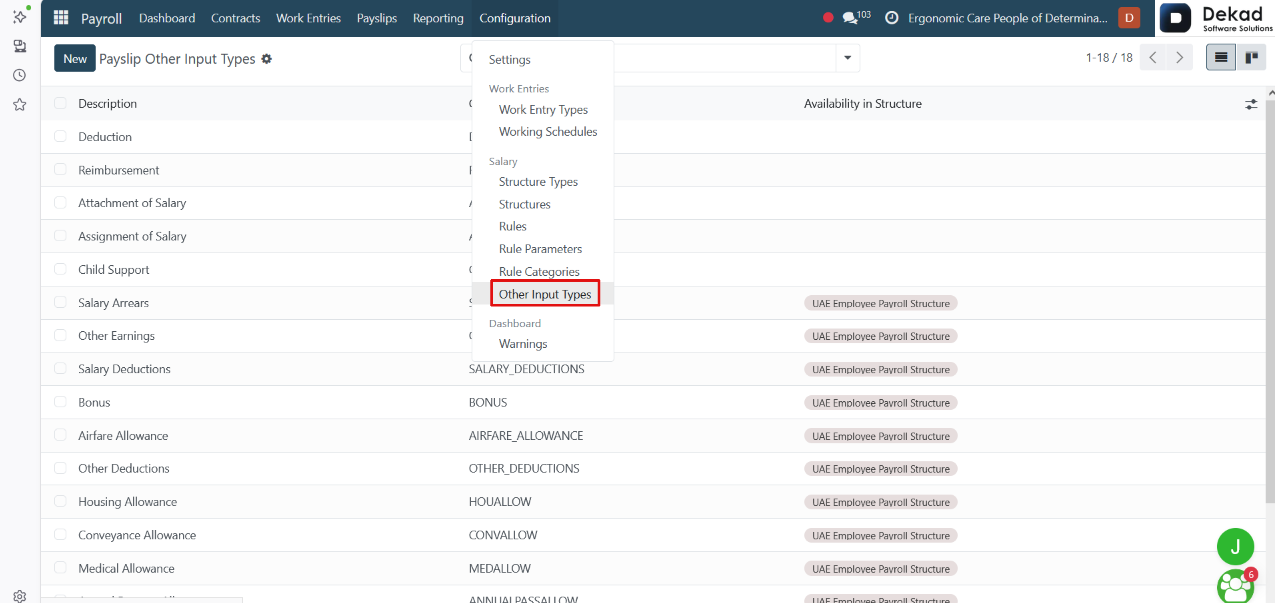
The Other Input Types section is used to define
additional payroll inputs that are not automatically
generated by the system.
These inputs are manually added to payslips to include
extra values such as bonuses, commissions, reimbursements,
or deductions. Each input type helps ensure that all
additional payroll items are correctly recorded and
included in salary calculations.
This provides flexibility in handling special
or non-standard payroll adjustments.
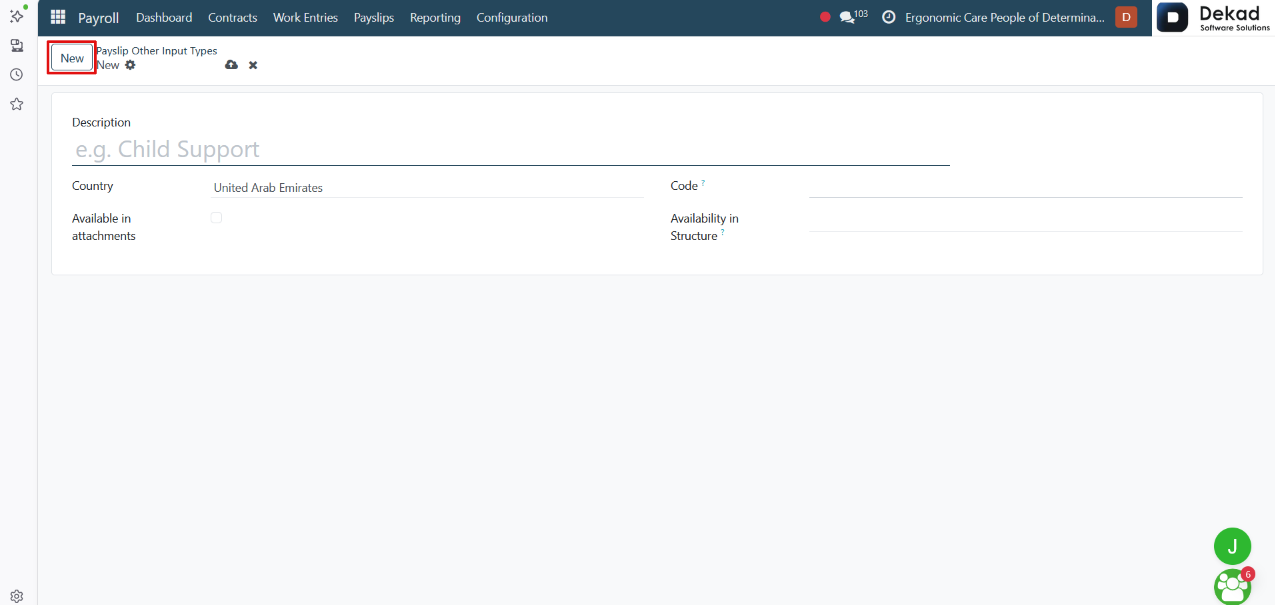
New Other Input Type
By clicking the New button, a form is
opened to create a new input type.
Users can define the name of the input type
and set how it will be used in payroll. This
allows adding custom values such as bonuses,
deductions, or any extra payroll adjustments
that are not automatically calculated.
Once saved, the new input type can be selected
when adding additional inputs to payslips.
5.9 Warnings
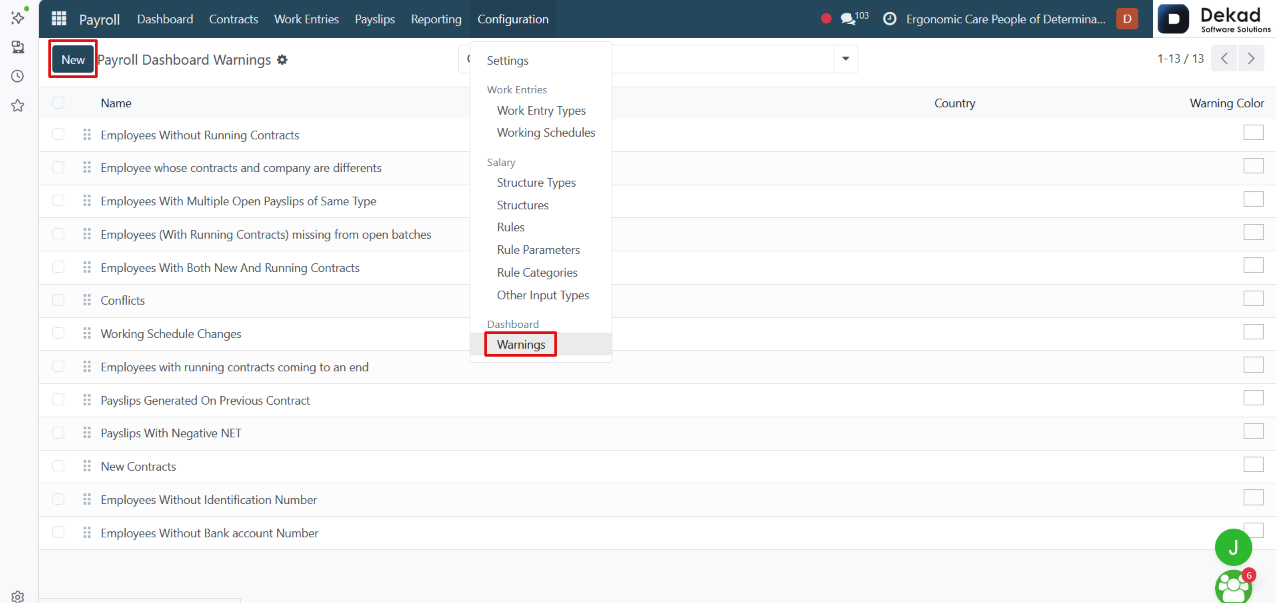
The Warnings section is used to define payroll warning
messages that help identify potential issues during
payroll processing.
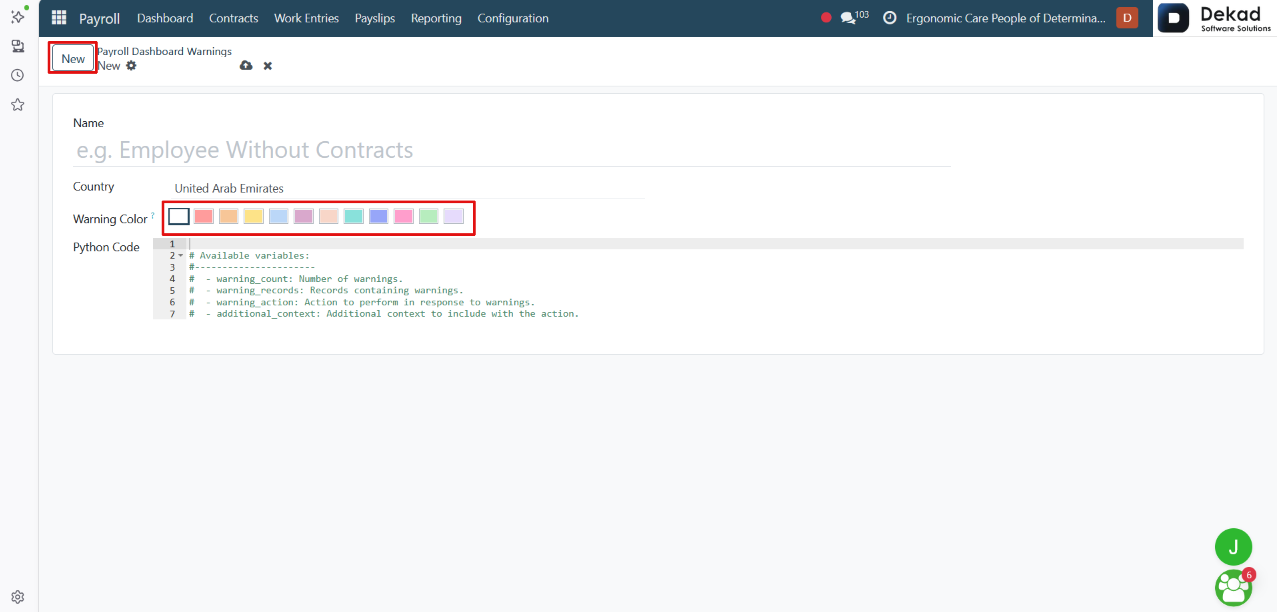
By clicking the New button, users can create a new
warning by defining its details and the conditions
under which it should appear.
Warnings are displayed using different colors
to indicate their severity or status, making it
easier for users to quickly identify and prioritize
payroll issues that require attention.
5.10 Settings
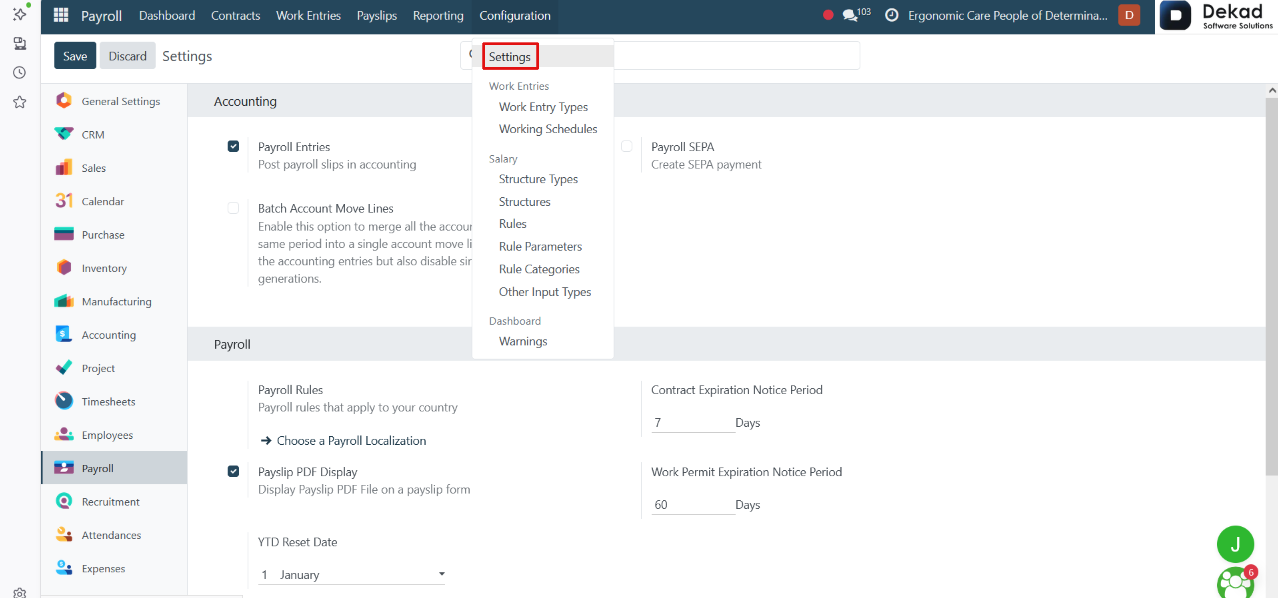
The Settings section allows users to configure
the general behavior of the payroll system.
It provides options to customize payroll features,
define default payroll settings, and manage system
preferences. These settings help ensure that payroll
processes are configured according to the company's
policies and requirements.
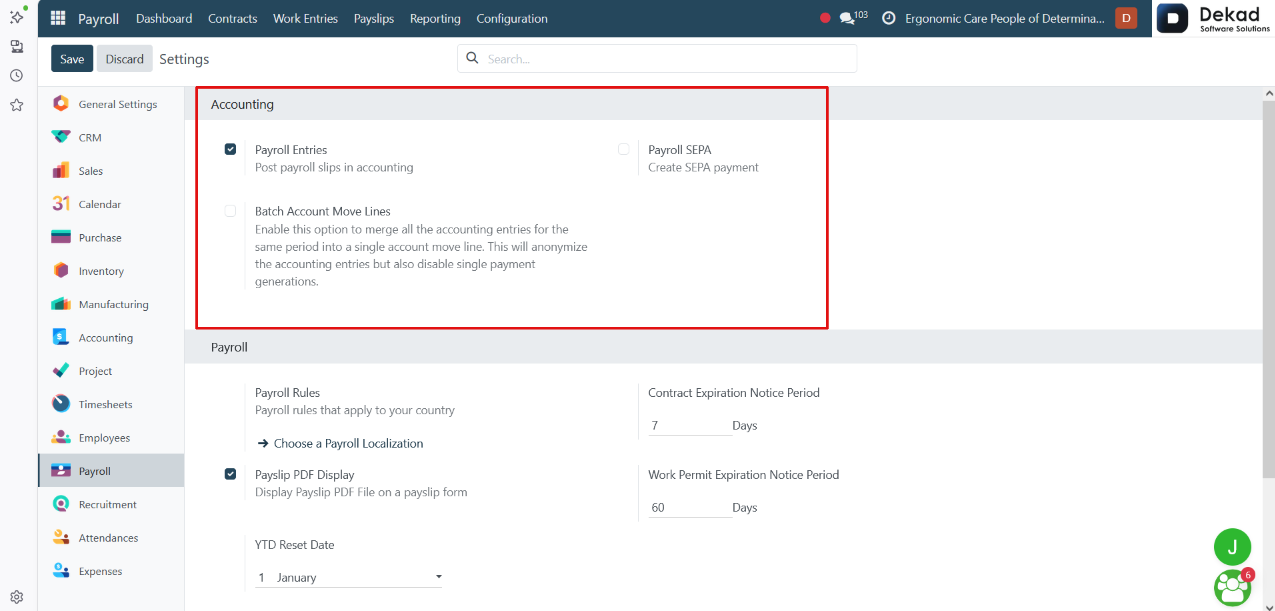
5.10.1 Accounting
The Accounting settings control how payroll
information is integrated with the accounting system.
• Payroll Entries: Posts payroll slips as accounting entries.
• Payroll SEPA: Enables the creation of SEPA payment
files for employee salary payments.
• Batch Account Move Lines: Merges accounting entries
for the same payroll period into a single account
move line. This simplifies accounting records but
disables individual payment generation.
These settings help automate payroll accounting and ensure
payroll transactions are accurately recorded in the
company's financial records.
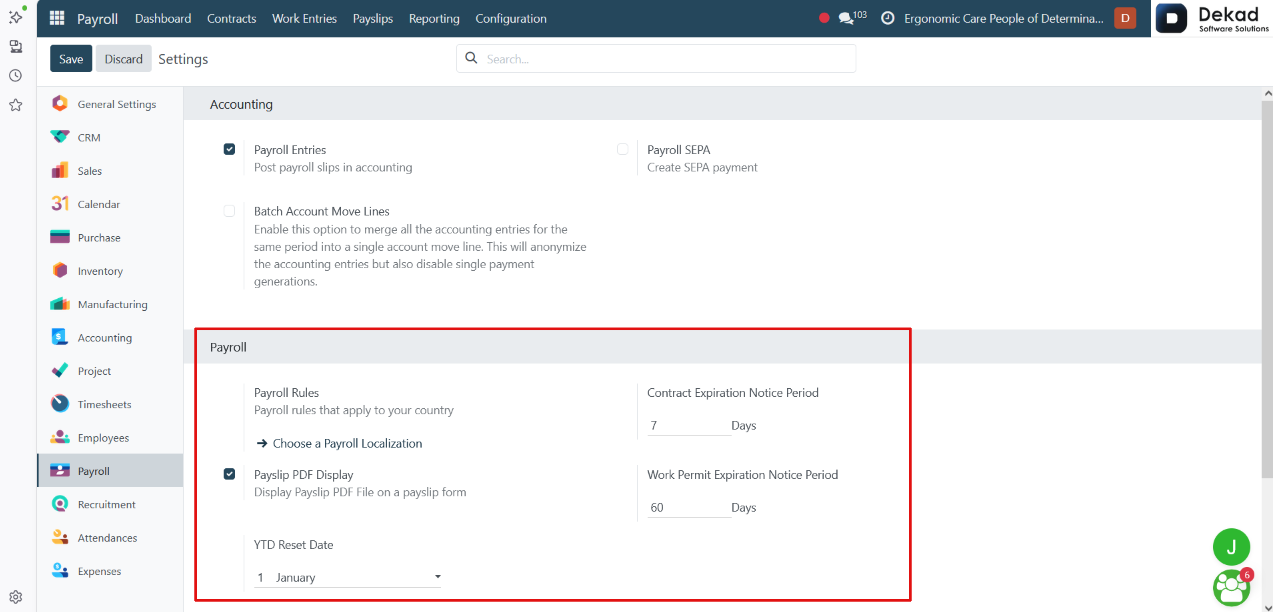
5.10.2 Payroll
The Payroll settings allow users to configure
general payroll options and notifications.
• Payroll Rules: Defines the payroll rules that apply based on the selected country.
• Contract Expiration Notice Period: Sets the number of days before
a contract expires that the system will display a reminder.
• Payslip PDF Display: Displays a PDF version of the payslip directly from the payslip form.
• Work Permit Expiration Notice Period: Sets the number of days before
an employee's work permit expires that the system will display a reminder.
• YTD Reset Date: Defines the date on which the system resets
the Year-to-Date (YTD) payroll totals for the new payroll year.
These settings help manage payroll rules, employee
documents, and payroll notifications more efficiently.
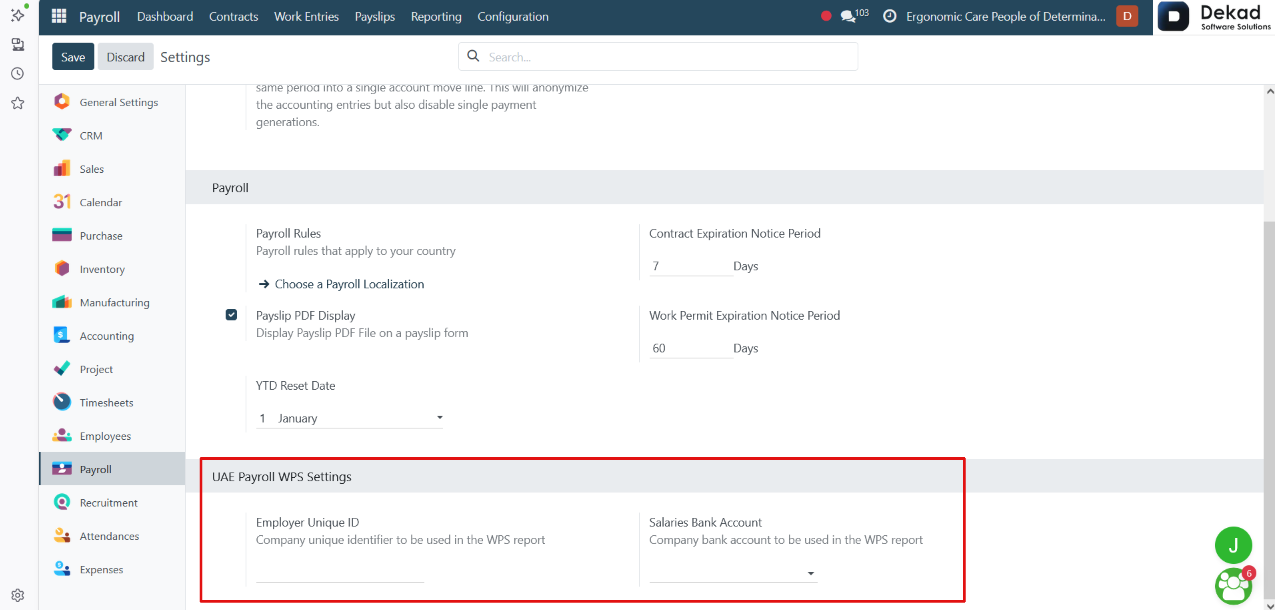
5.10.3 UAE Payroll WPS Settings
The UAE Payroll WPS Settings section is used to configure
the information required for generating WPS
(Wages Protection System) reports in compliance
with UAE payroll regulations.
• Employer Unique ID: The unique company identifier used in the WPS report.
• Salaries Bank Account: The company bank account used to process
employee salary payments and generate the WPS report.
These settings ensure that WPS reports are generated correctly
and comply with UAE payroll requirements.