2. Leads
A Lead represents a potential customer
who has shown initial interest in a
product or service. At this stage,
the information available about the
prospect may be limited, and further
qualification is required before
considering it a sales opportunity.
Leads help organizations collect,
review, and evaluate potential
customers before converting them
into opportunities within the CRM
pipeline.
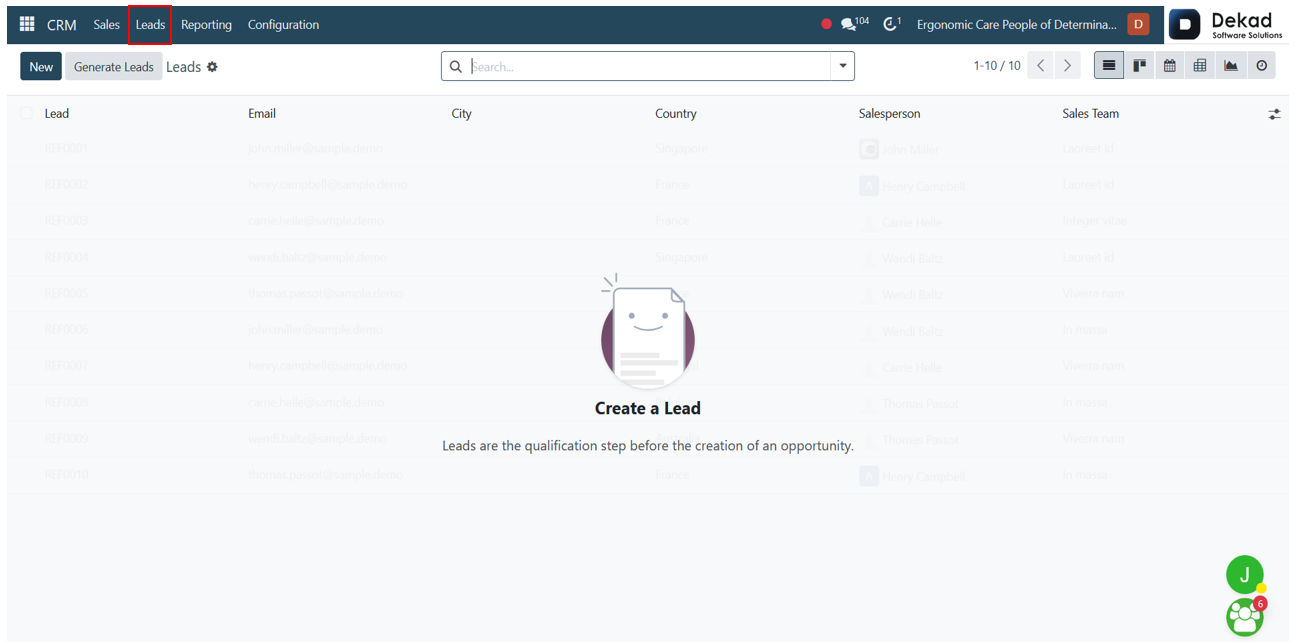
To access lead management features,
navigate to the Leads menu from
the main navigation bar of the
CRM module. This menu provides
access to all lead records and
related lead management operations.
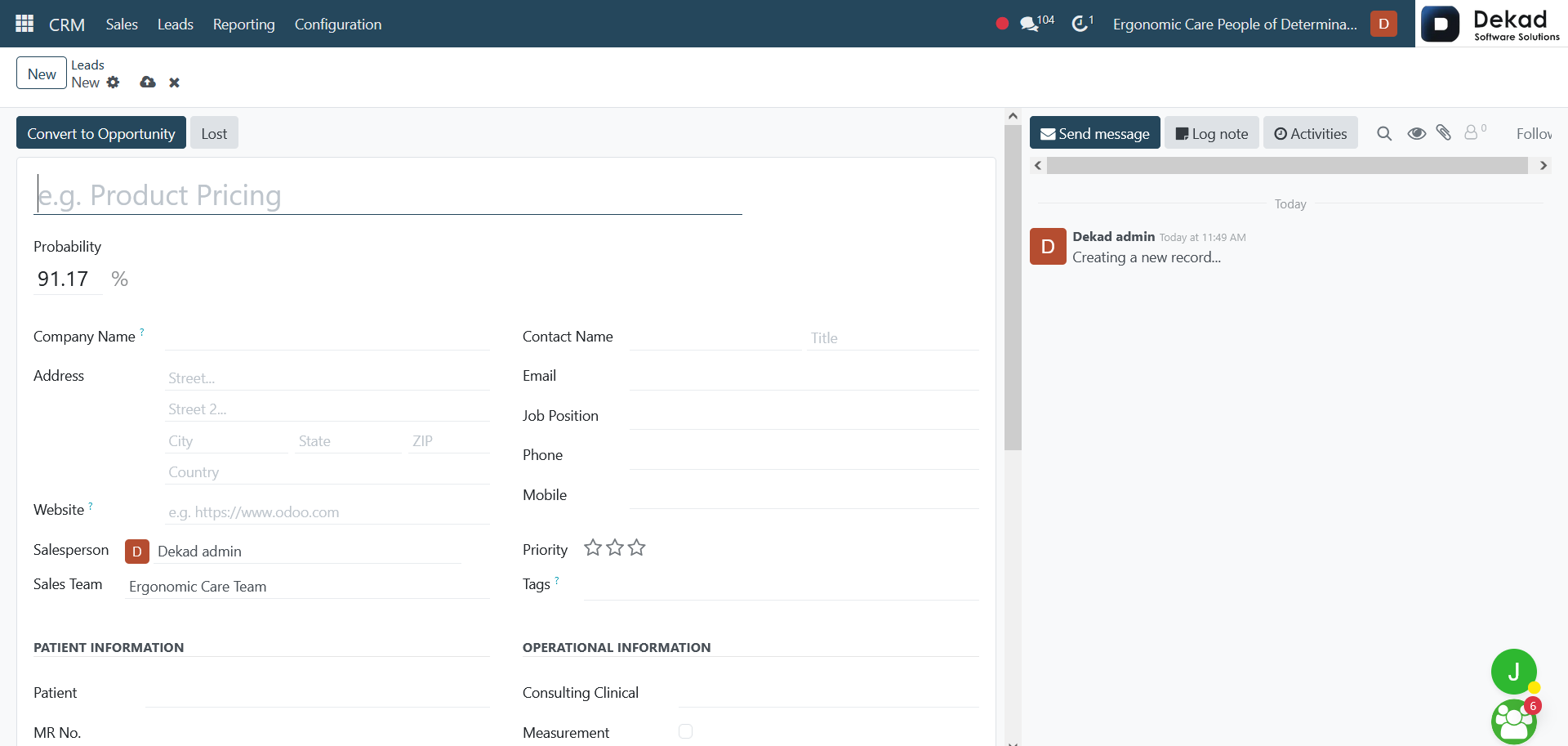
To create a new lead, click the
New button in the Leads menu.
This opens the lead creation
form, where users can enter
the initial information related
to a potential customer.

Lead Details
The lead form contains several
fields used to record information
about a potential customer.
The Lead Title identifies the lead,
while Company Name and Contact Name
store the customer's company and
contact details. The Email and
Phone fields are used for
communication purposes.
The Priority field helps indicate
the importance of the lead. A medium
priority is used for standard leads, a high
priority is assigned to important leads that
require timely follow-up, and a very high priority
is reserved for leads with strong potential or
urgent business value.
Additional fields, such as the assigned
salesperson and sales team, help organize
lead management and ensure that the
appropriate team members are responsible
for follow-up activities.
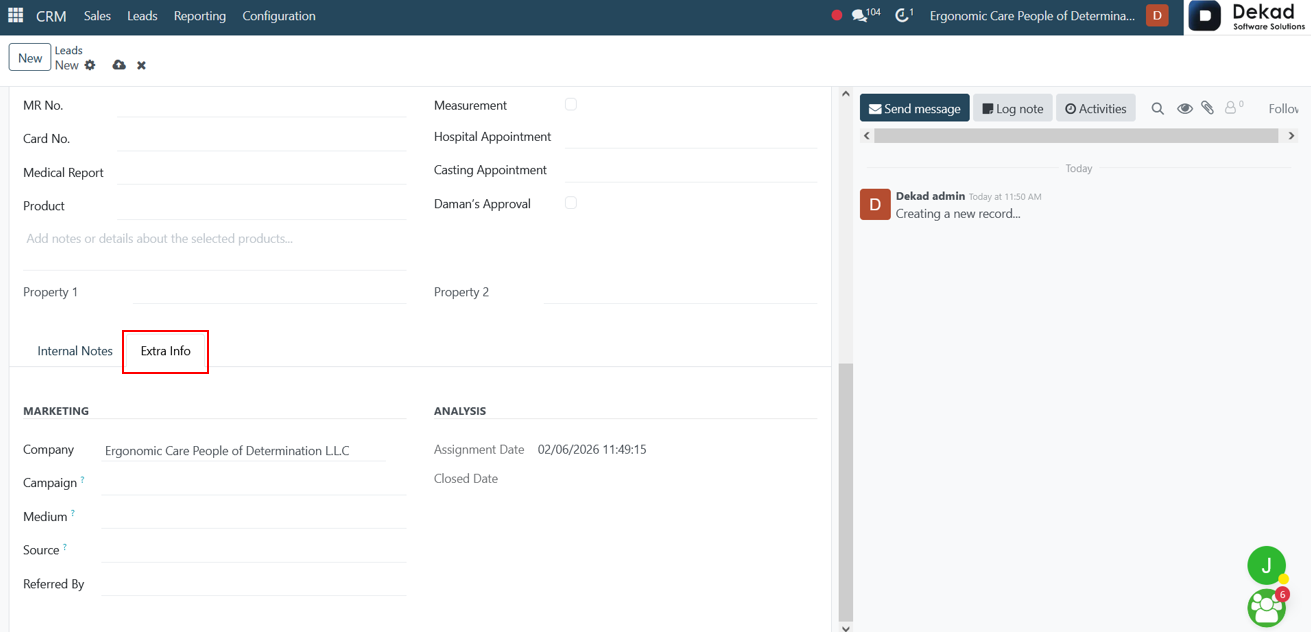
Extra Information
The Extra Information tab
allows users to enter additional
details related to the lead. This
section includes contact information,
marketing data, and tracking details
that help provide a more complete
view of the potential customer.
Recording this information
improves lead management,
follow-up activities, and
reporting within the CRM module.
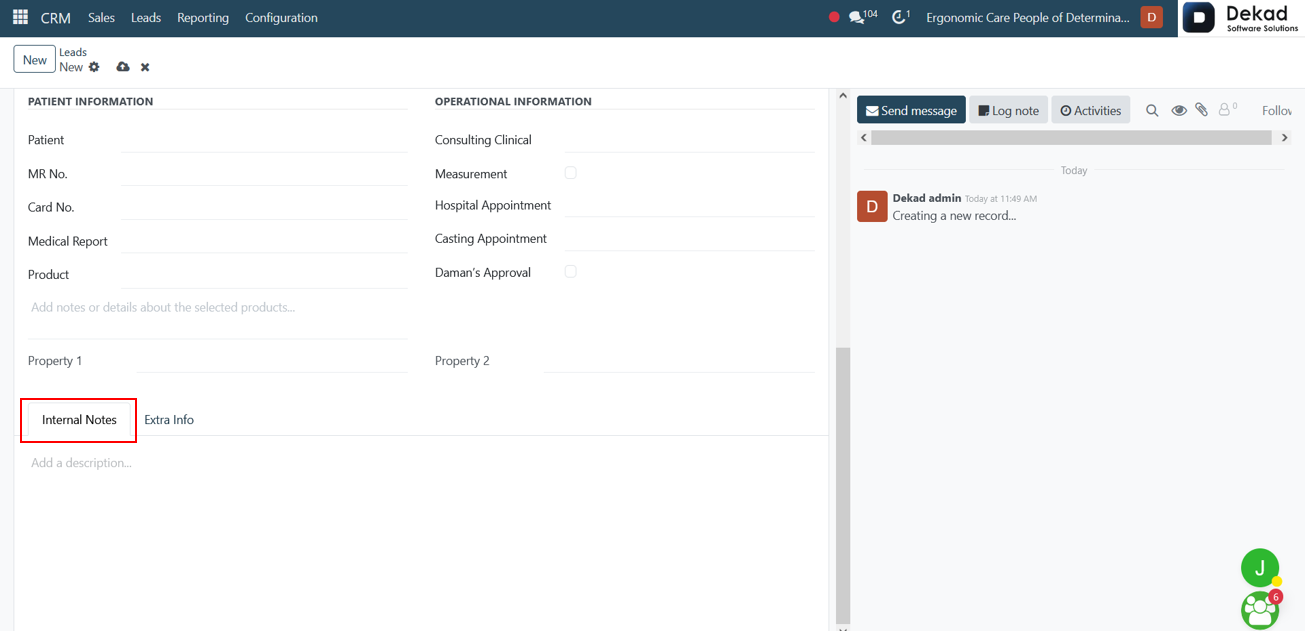
Internal Notes
The Internal Notes tab allows users
to record private notes related
to the lead. This section can be
used to document customer requirements,
communication details, follow-up
information, observations, or any
other relevant remarks. These notes
are intended for internal use and
help team members maintain a clear
history of interactions and important
information associated with the lead.
Chatter Panel
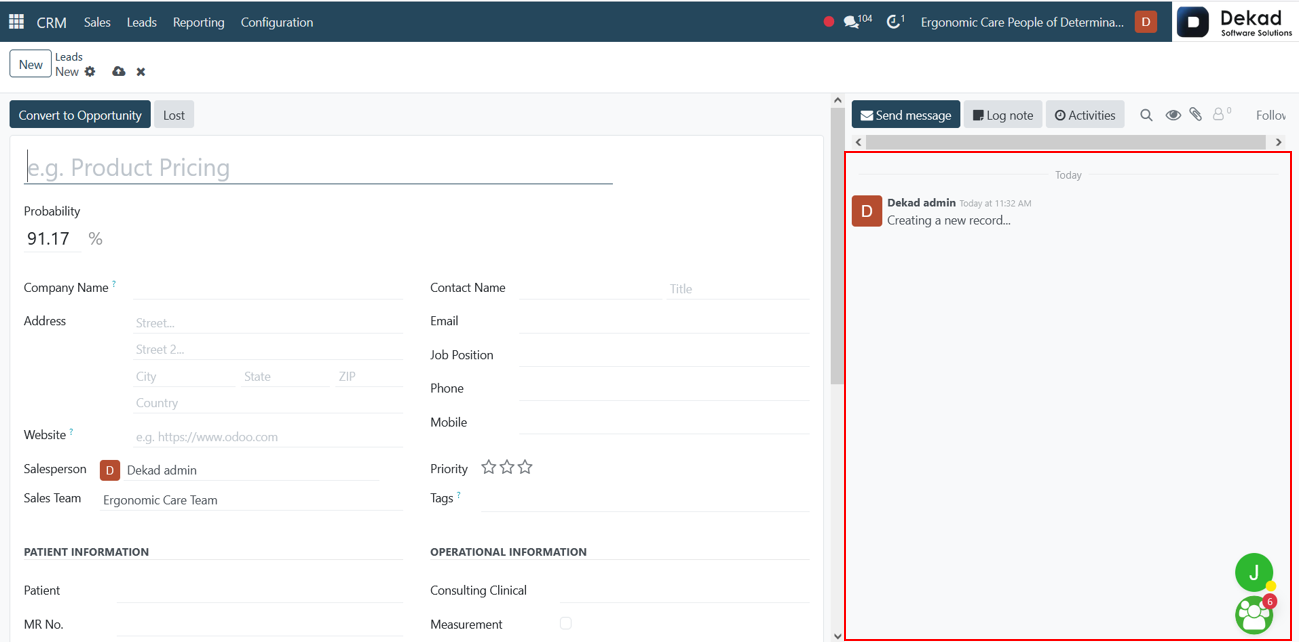
The chatter panel on the right
side of the lead form records
all important activities and updates
related to the lead. Users can view
status changes, logged notes, scheduled
activities, messages, and other
modifications. Each update is
displayed along with the user who
performed the action, providing
better tracking, transparency,
communication, and accountability
throughout the lead management process.
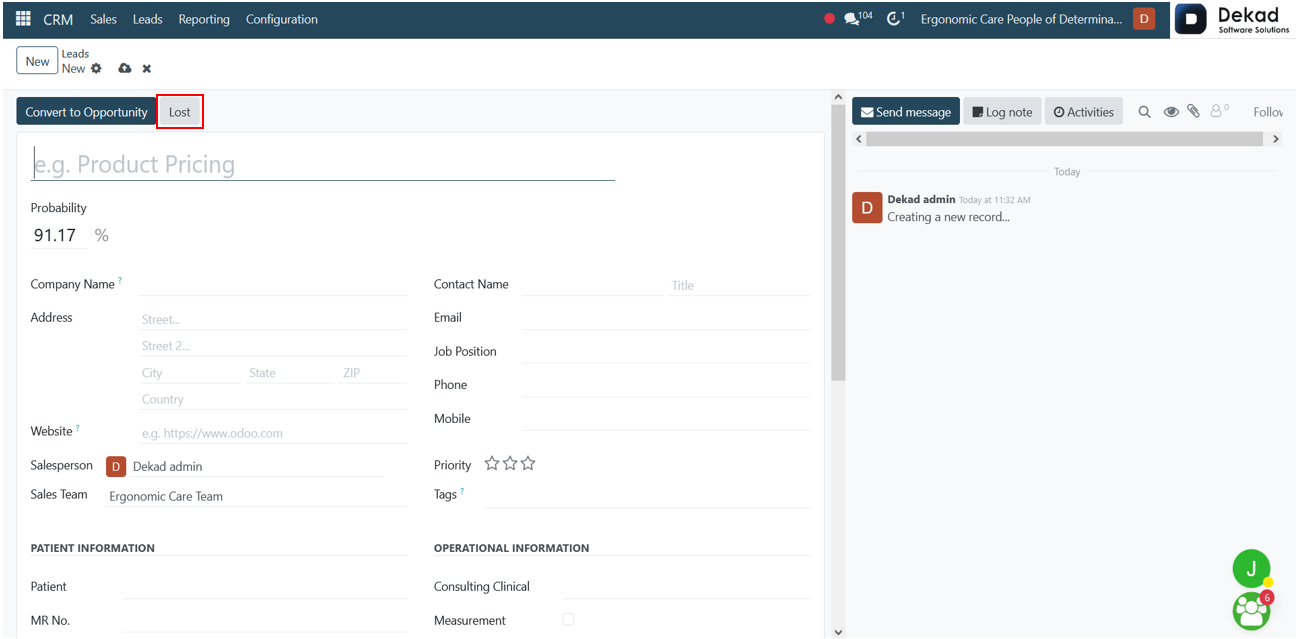
Convert Lead to Opportunity
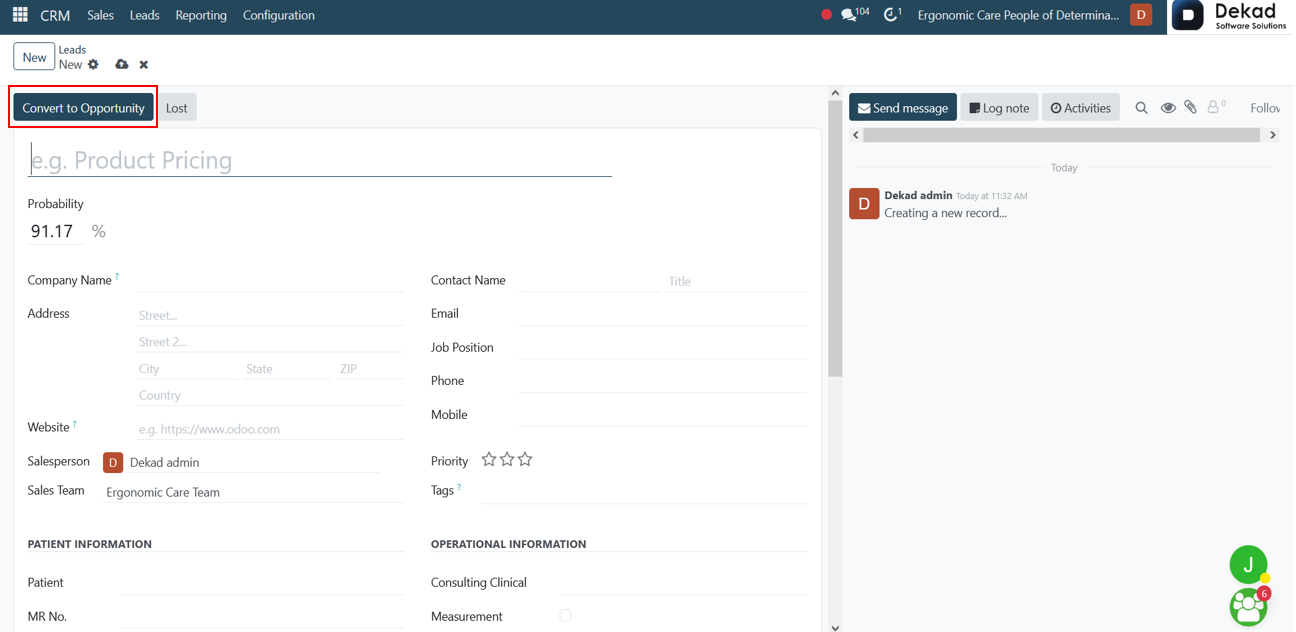
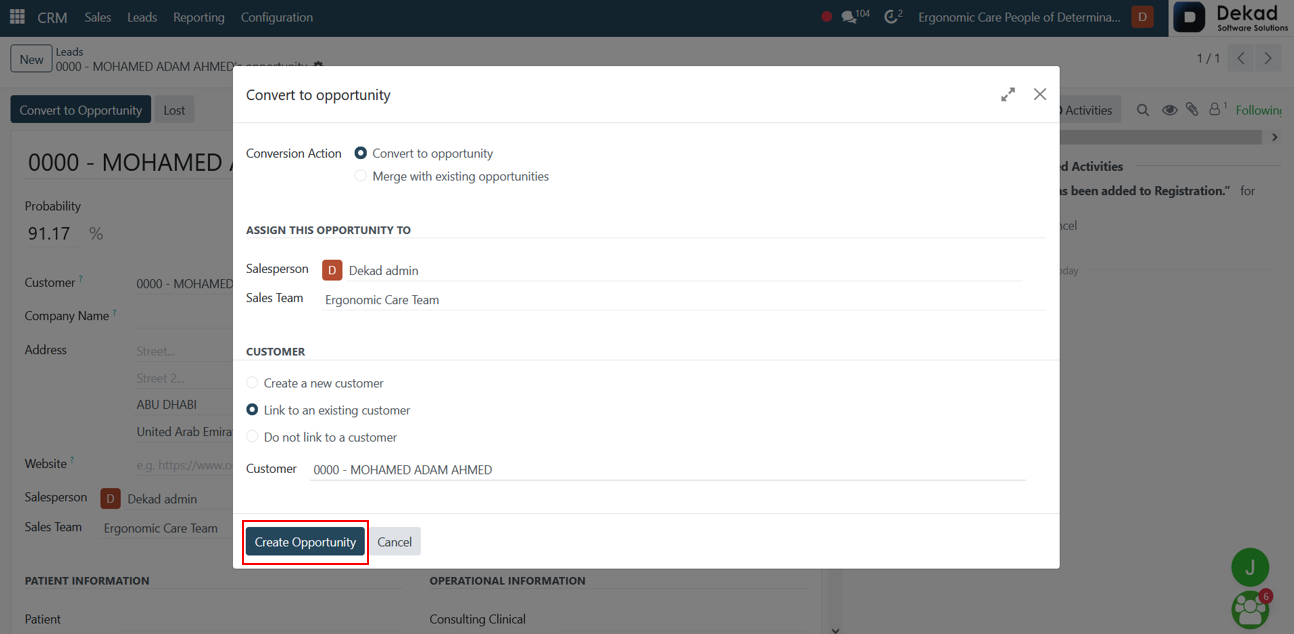
To convert a lead into an opportunity,
open the lead record and click
the Convert to Opportunity button.
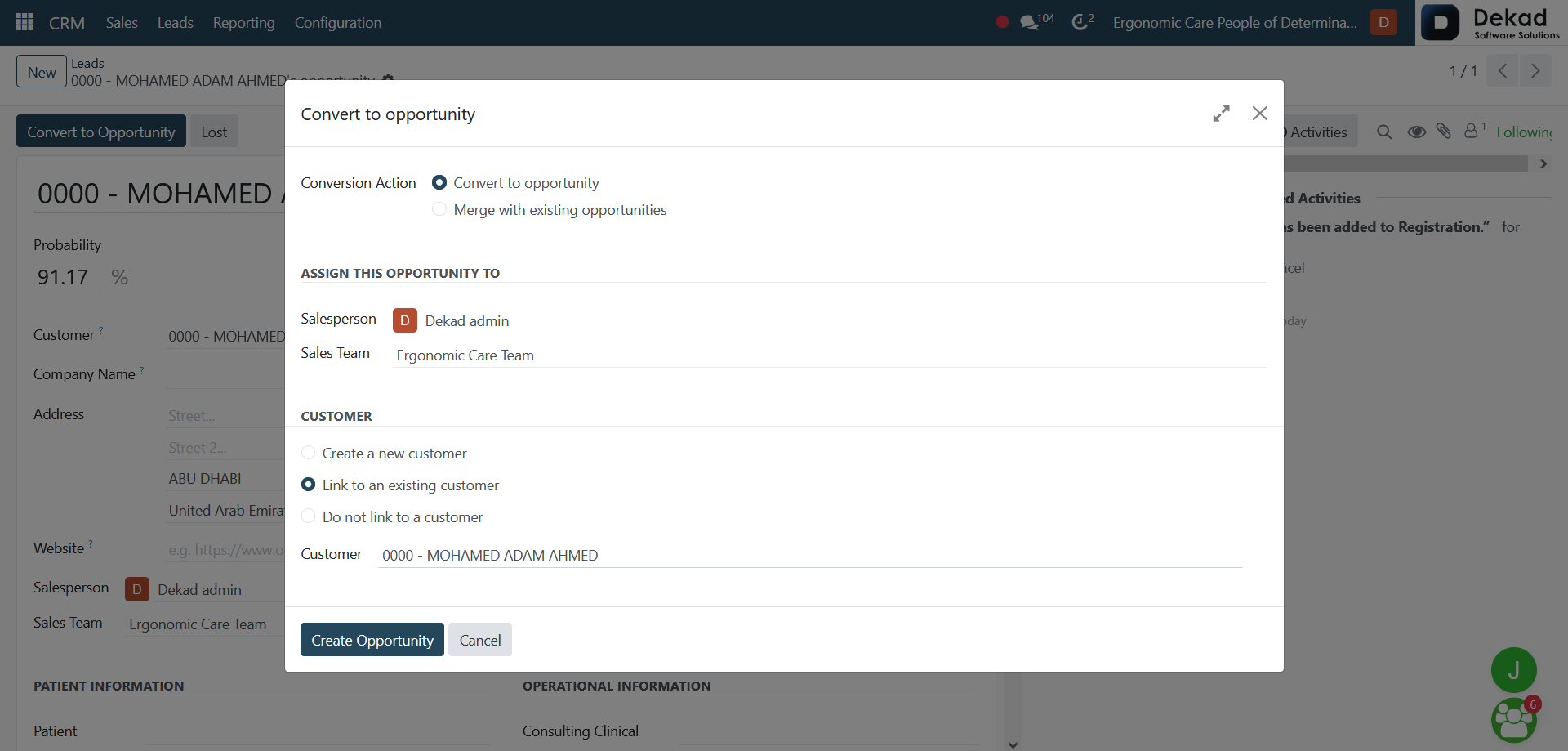
A conversion window will appear,
allowing users to assign a salesperson,
select a sales team, and choose whether
to create a new customer or link the
opportunity to an existing customer.
After clicking Convert to Opportunity,
a conversion window appears where users
can configure the opportunity settings
before creating it in the CRM pipeline.
Click Create Opportunity to
convert the lead into an opportunity
and add it to the CRM sales pipeline
for further follow-up and management.
Lost Leads
If a lead is no longer considered
a potential business opportunity,
it can be marked as Lost. This
option is used when the prospect
is not interested, does not meet
the required criteria, or decides
not to proceed with the company's
products or services. When marking
a lead as lost, users can specify
a lost reason and add additional
notes for future reference. Recording
lost leads helps maintain an accurate
CRM database and provides valuable
insights for sales analysis and
performance improvement.