3. Configuration
The Configuration section allows administrators to
customize and manage the settings used in the
Employees module.
It provides options to configure employee management
features, organizational structure, work locations,
onboarding and offboarding processes, skills, and
other HR-related settings. These configurations
help standardize employee records and ensure HR
processes are managed consistently across the
organization.
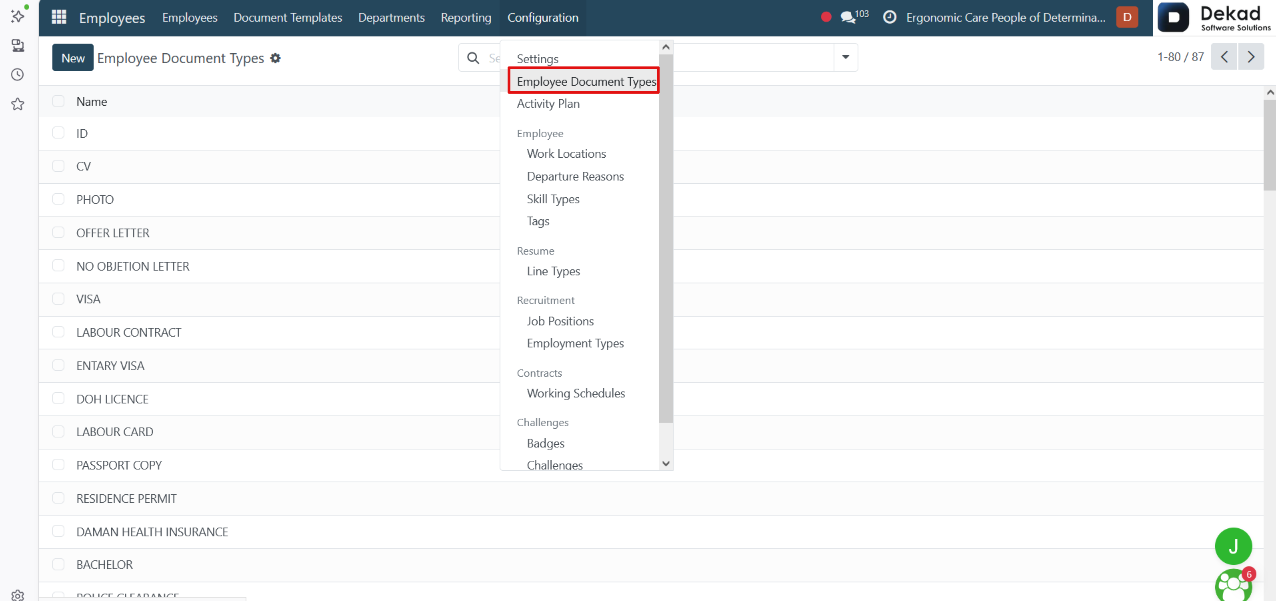
3.1 Employee Document Types
The Employee Document Types section is used to define
and manage the different categories of employee documents.
It allows users to create document types such as passports,
national ID cards, visas, employment contracts,
certificates, and other HR-related documents. These
document types help organize employee files, making
them easier to classify, search, and manage throughout
the employee lifecycle.
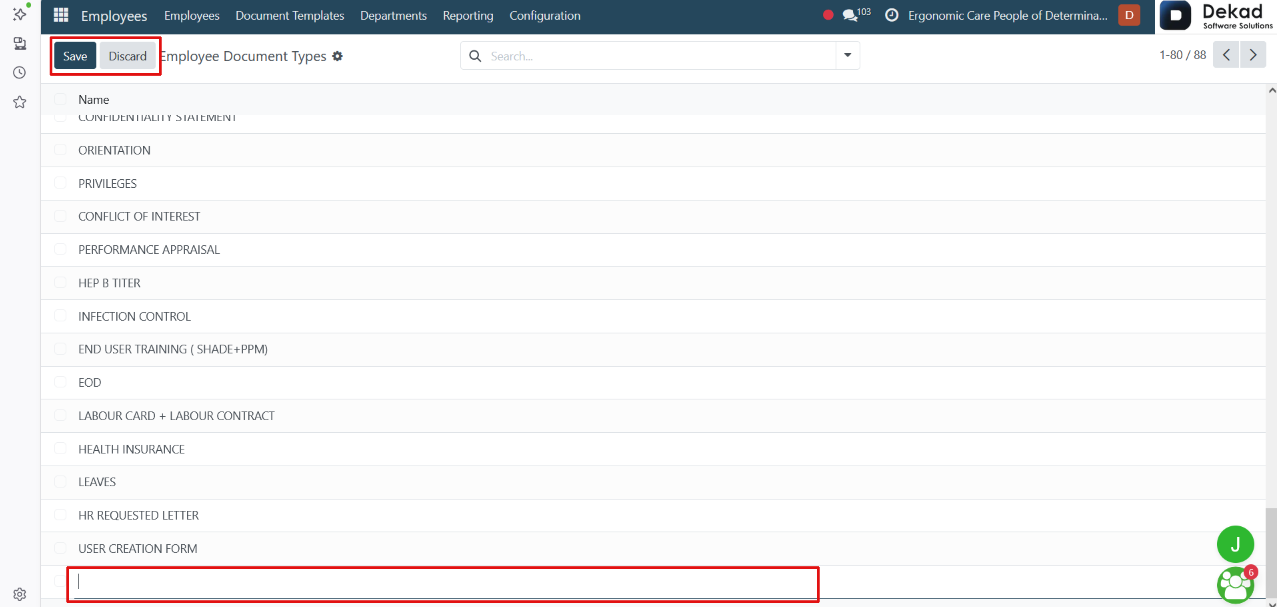
New Employee Document Type
By clicking the New button, a form is opened
to create a new employee document type.
Users can enter the document type name. After creating
the record, they can click Add a line to add one or more
document types. Once all required information has been
entered, users can either click Save to save the changes
or Discard to cancel them.
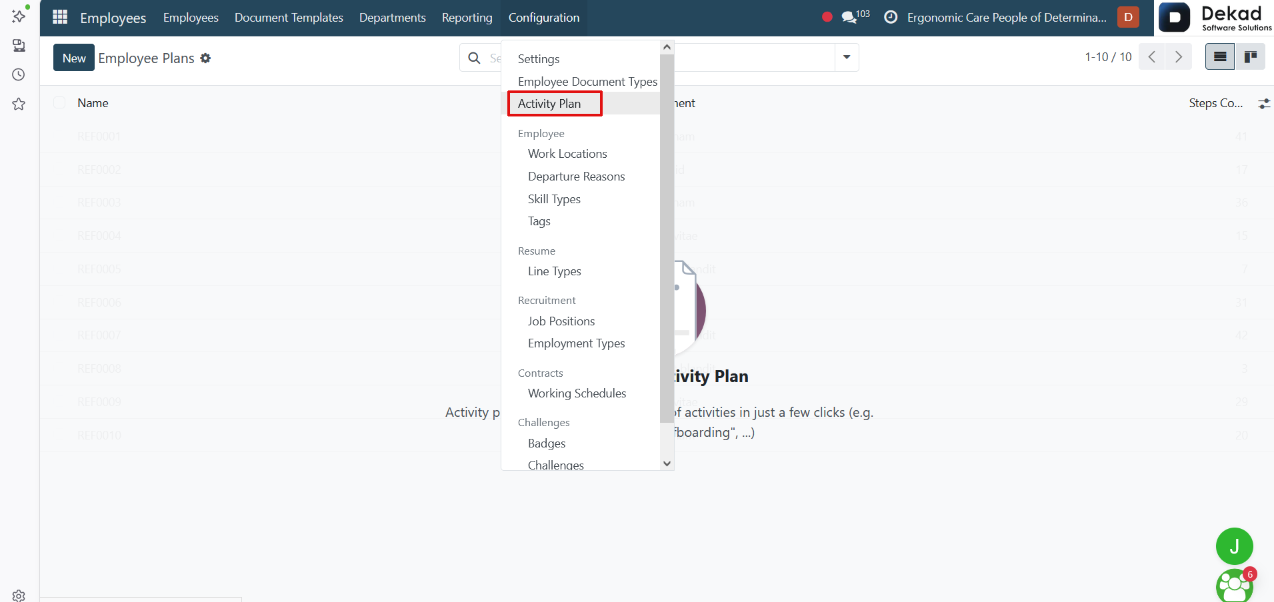
3.2 Activity Plans
The Activity Plans section is used to create and
manage predefined sets of activities for employees.
Activity plans help automate recurring HR processes,
such as onboarding and offboarding, by grouping multiple
tasks into a single reusable plan. Each plan can
include activities assigned to specific users or
departments, ensuring that required tasks are
completed in the correct order and at the
appropriate time.
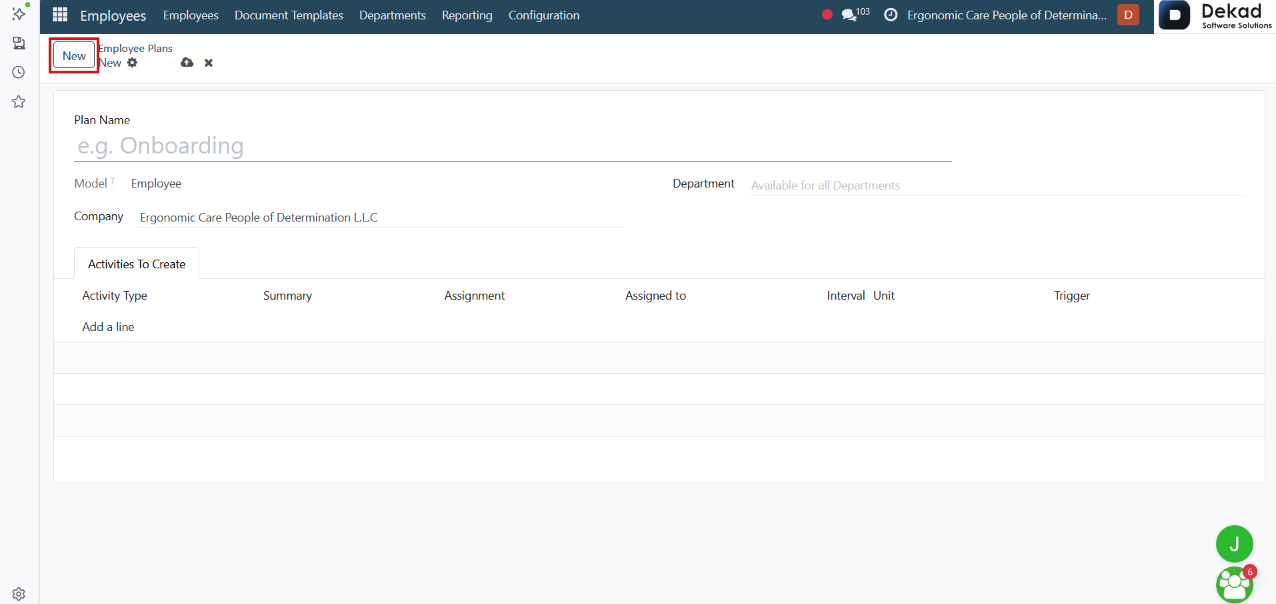
New Activity Plan
By clicking the New button, a form is opened to
create a new employee activity plan.
Users can enter the Plan Name, select the Department
and Company, then add the required activities using
the Add a Line option in the Activities To Create
tab. Each activity can include details such as
the activity type, summary, responsible user,
and notes.
Once all activities have been added, users can save
the plan, making it available for onboarding,
offboarding, or other employee-related processes.
3.3 Work Locations
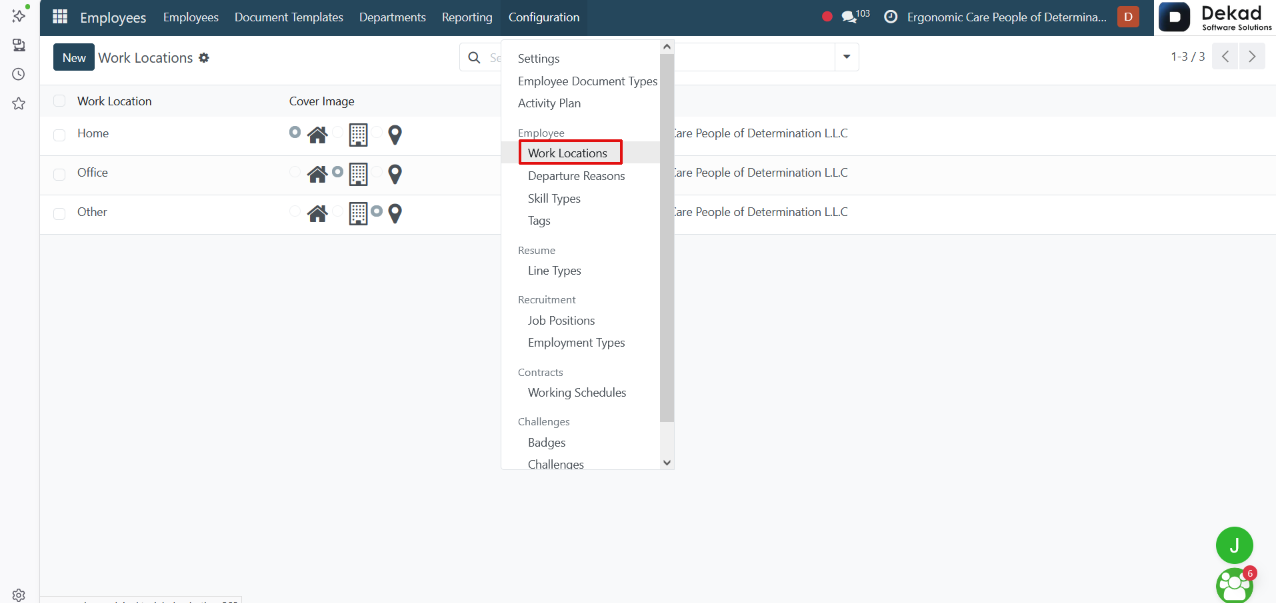
The Work Locations section is used to create and manage
the different locations where employees perform their work.
It allows users to define work locations such as offices,
branches, or remote workplaces and assign them to
employees. This helps organizations manage workplace
information and accurately identify where employees
are assigned to work.
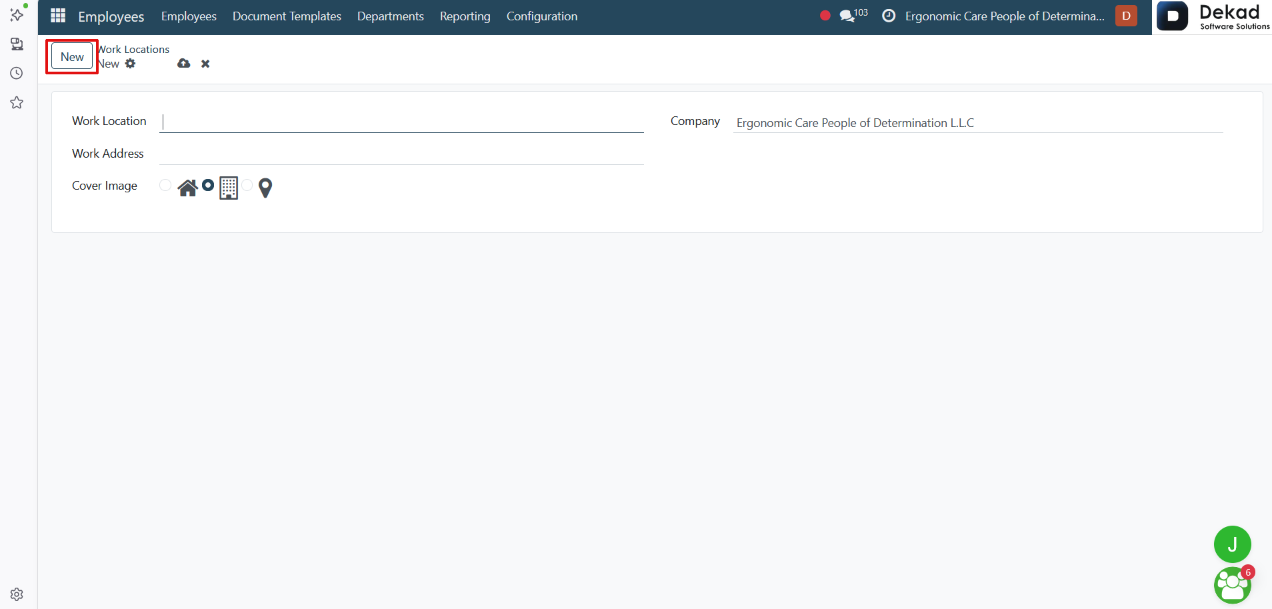
New Work Location
By clicking the Newbutton, a form is
opened to create a new work location.
Users can enter the Work Location name, select
the Work Address, choose a Cover Image to
represent the location, and assign it to a
Company. Once saved, the new work location
becomes available for assignment to employees
and can be used throughout the Employees module.
3.4 Departure Reasons
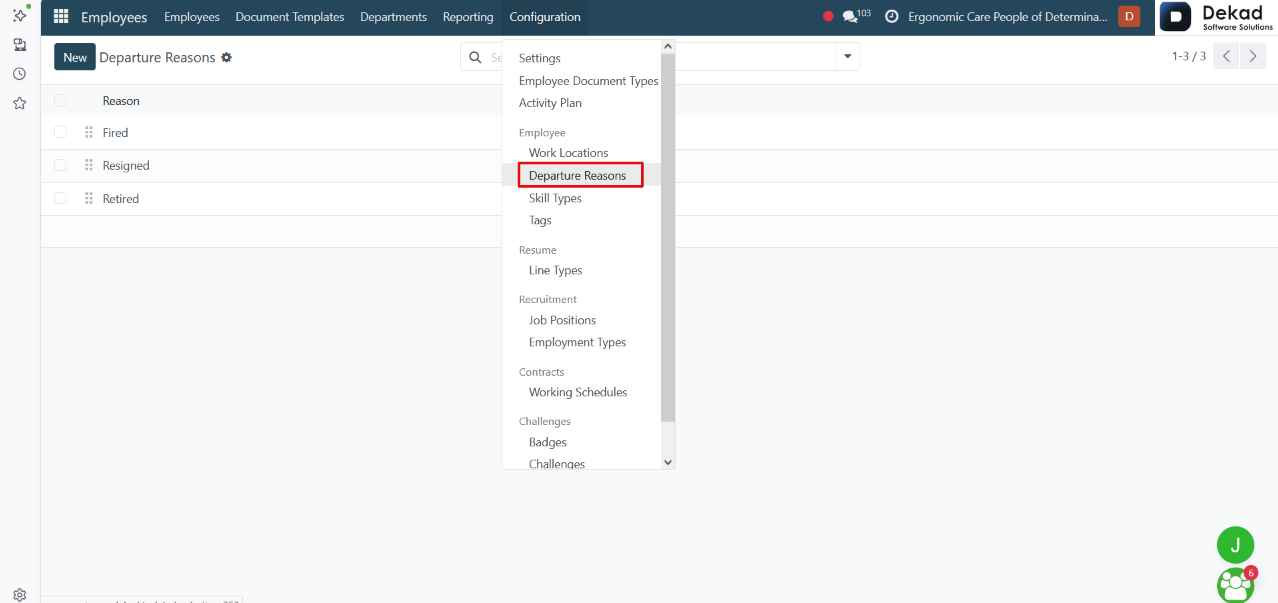
The Departure Reasons section is used to define and manage
the reasons why employees leave the company.
It allows users to create categories such as resignation,
retirement, termination, or contract completion. These
reasons can be selected when archiving an employee
record, helping organizations maintain accurate
employee records and analyze workforce turnover.
New Departure Reason
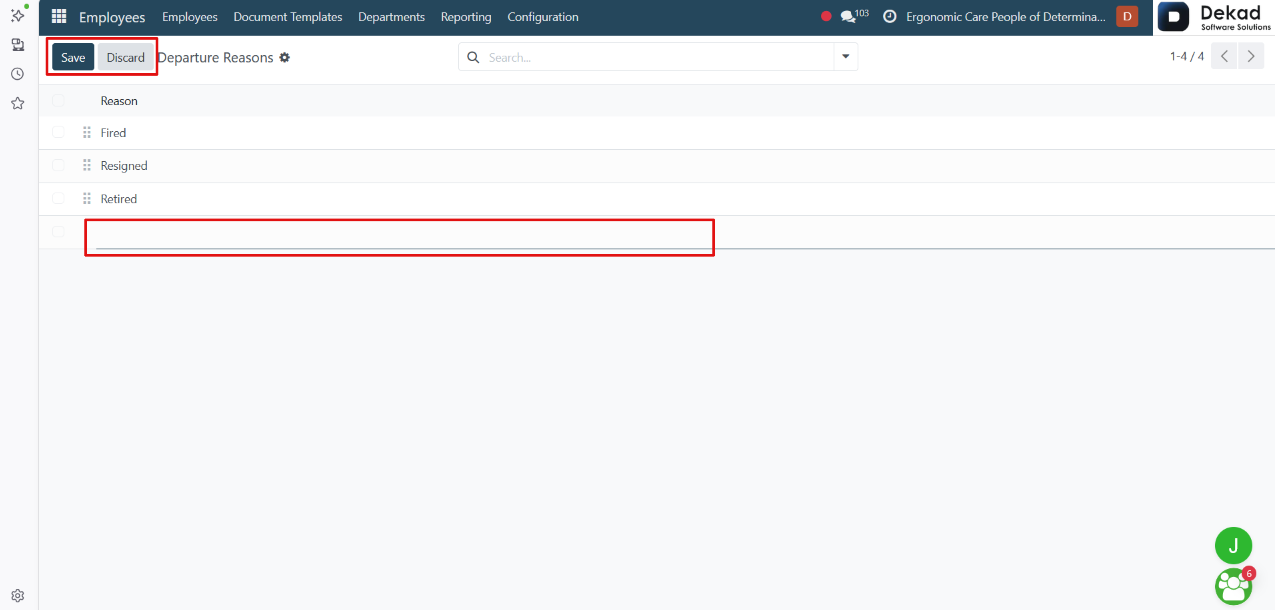
By clicking the New button, a blank line appears at
the bottom of the list where users can enter a new
departure reason. Once the required information has
been entered, users can click Save to save the new
reason or Discard to cancel the changes.
3.5 Skill Types
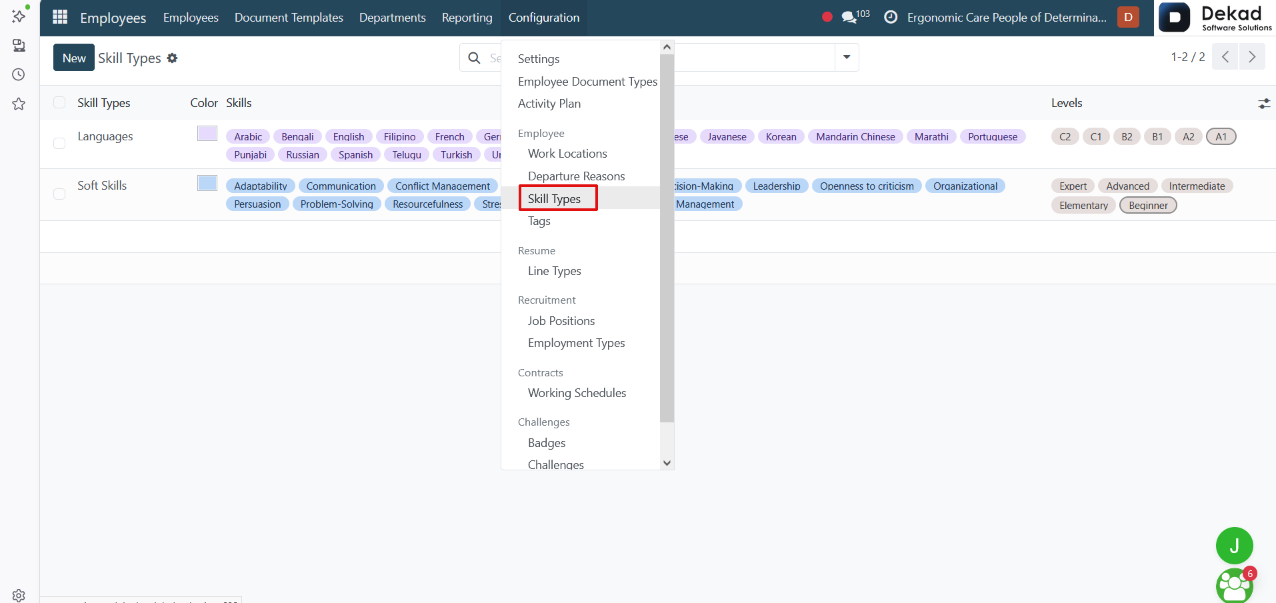
The Skill Types section is used to define and
organize different categories of employee skills.
It allows users to create skill types such as languages,
technical skills, certifications, or soft skills.
Each skill type can contain multiple individual
skills and proficiency levels, making it easier
to classify and manage employee competencies
across the organization.
New Skill Type
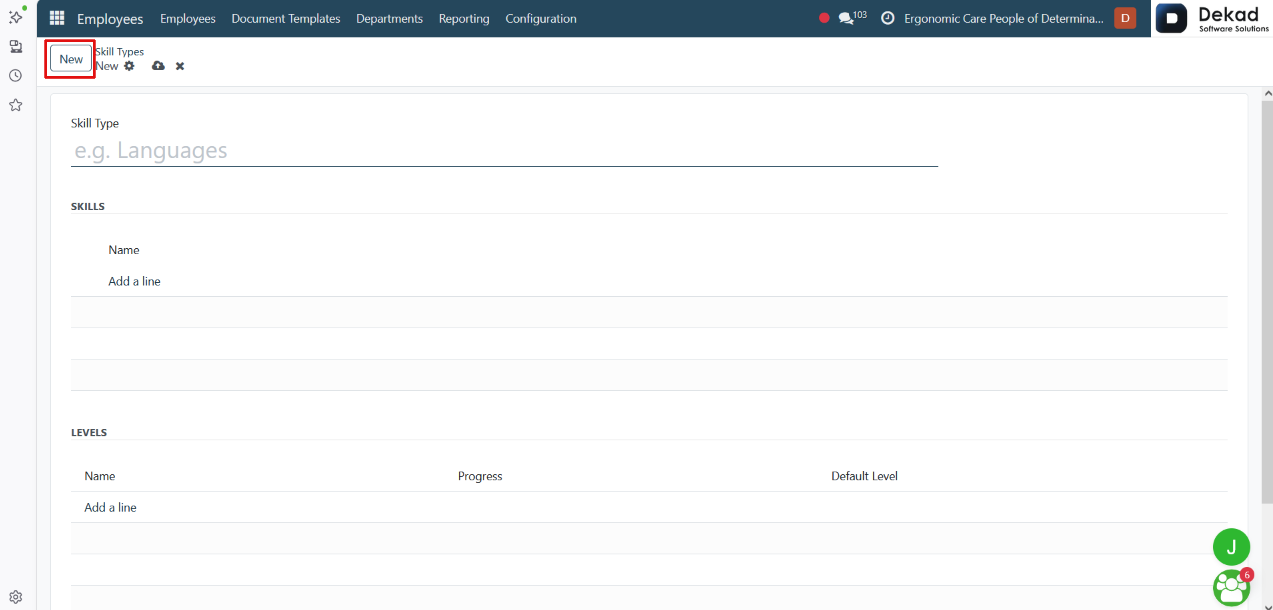
By clicking the New button, a form is
opened to create a new skill type.
Users can enter the Skill Type name, optionally select
a Color, indicate whether it is a Certification,
then use Add a Line to add the related Skills and
define the corresponding Levels with their progress.
Once all information has been entered, users can
click Save to create the skill type or Discard to
cancel the changes.
3.6 Tags
The Tags section is used to create and manage labels
that help categorize and organize employee records.
Tags can be used to classify employees based on specific
attributes, making it easier to search, filter, group,
and manage employee information throughout the system.
New Tag
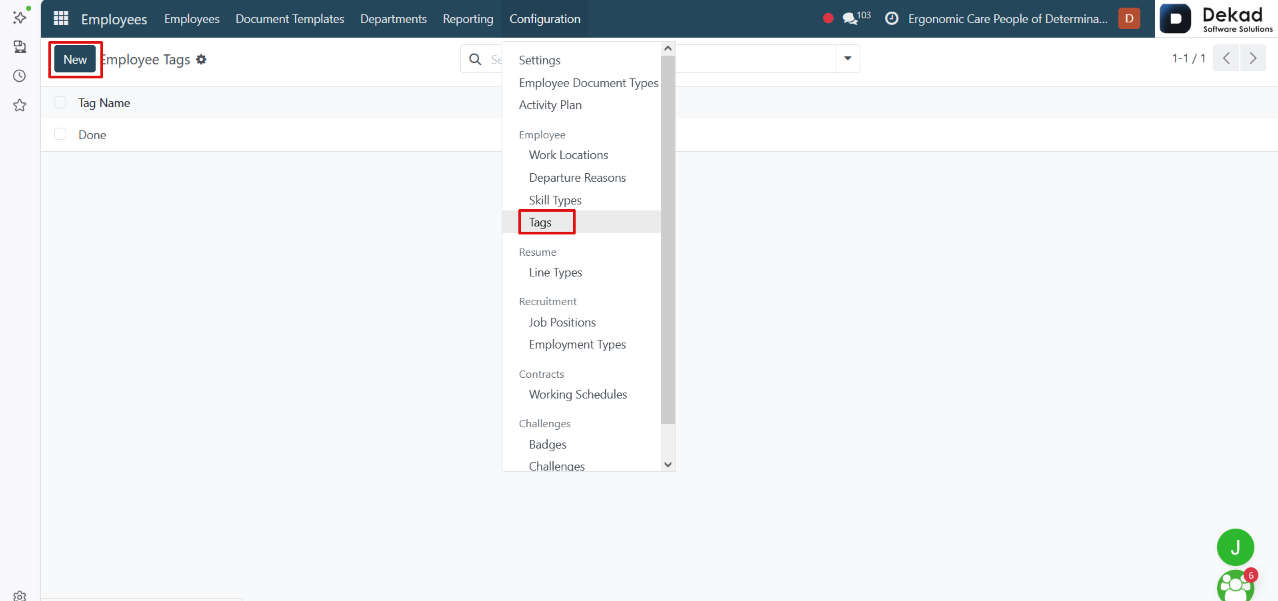
By clicking the New button, a form is opened to create a new tag.
Users can enter the Tag Name and select a Color
for easy visual identification. Once saved, the
tag becomes available for assignment to employee
records and can be used for filtering and organization.
3.7 Line Types
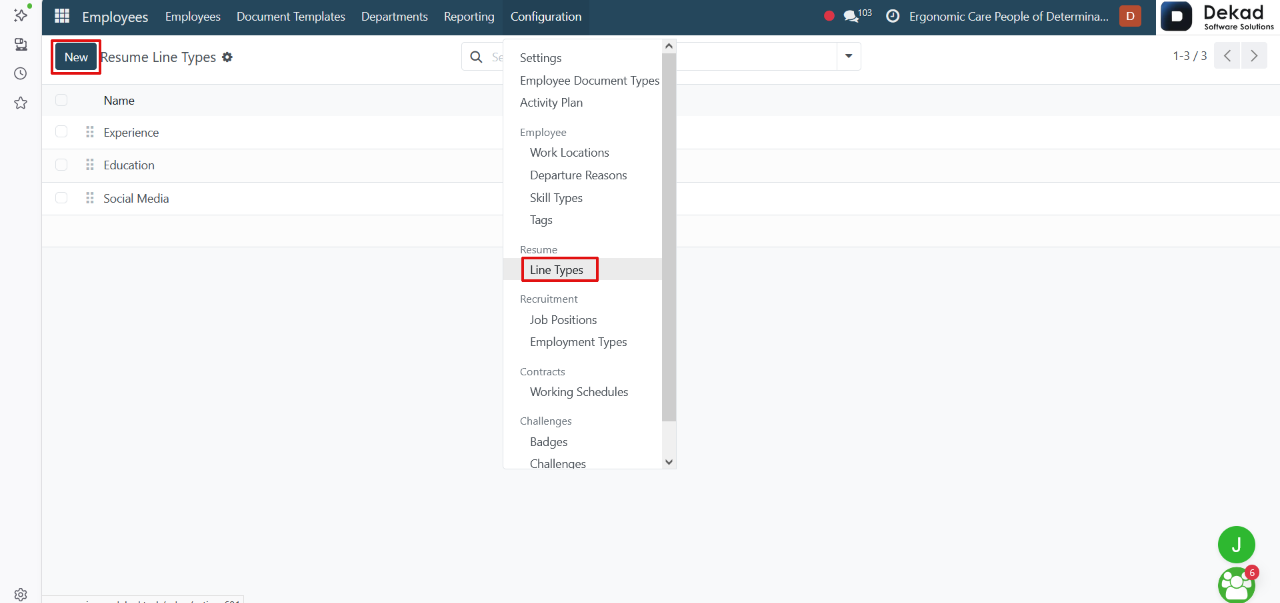
The Line Types section is used to define different
categories of resume or employee profile lines inside
the Employees configuration.
It allows users to organize information that appears
in the employee profile, such as work experience,
education, certifications, or other resume-related
entries. Each line type helps structure how employee
background information is displayed and categorized
within the system.
To create a new line type, users simply click the New
button and enter the name of the line type. Once saved,
it becomes available for use in employee profiles to
properly classify resume information.
3.8 Job Positions
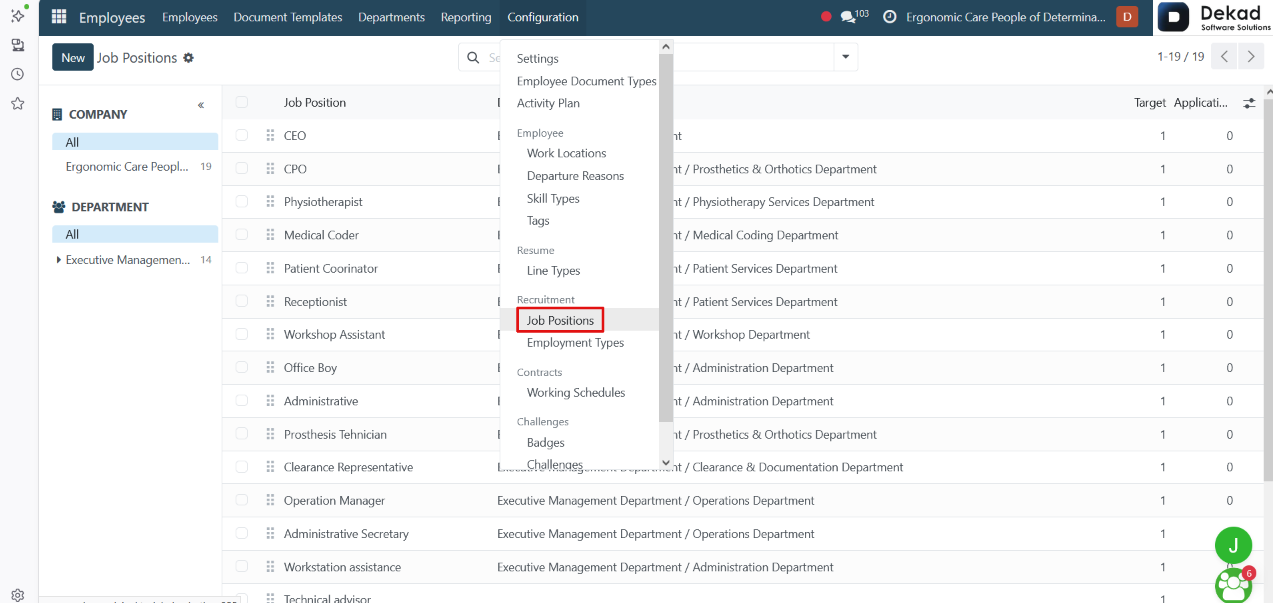
The Job Positions section is used to create and manage
the different job roles within the organization.
It allows users to define positions such as Manager,
Accountant, Sales Representative, or HR Officer.
These job positions can then be assigned to employees
and are used to organize the workforce, support
recruitment, and maintain accurate employee
records across the HR system.
New Job Position
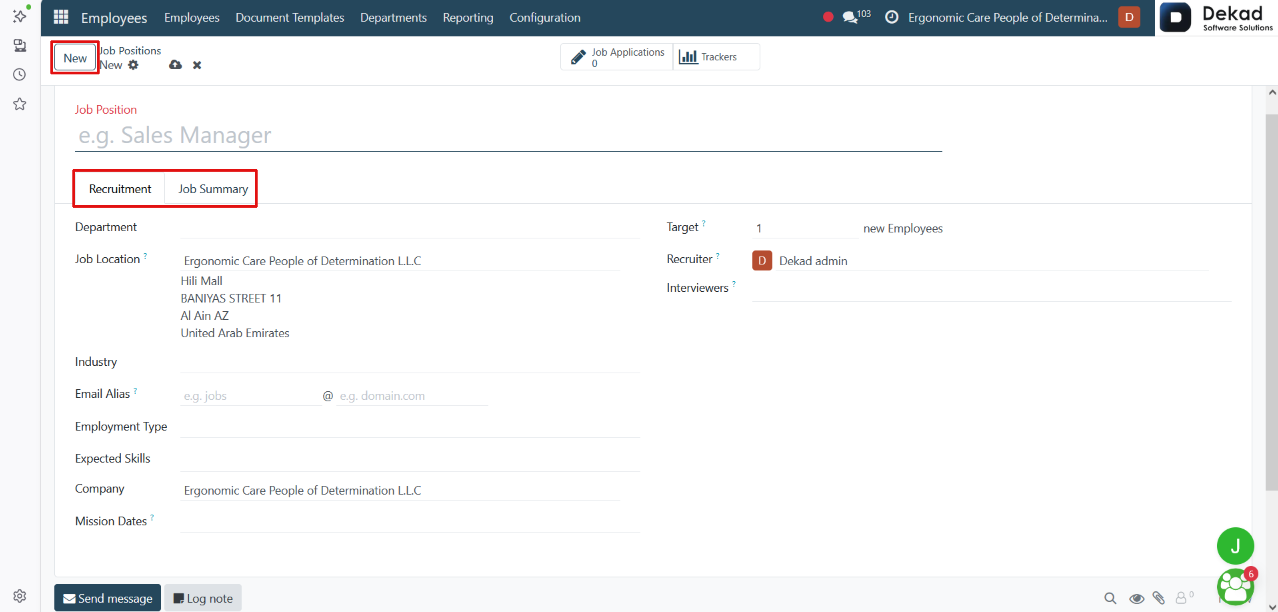
By clicking the New button, a form is opened to
create a new job position in the Recruitment module.
It includes details such as Department, Job Location,
Industry, Email Alias, Employment Type, Expected Skills,
Company, Mission Dates, Target (number of employees to hire)
, Recruiter, and Interviewers.
It also includes job information like Job Summary, which
describes the role and is used to present the job
position inside the system and on the company’s job listings.
The job position can be linked to the Recruitment process,
where it is used to attract candidates, publish job openings,
and manage applications. This ensures that the job information
is visible to applicants and properly connected to the
hiring workflow.
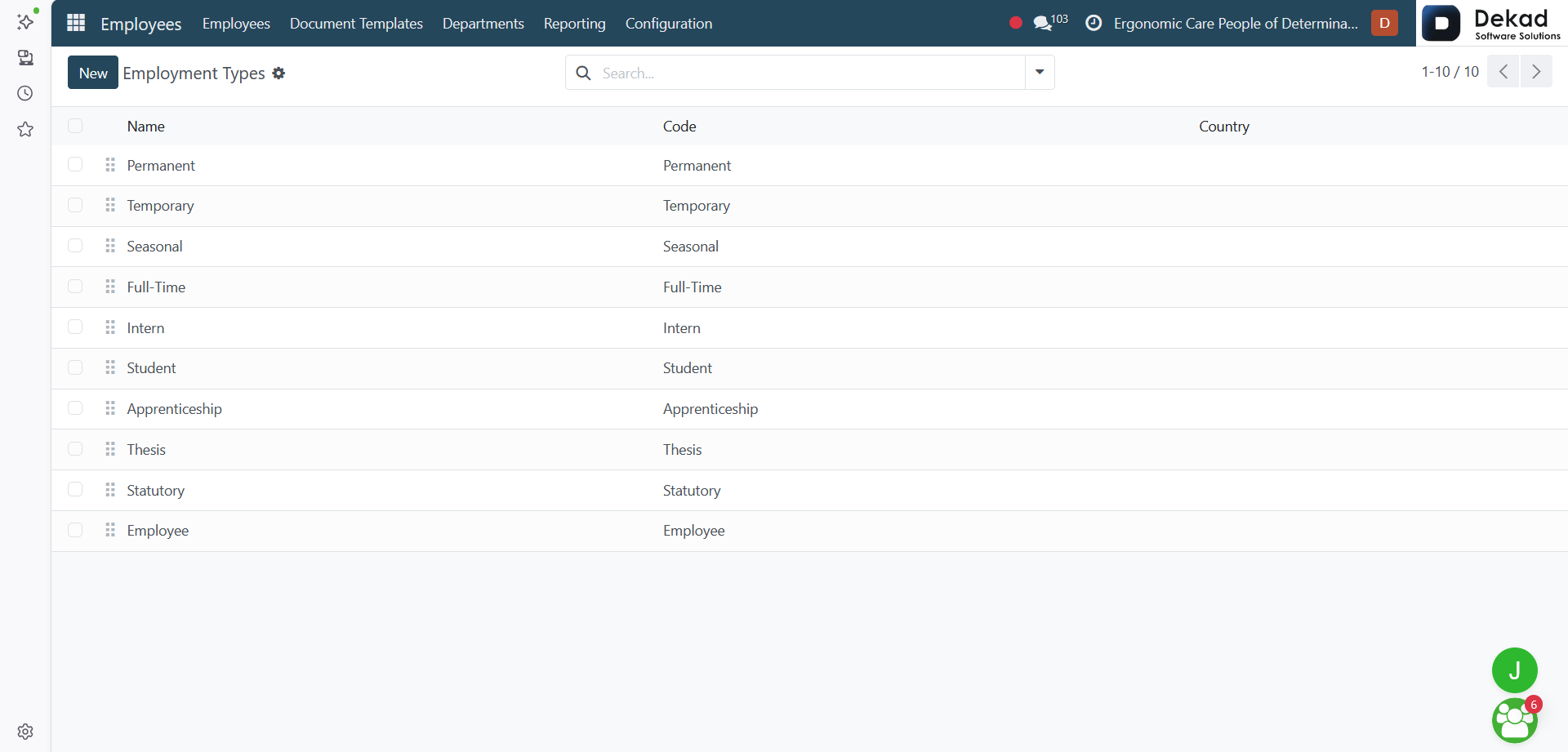
3.9 Employment Types
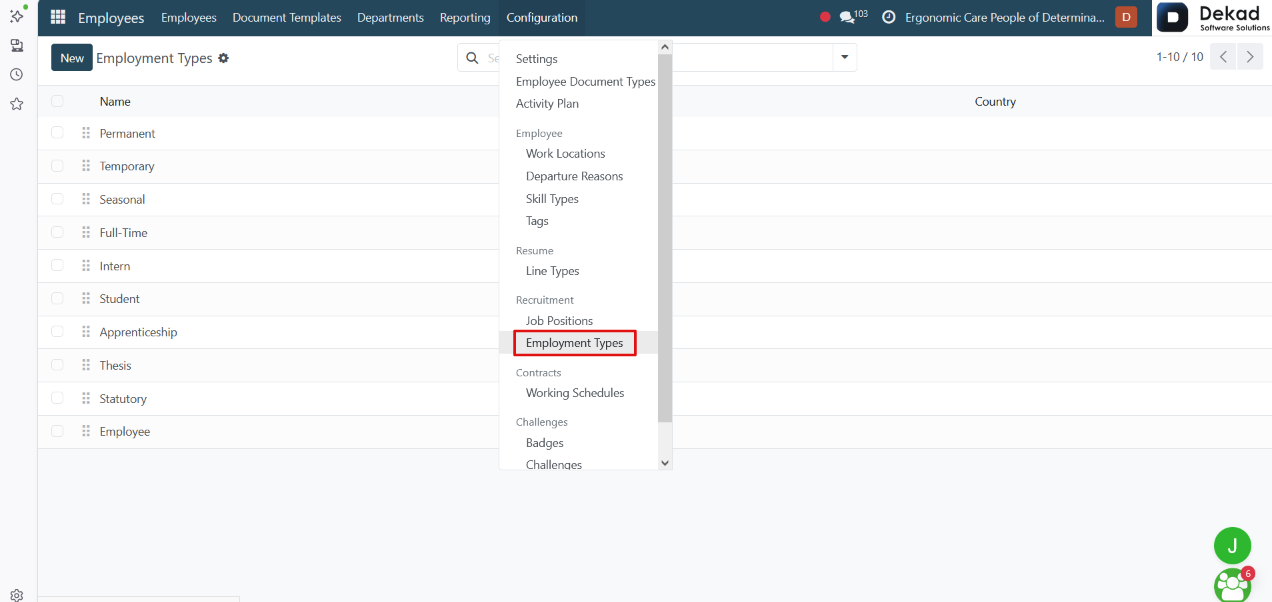
The Employment Types section is used to define different
categories of employees based on their working
relationship with the company.
It includes details such as full-time, part-time,
permanent, temporary, contract, or internship types.
These categories help determine working hours,
contract conditions, salary structure, and employee
benefits within the organization.
New Employment Type
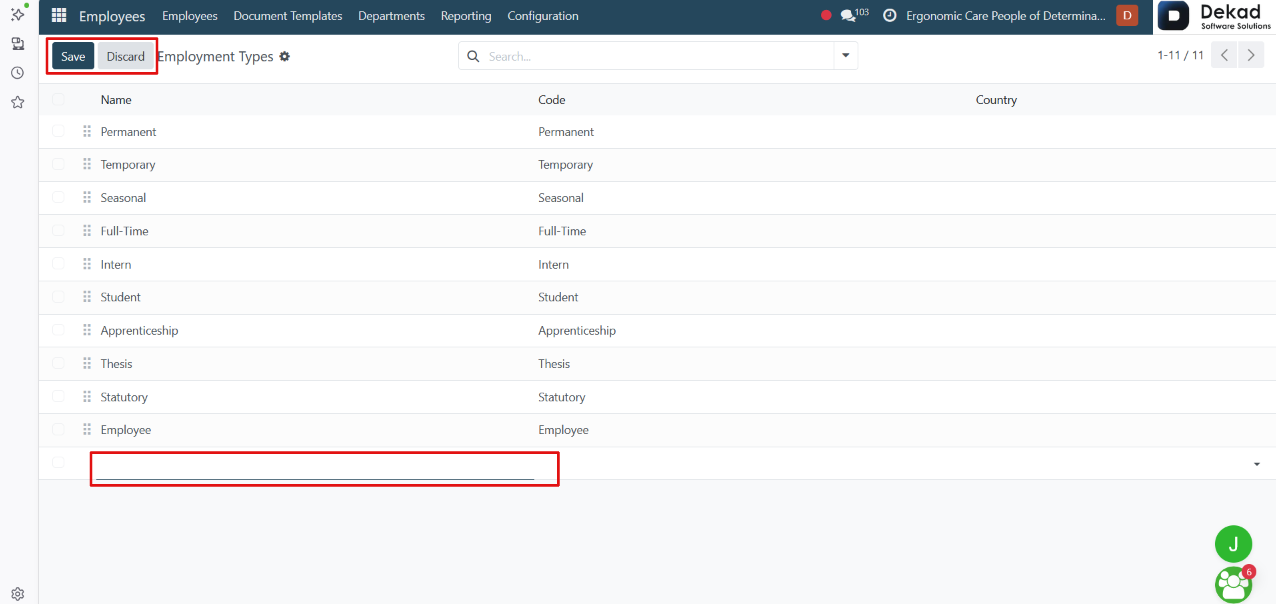
By clicking the New button, a new line appears
below where users can enter a new employment type.
Users can add the employment type name, and once finished
they can either click Save to confirm the entry or
Discard to cancel it. After saving, the new employment
type is added to the list and becomes available for
selection in employee configuration and records.
3.10 Working Schedules
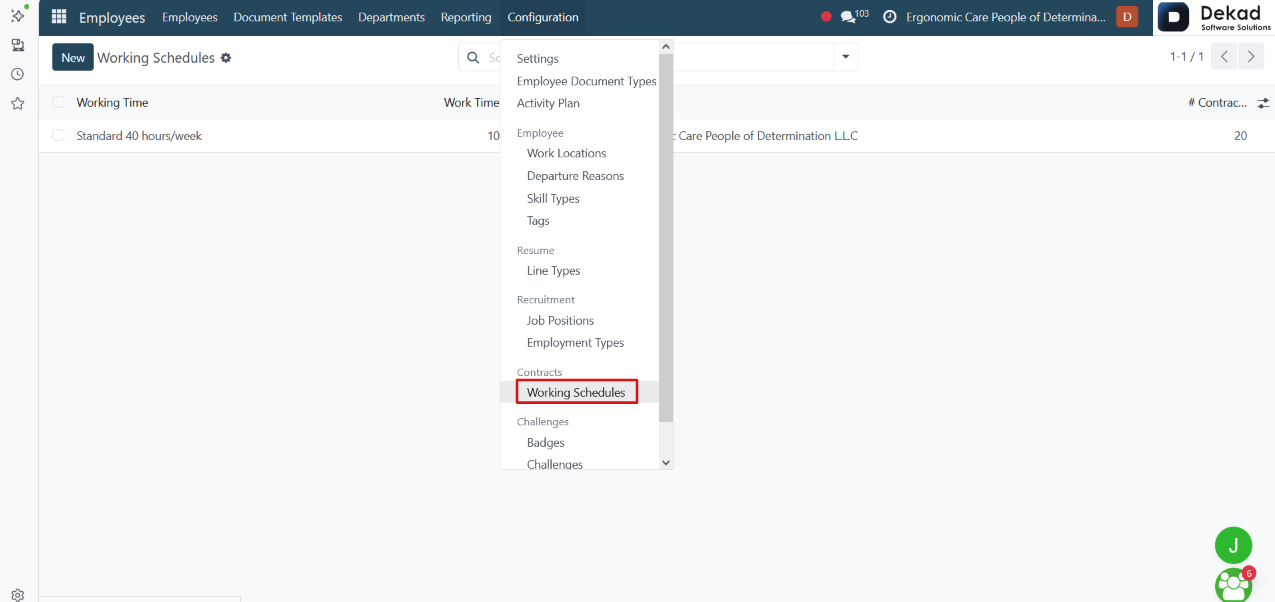
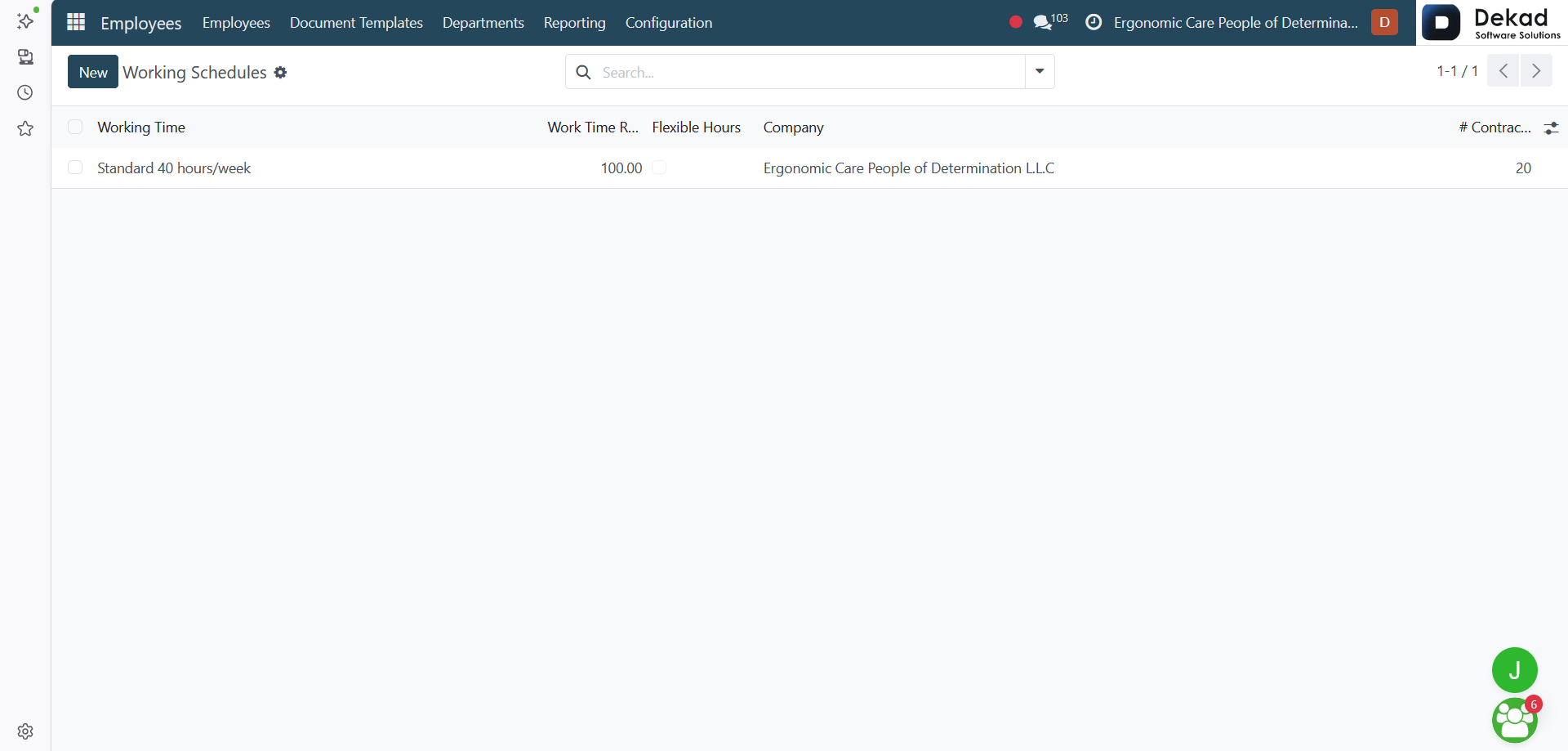
The Working Schedules section is used to define the
working time structure for employees within the company.
It includes details such as working days, working hours,
and shift patterns. These schedules determine how
employee attendance is calculated and how work entries,
absences, and payroll are processed in the system.
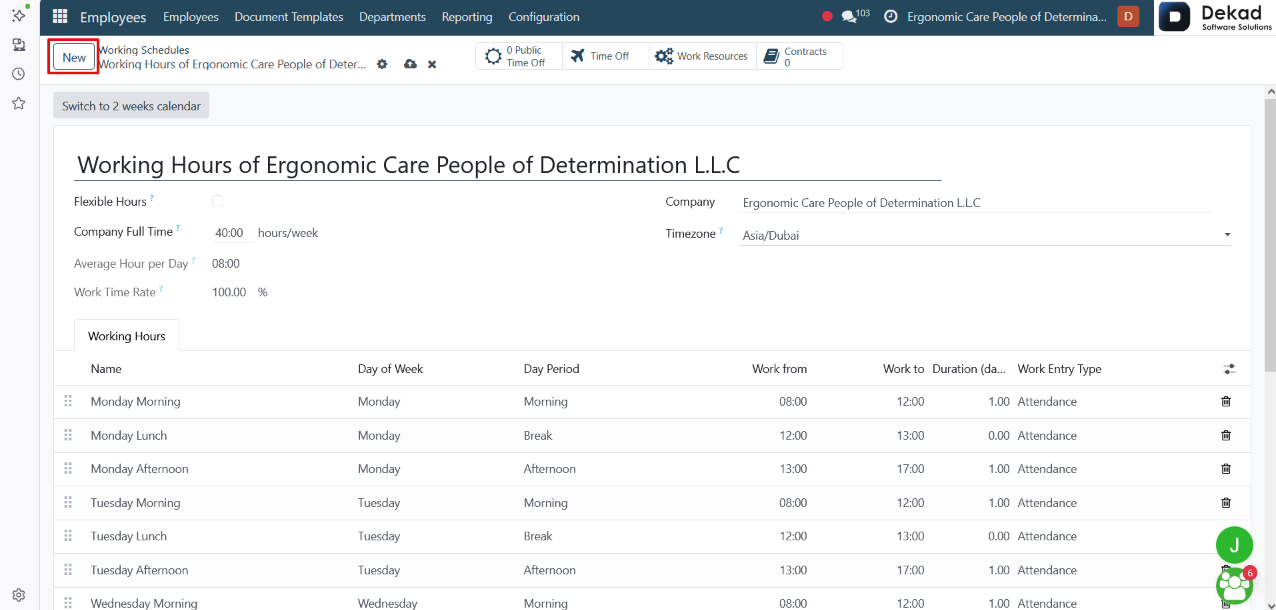
New Working Schedule
By clicking the New button, a form is opened
to create a new working schedule.
Users can define the schedule name and set the working
structure by adding working days and defining start
and end times for each day. This allows the system
to calculate employee attendance, work entries,
and payroll based on the defined schedule.
Once saved, the new working schedule becomes
available for assignment to employees.
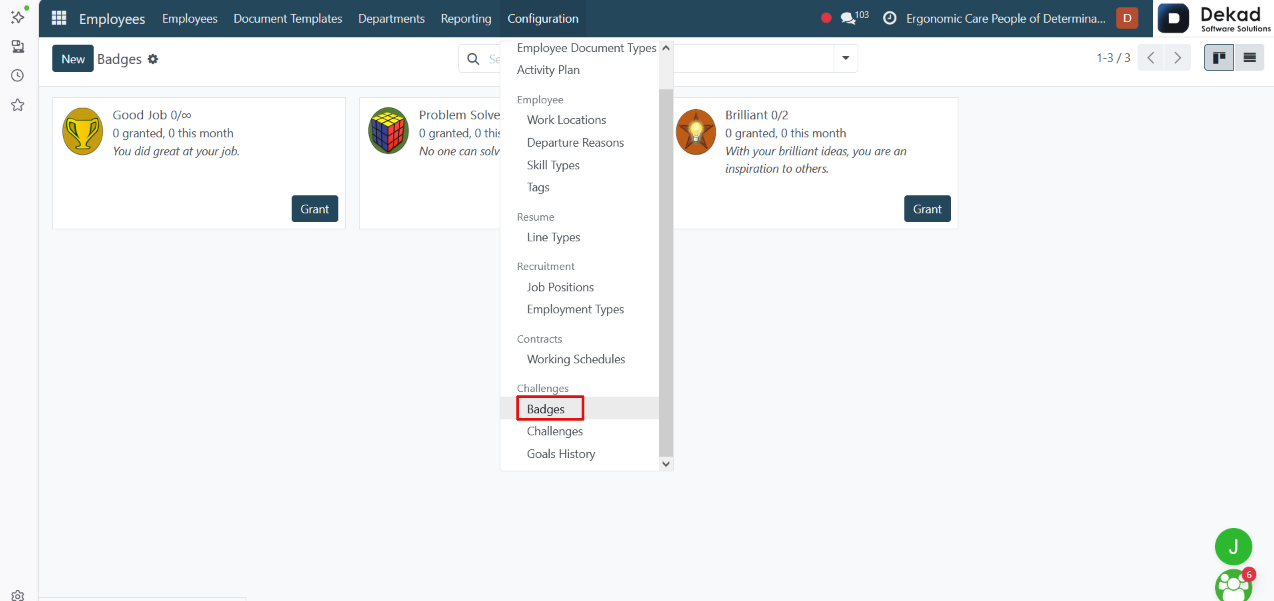
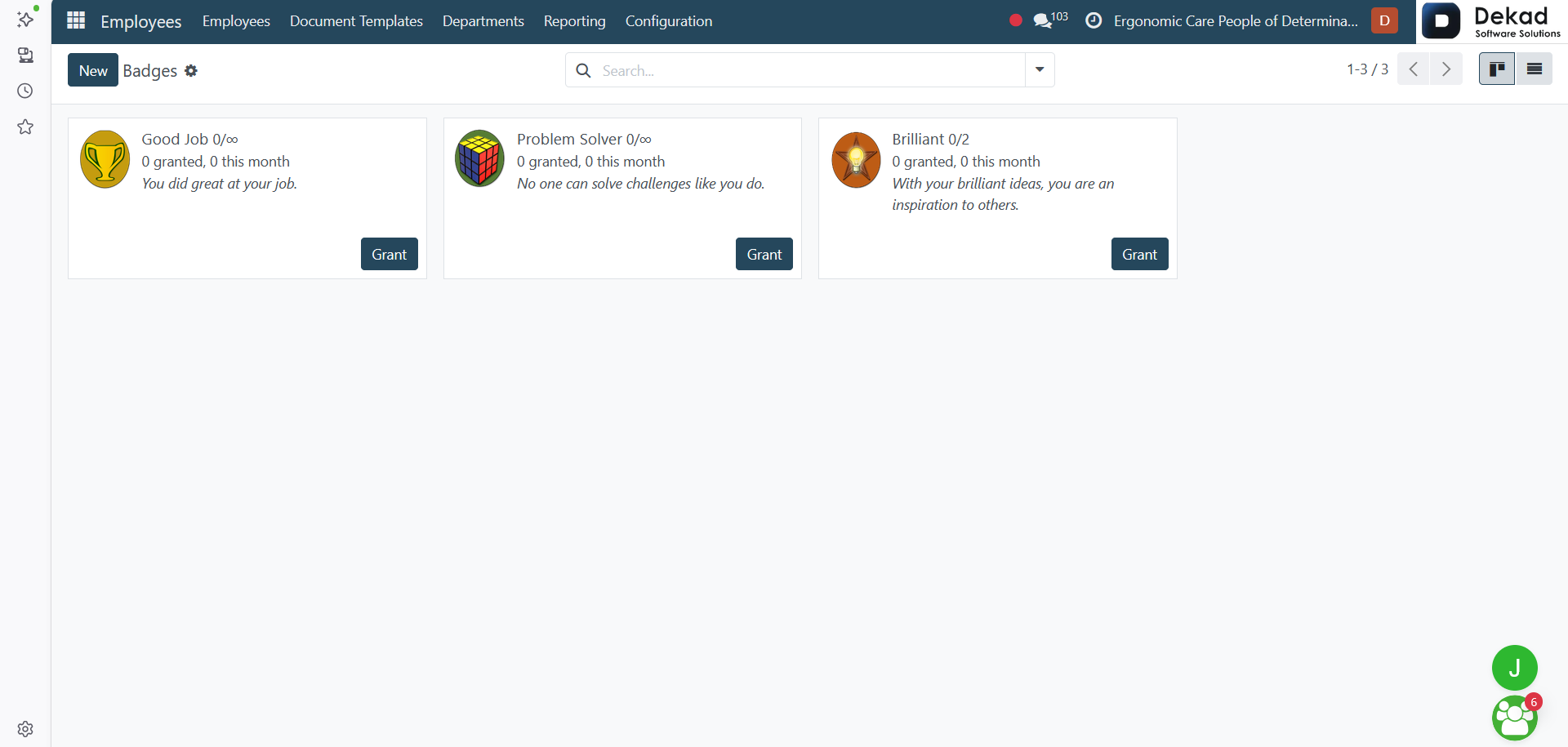
3.11 Badges
The Badges section is used to create and manage
recognition badges assigned to employees within
the organization.
It includes different types of badges that are used to
highlight employee achievements, skills, or specific
behaviors. These badges can be assigned manually or
automatically depending on system configuration,
and they help in tracking employee performance and
recognition across the company.
New Badge
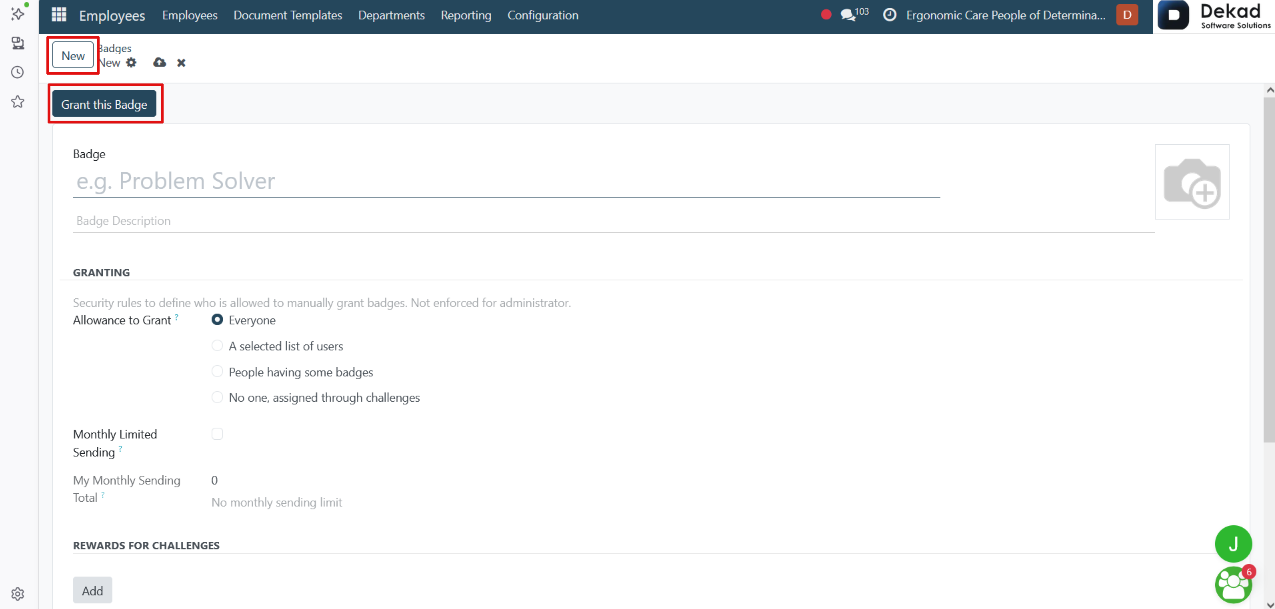
By clicking New, a new line is created where users
can define a new badge in the system by entering
the badge name and saving it, after which it
becomes available in the badges list.
The badge can then be assigned to employees using
Grant This Badge, where the user selects the
employee, chooses the badge, and adds a short
message before confirming the action. This allows
the badge to be recorded under the employee
profile as a form of recognition.
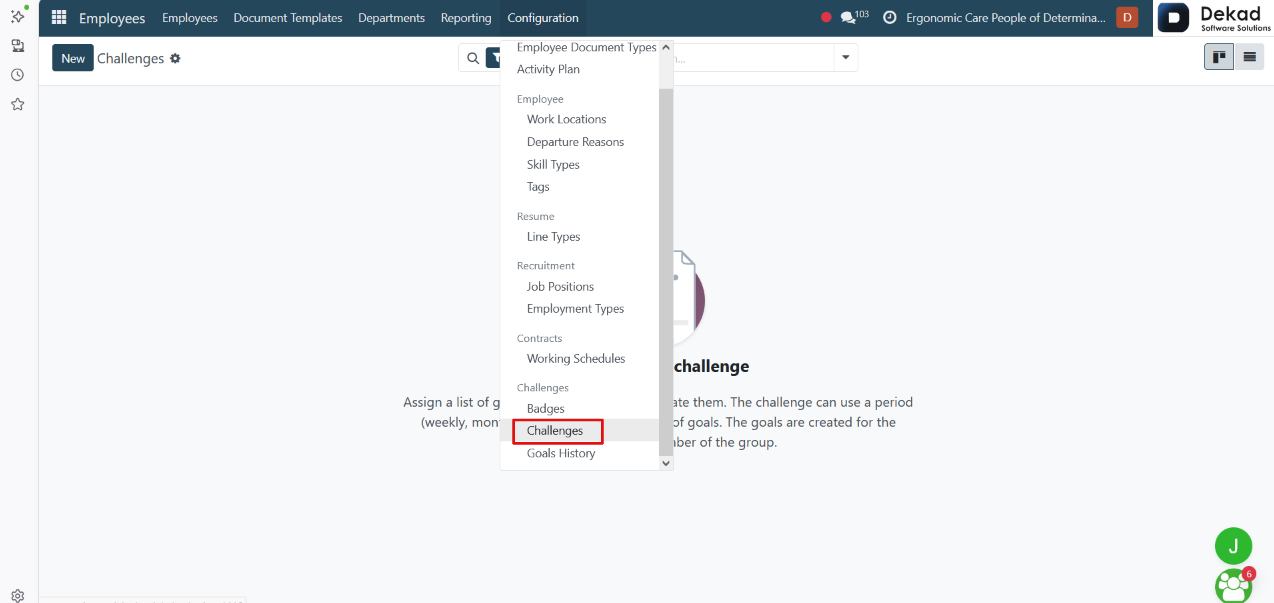
3.12 Challenges
The Challenges section is used to create and manage
employee challenges within the organization.
It includes different challenge programs that can be
defined to motivate employees, track performance,
and assign goals or rewards such as badges. Each
challenge can be configured with details like duration,
goals, responsible person, and rewards, helping
improve employee engagement and performance across
the company.
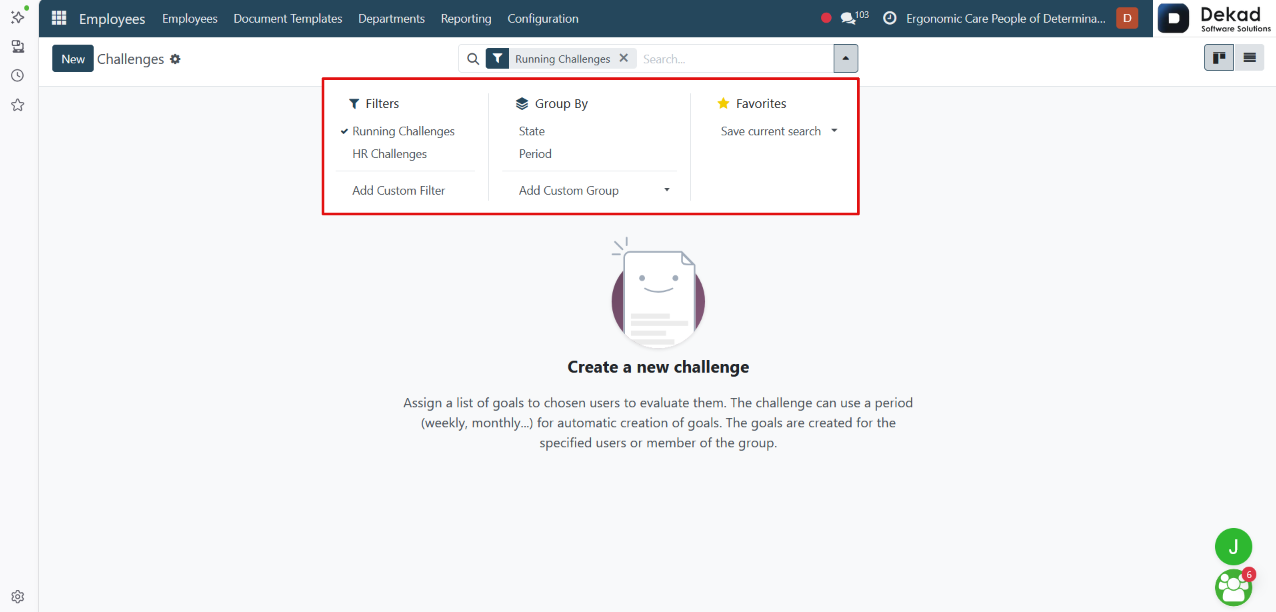
Search and Filtering
The Search and Filtering feature allows users to
quickly locate specific employees within the list view.
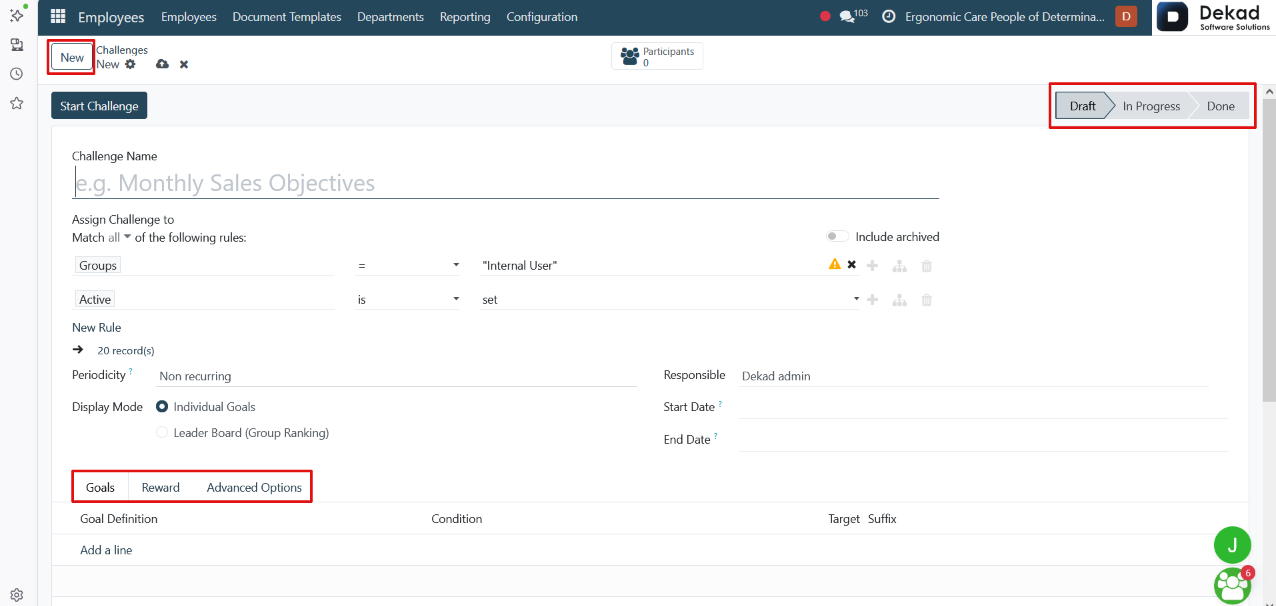
New Challenge
By clicking the New button, a form is opened to
create a new employee challenge in the system.
The form includes fields such as Challenge Name,
Goals, Reward, and Advanced Options, which are
used to define the structure and purpose of the
challenge. Users can configure the objectives
employees need to achieve, the reward they will
receive upon completion, and any additional
settings required for the challenge.
Each challenge also follows a workflow status,
including Draft, In Progress, and Done, which
helps track the progress of the challenge from
creation until completion.
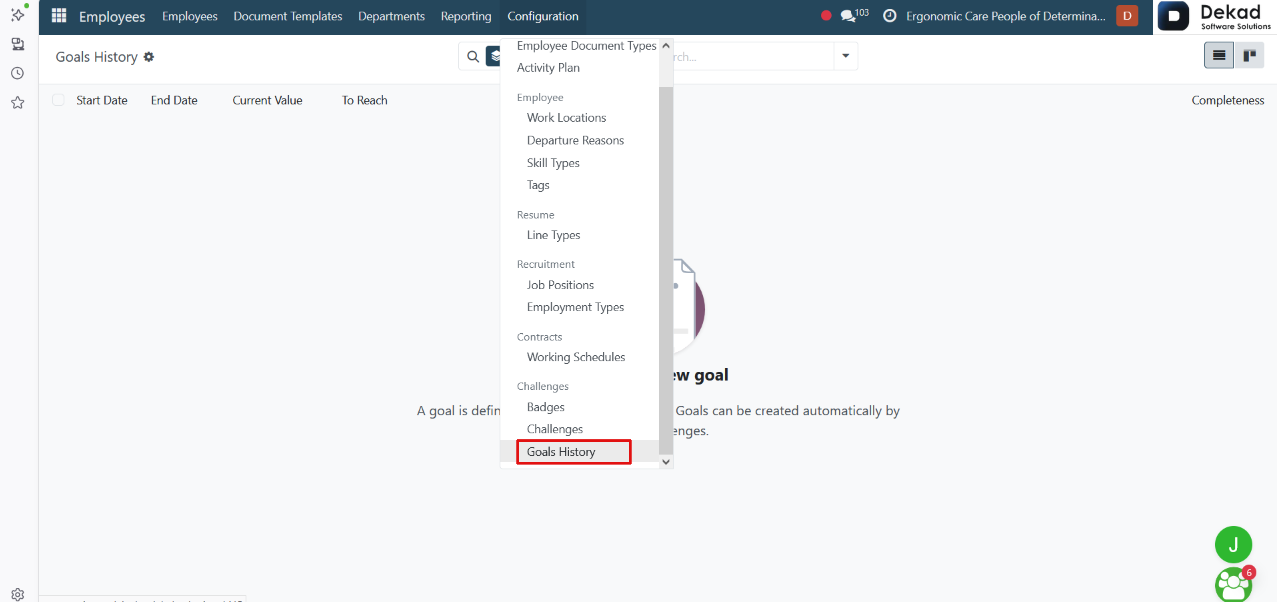
3.13 Goals History
The Goals History section is used to track and analyze
the history of employee goals over time.
It displays information such as the start date, end date,
current value, target value, and completion status of
each goal. This helps managers monitor employee
performance progress and review how goals are achieved
over different periods, providing better visibility
on employee development and performance trends.
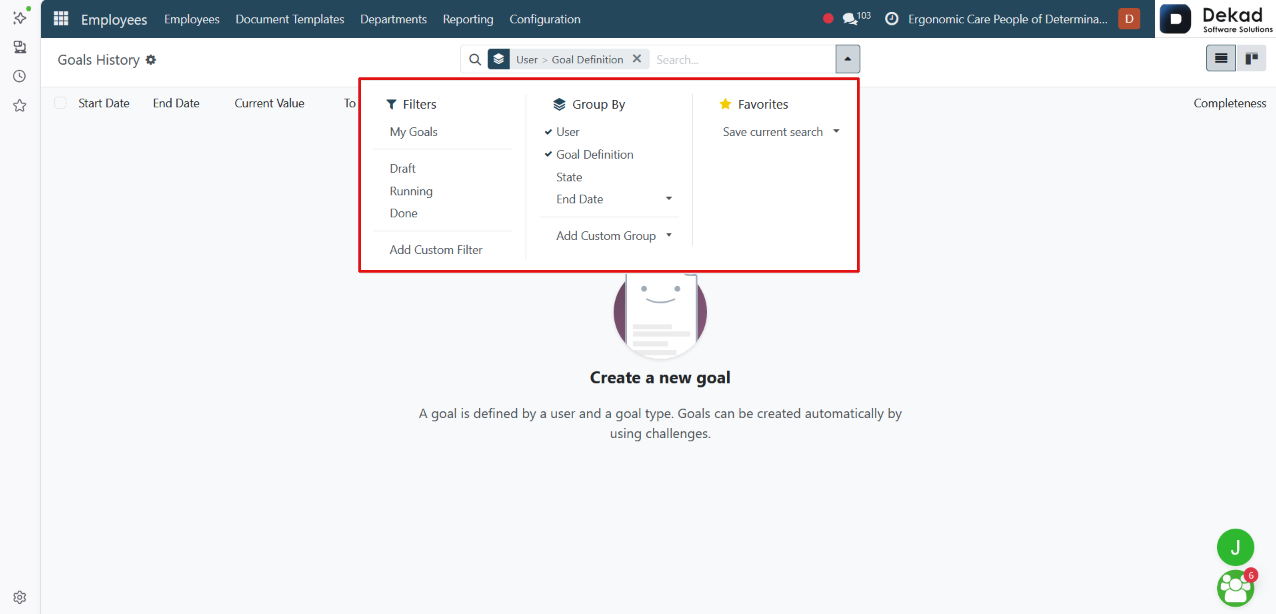
Search and Filtering
The Search and Filtering feature allows users to
quickly locate specific goal history records.
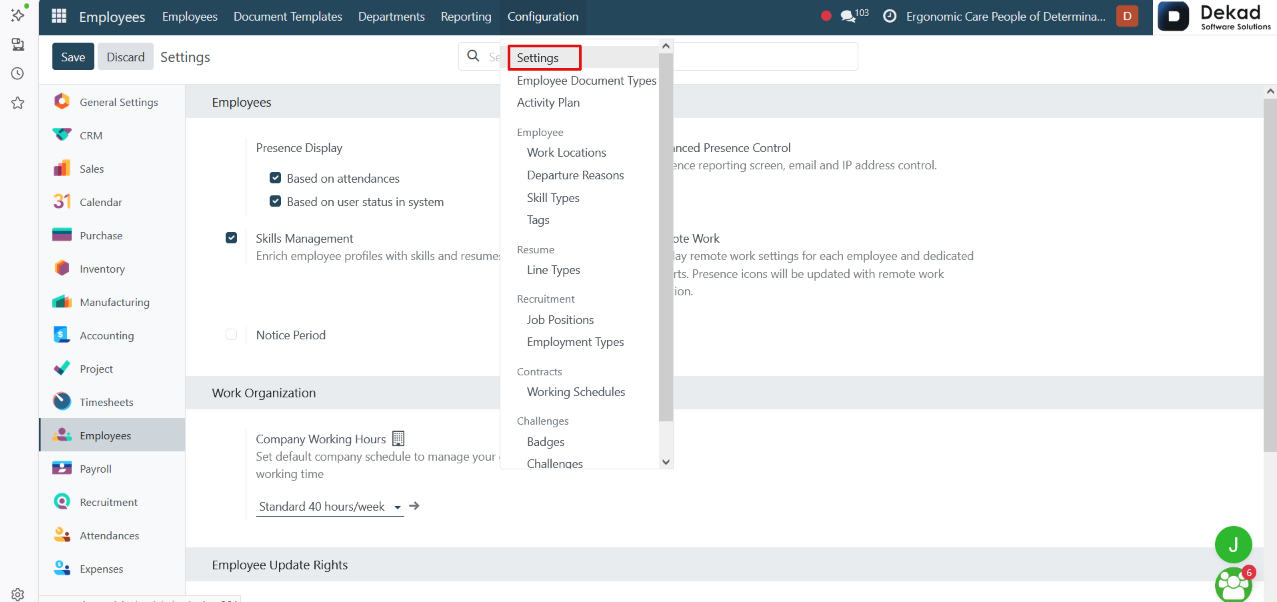
3.14 Settings
The Settings section is used to configure and control
the main behavior of the Employees module.
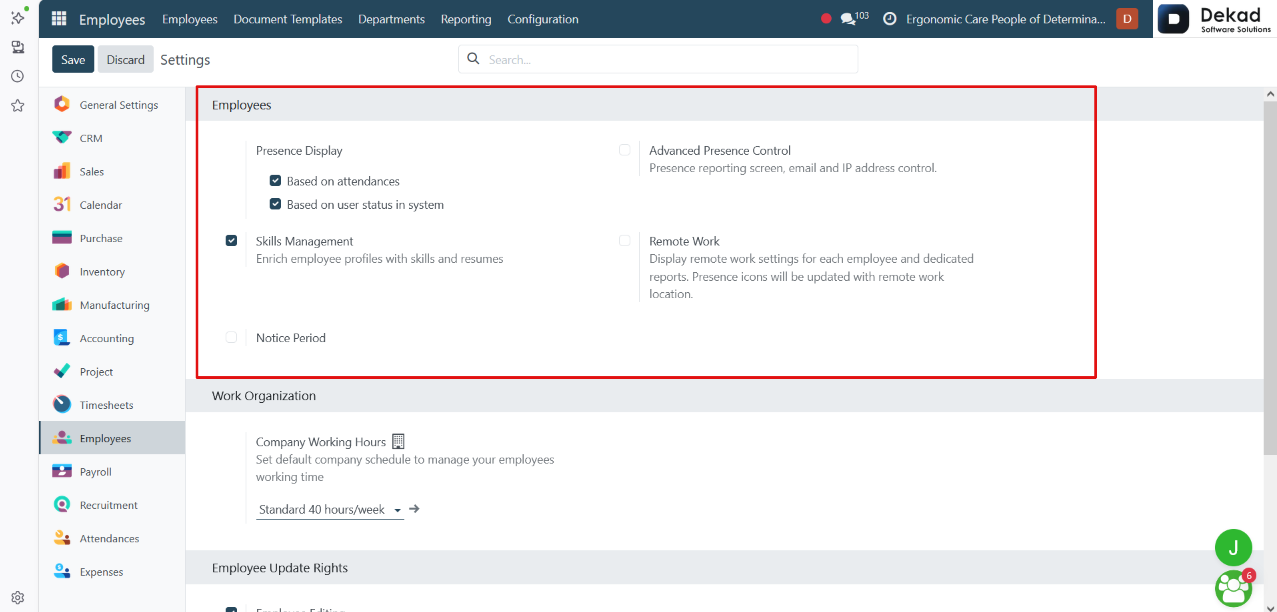
3.14.1 Employees Settings
The Employees Settings section is used to configure how employee
presence, skills, and work behavior are managed in the system.
It includes Presence Display, which determines how employee
availability is calculated, either based on attendances
or based on user status in the system.
It also includes Advanced Presence Control, which allows
more detailed tracking such as presence reporting
screens, email activity, and IP address control.
The Skills Management option is used to enrich
employee profiles with skills, resumes, and qualifications.
The Remote Work setting allows the system to display remote
work arrangements for employees and show their working location,
where presence icons are updated based on whether the employee
is working from home or office.
Finally, the Notice Period defines the number of days required
before an employee departure or contract termination, helping
the company manage workforce changes in advance.
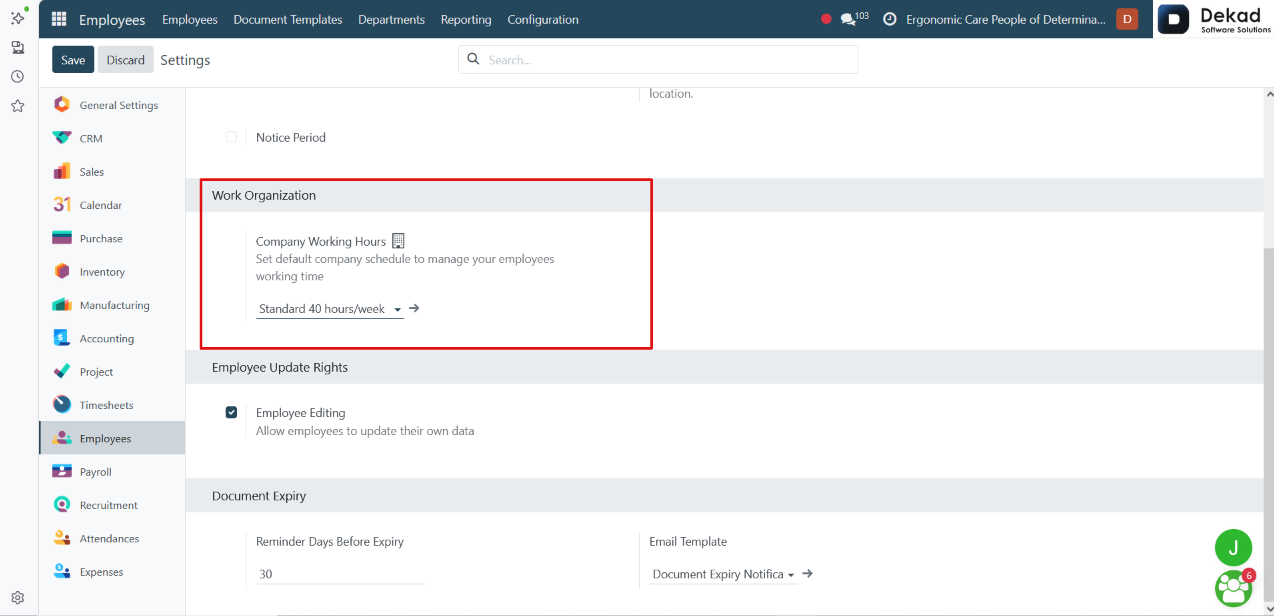
3.14.2 Work Organization
The Work Organization section is used to define how
employees’ working time is structured within the company.
It includes Company Working Hours, which sets the default
company schedule used to manage employee working time.
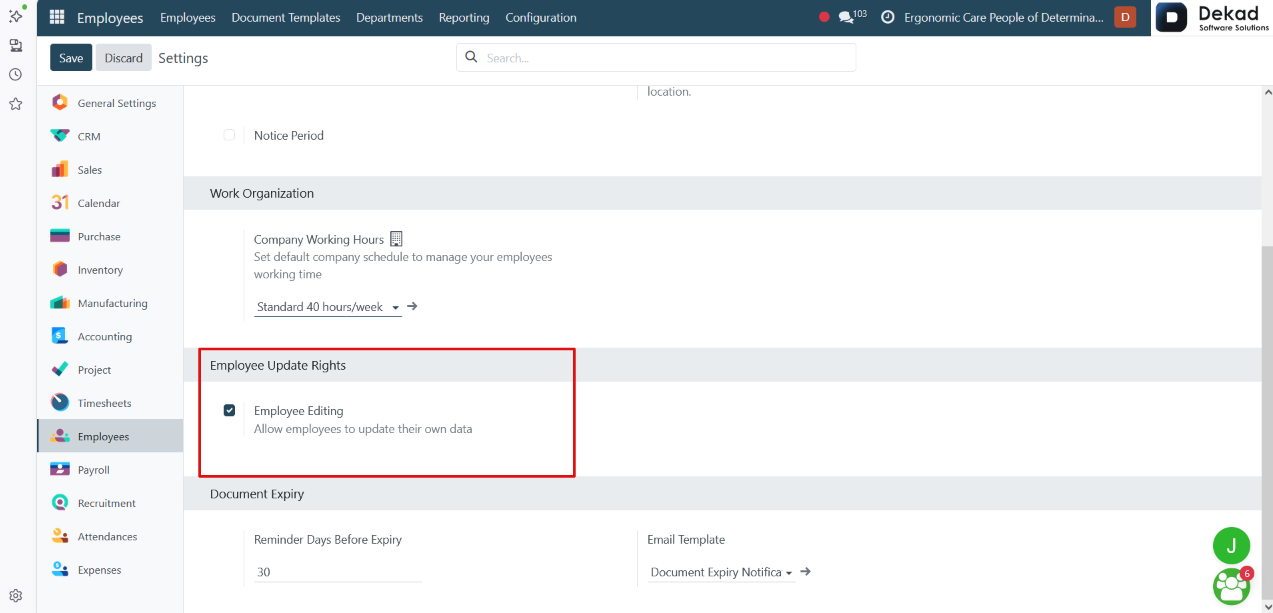
3.14.3 Employee Update Rights
The Employee Update Rights section allows employees to edit and
update their own personal data in the system.
It includes Employee Editing, which enables employees
to modify their profile information depending on the
access rights given by the company.
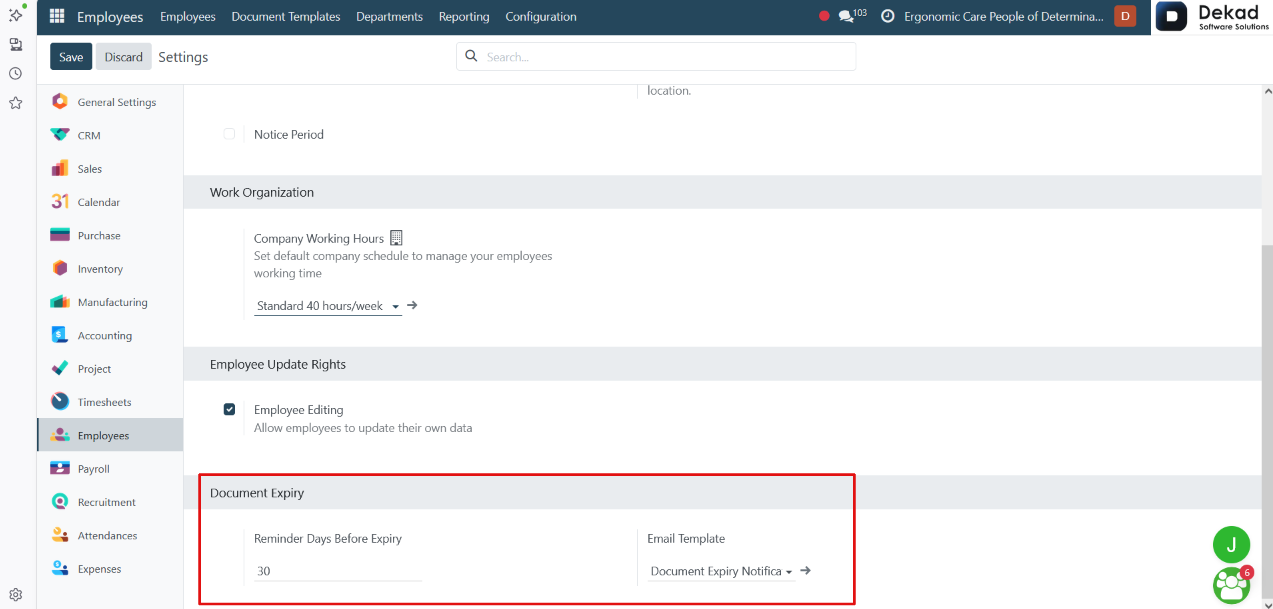
3.14.4 Document Expiry
The Document Expiry section is used to manage and track the
expiration of employee-related documents.
It includes Reminder Days Before Expiry, which defines how
many days before a document expires the system should send
a reminder, and Email Template, which specifies the email
format used to notify employees or HR about upcoming
expirations.