4. Configuration Menu
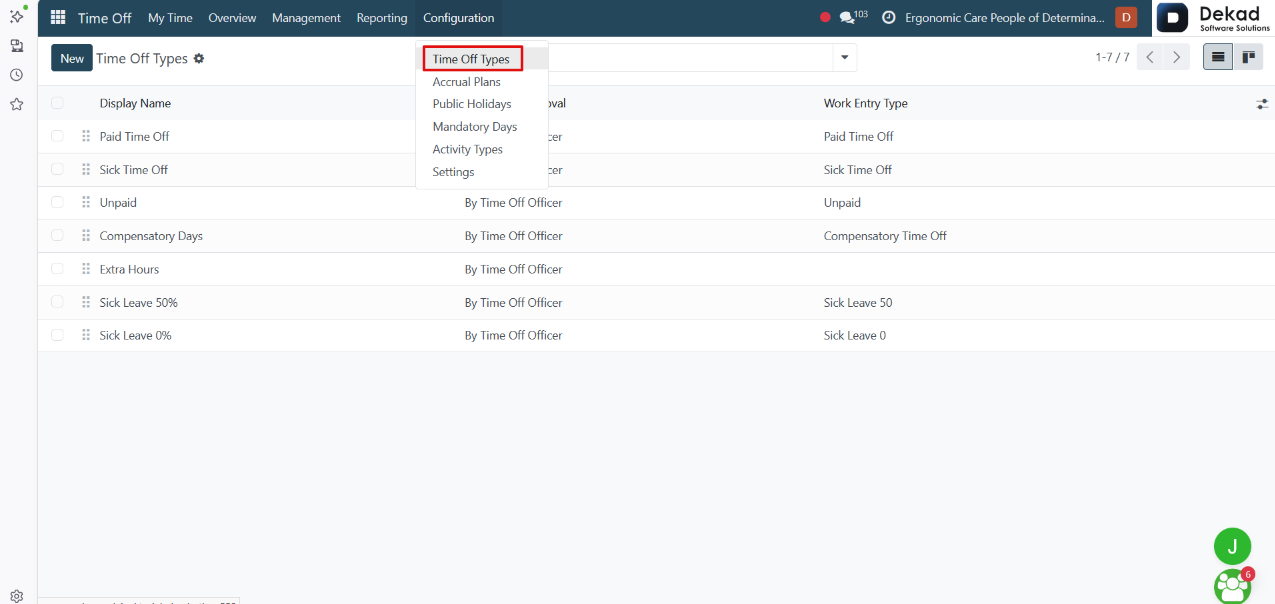
4.1 Time Off Types
The Time Off Types page is used to configure and
manage the different categories of leave available
within the organization.
It allows administrators to define the types of
time off that employees can request, such as
annual leave, sick leave, unpaid leave, and other
leave categories. Each type can be configured
with its own settings and rules to match the
organization's leave policies.
This page helps ensure that employee leave requests
are organized correctly and processed according
to the appropriate time off category.
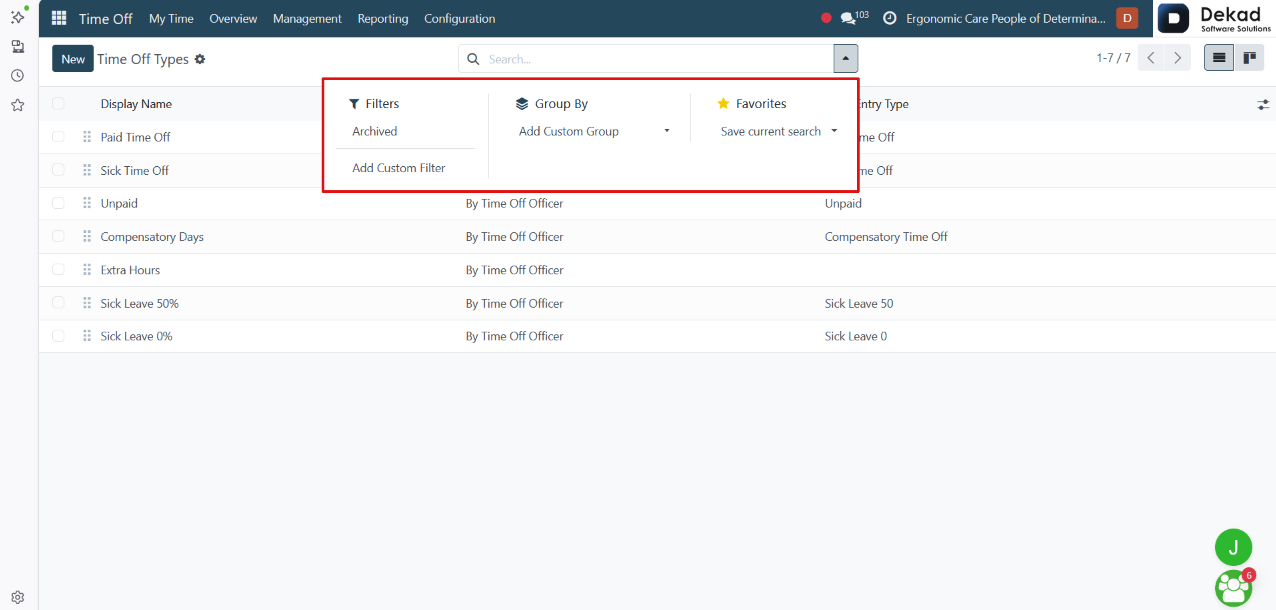
Search and Filtering
The Search and Filtering feature helps users
quickly find specific time off types and
view only the records they need.
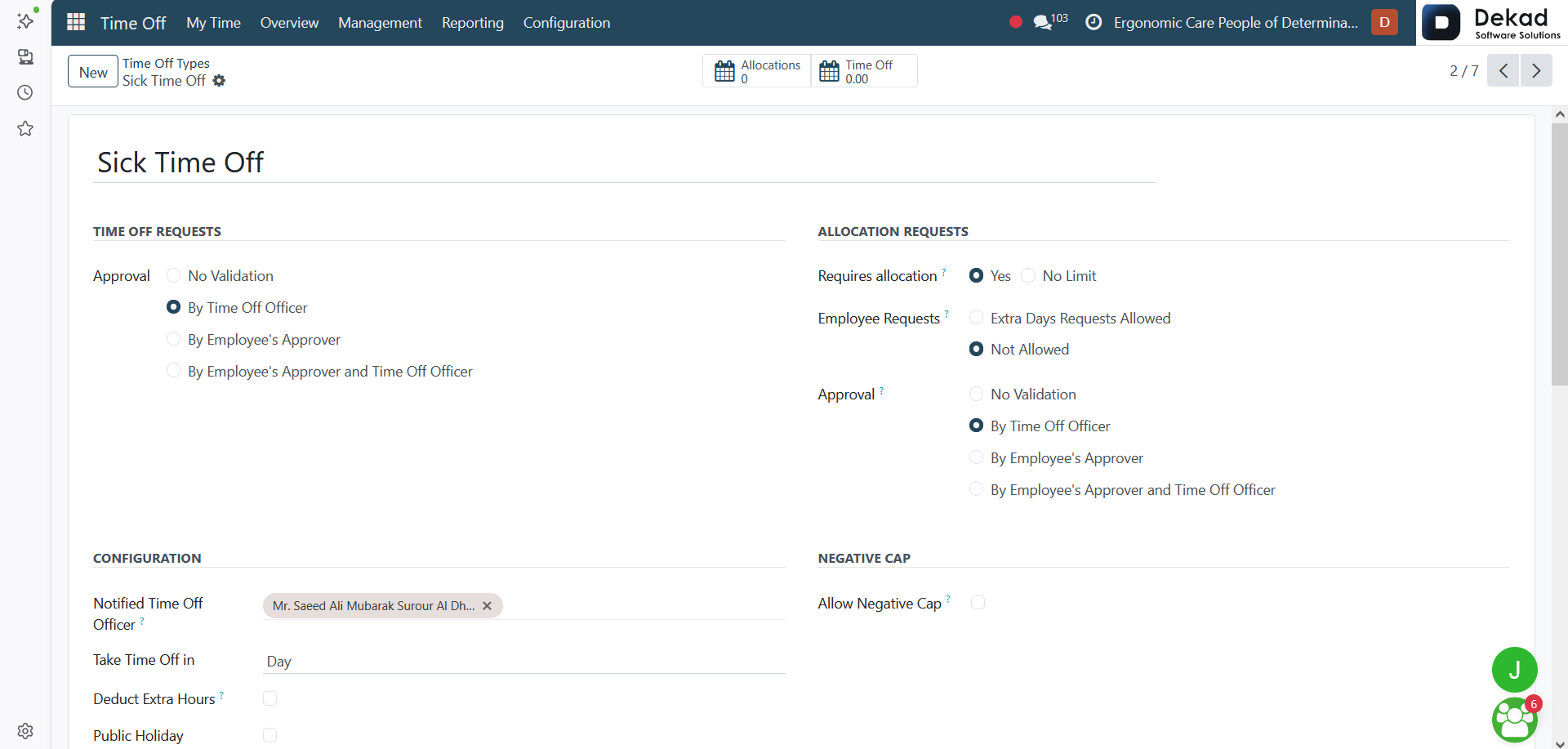
Time Off Type Details
When a user clicks on a time off type, a
detailed page is displayed containing the
configuration and settings related to
that leave category.
This page provides information about the
selected time off type and allows administrators
to review and manage its settings according
to the organization's leave policies.
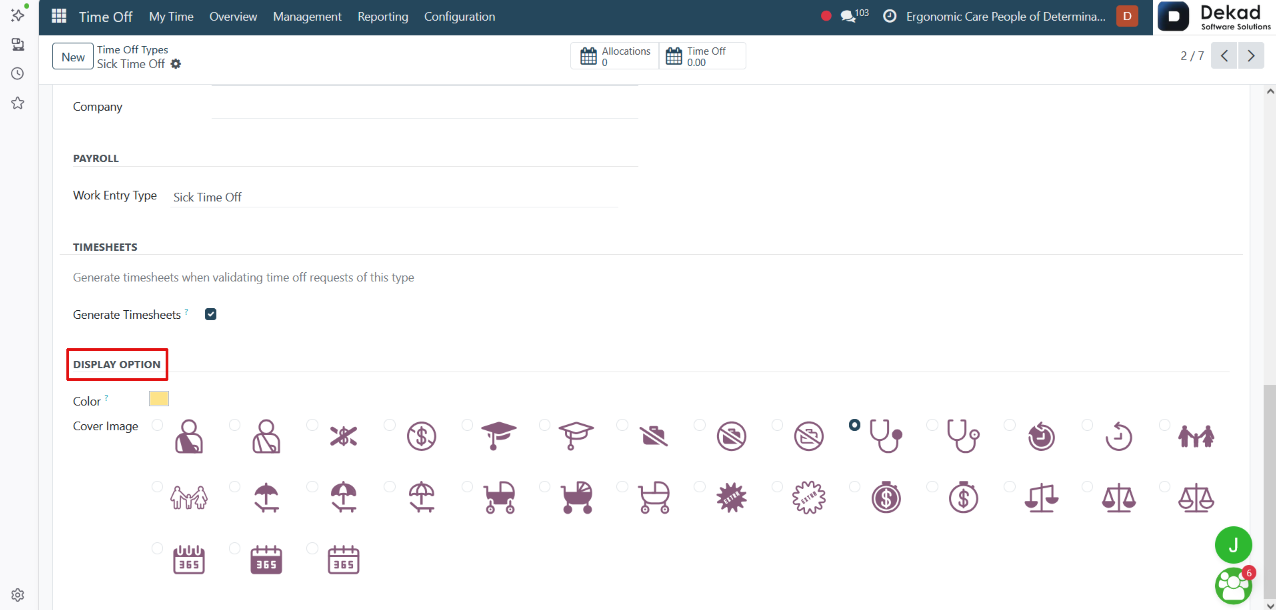
Display Option
The Display Option setting controls how a
time off type is presented and displayed
to users within the system.
It helps organize leave categories and
determines how the selected time off type
appears when employees create or review
time off requests.
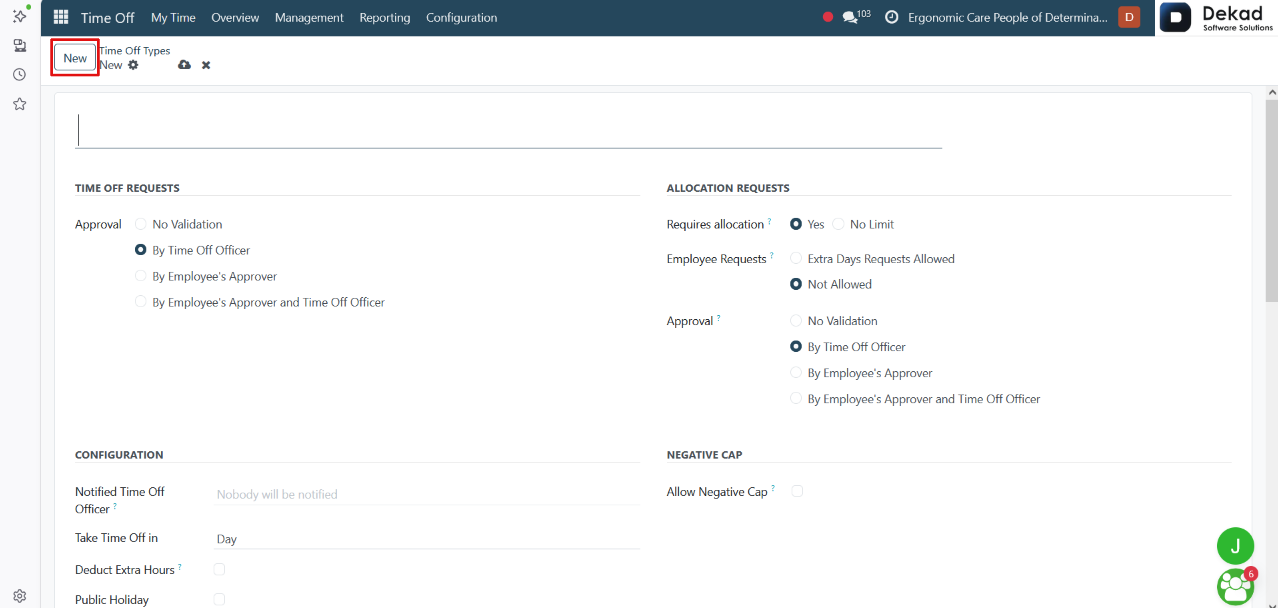
New Time Off Type
The New button is used to create a new
time off type within the system.
When clicked, a form opens where administrators can
define the details and settings of a new leave
category. These settings determine how the time
off type will be used, displayed, and managed
for employees.
Once the required information is entered and
saved, the new time off type becomes available
for use in employee time off requests.
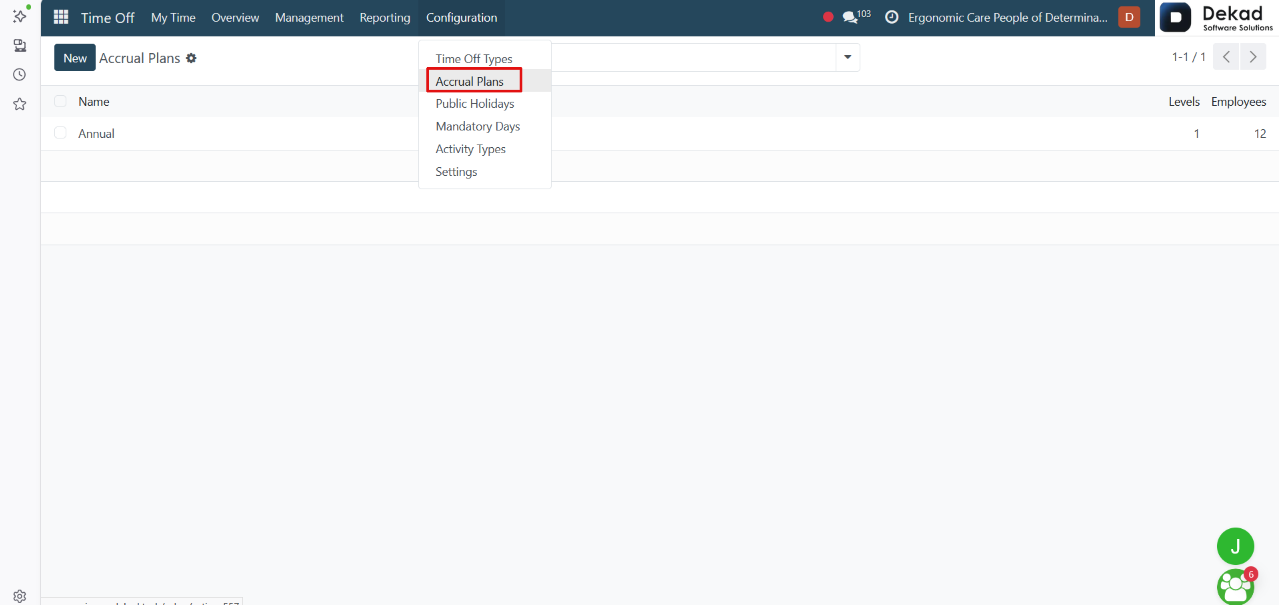
4.2 Accrual Plans
The Accrual Plans page displays the leave
accrual plans configured in the system.
It provides an overview of each plan, including
the plan name, the number of levels defined
within the plan, and the number of employees
assigned to it.
This page helps administrators monitor and manage
leave accrual plans and track how they are
applied across employees.
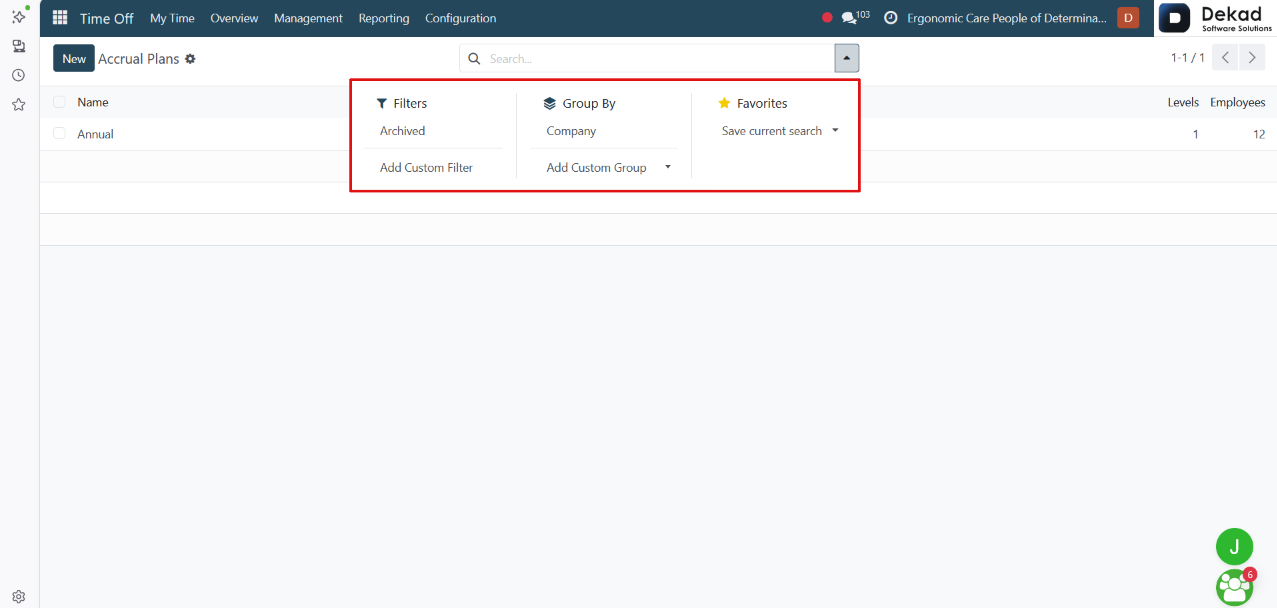
Search and Filtering
The Search and Filtering feature allows users
to quickly find specific accrual plans and
view only the records they need.
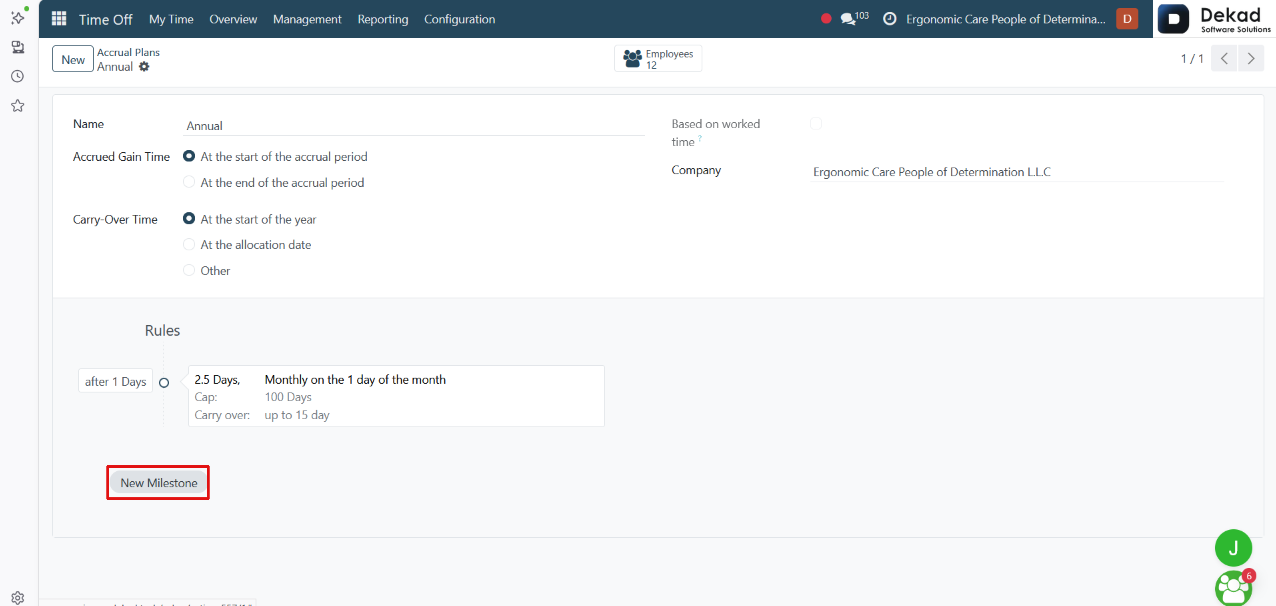
Accrual Plan Details
When a user selects an accrual plan, a detailed
page is displayed showing the plan configuration
and accrual rules.
The page includes general information such as
the plan name, accrual timing settings,
carry-over options, company assignment, and
whether the plan is based on worked time.
It also displays the Rules section, which defines
how leave is accrued over time. Each rule contains
details such as the accrual rate, frequency,
maximum balance limit, and carry-over settings.
The New Milestone option allows administrators to
add additional accrual rules or stages within the
plan, enabling different accrual conditions to
be applied over time.
New Accrual Plan
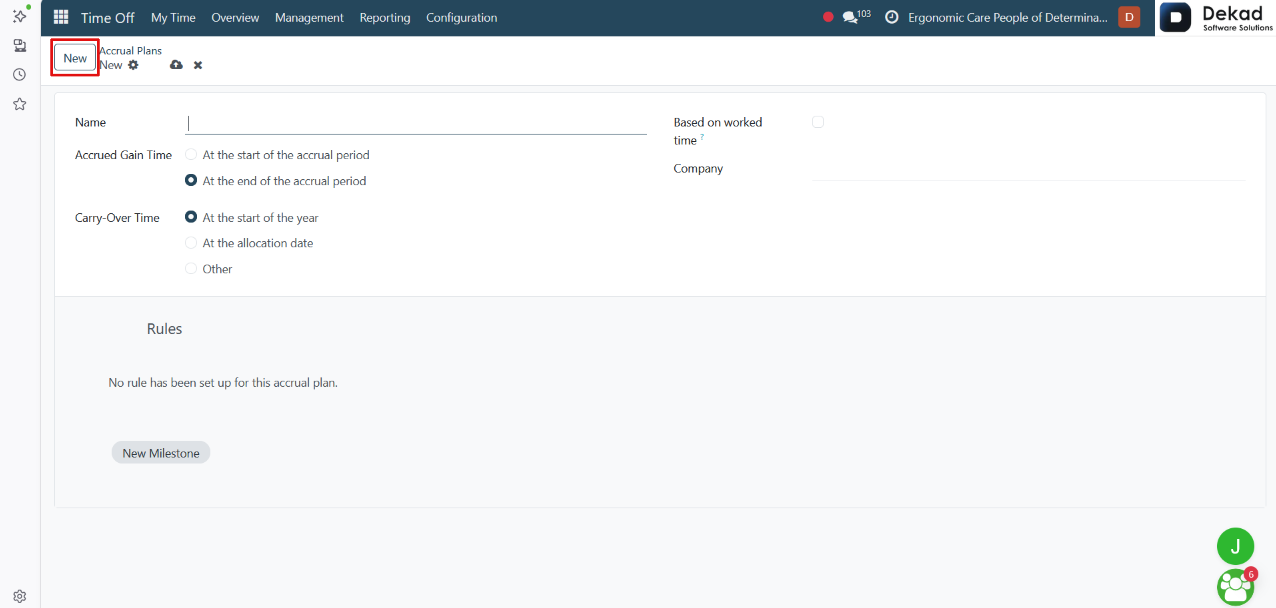
The New button is used to create a new accrual plan.
When clicked, a form opens where administrators can
define the plan details, accrual settings, carry-over
rules, and accrual milestones. These settings
determine how leave balances are earned and
managed for employees over time.
Once the required information is entered and saved,
the accrual plan becomes available for assignment
and use within the organization.
4.3 Public Holidays
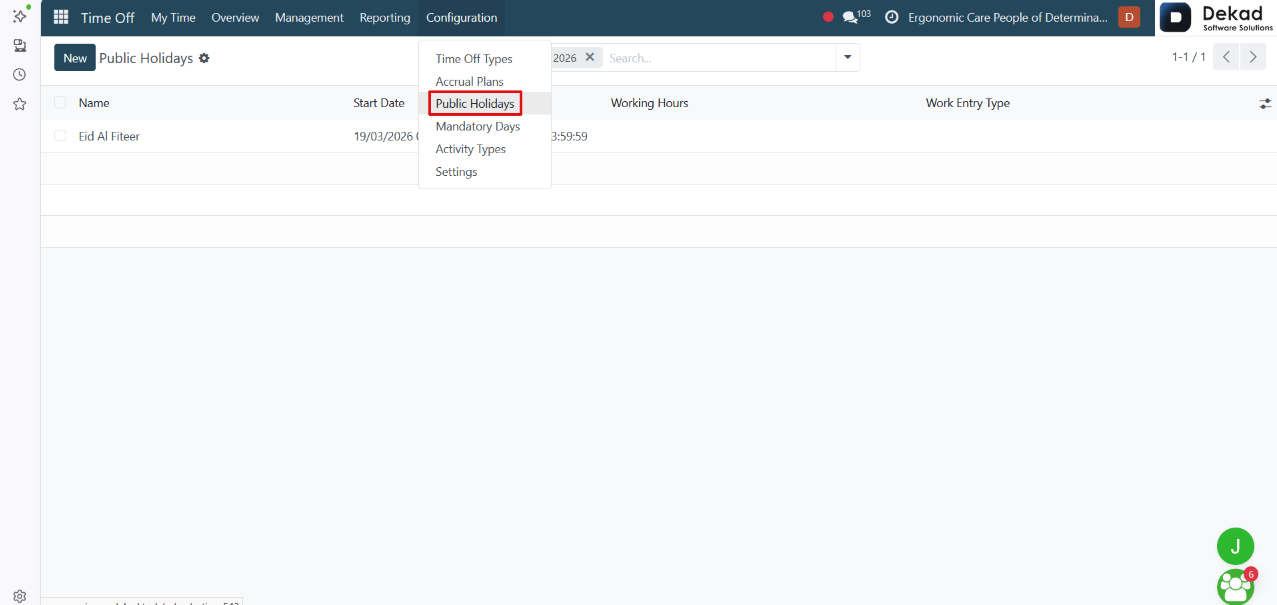
The Public Holidays page is used to manage official
holidays recognized by the organization.
It provides a list of public holidays and their
scheduled dates, ensuring that these days are
considered when managing employee leave and
work schedules.
This page helps administrators maintain accurate
holiday records and ensures that public holidays
are reflected correctly across the system.
Search and Filtering
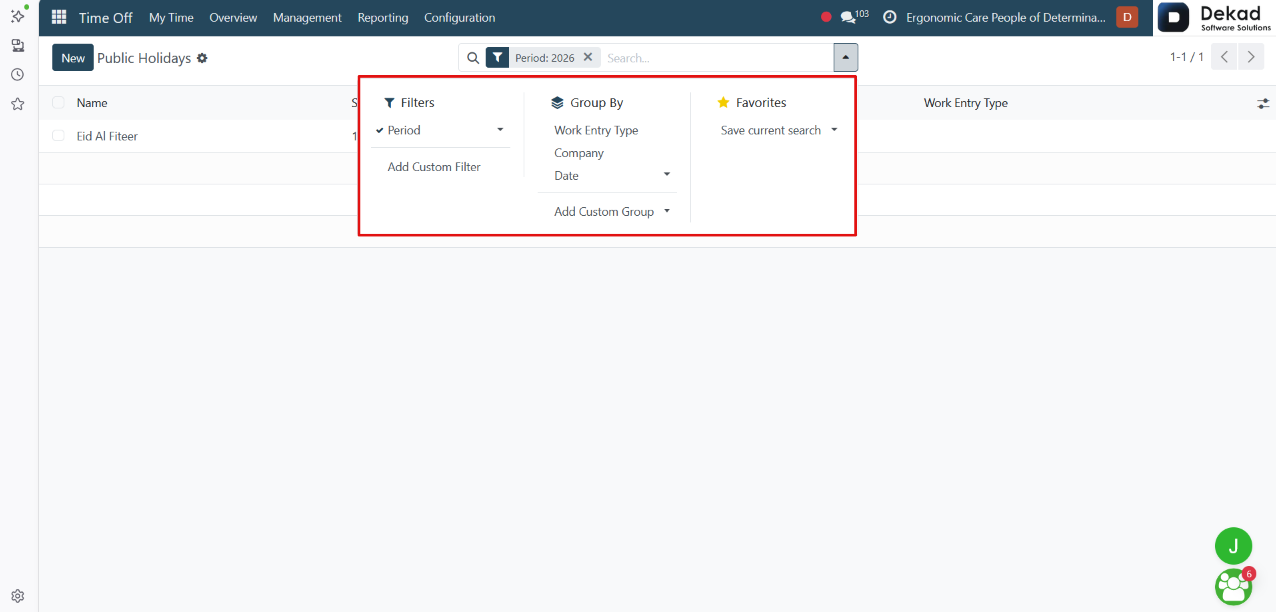
The Search and Filtering feature helps
users quickly locate specific public
holiday records.
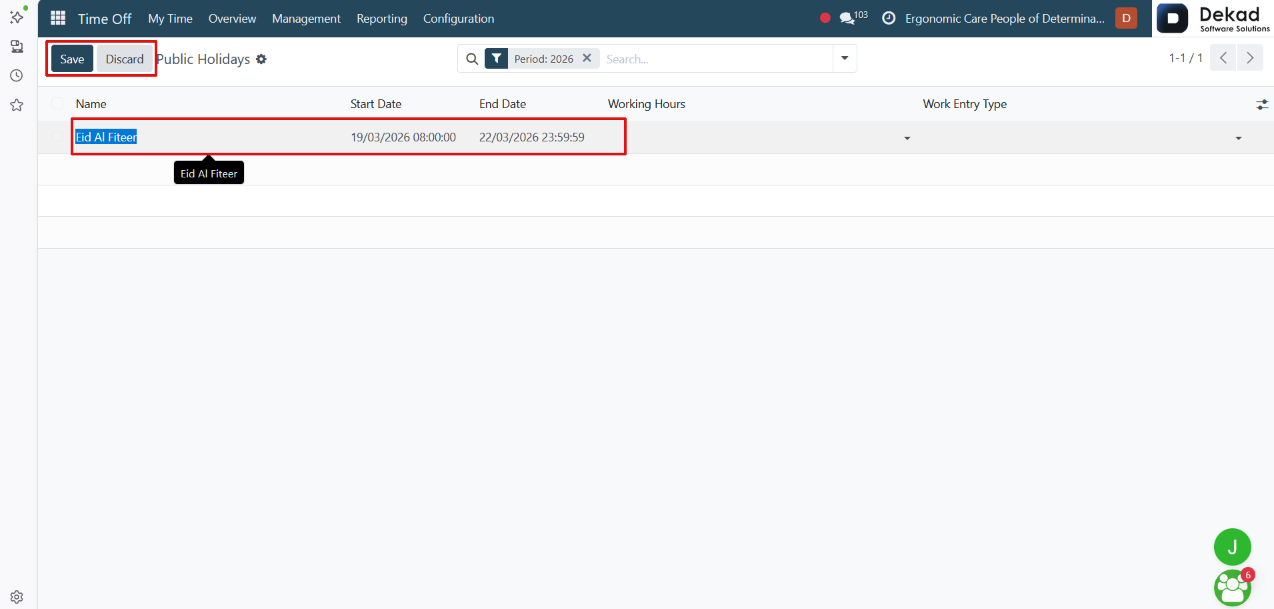
Public Holiday Record
When a user clicks on a public holiday record,
its details are displayed and can be
edited directly.
Users can review or update the holiday
information and then choose Save to apply
the changes or Discard to cancel them.
This allows administrators to maintain and
manage public holiday records efficiently.
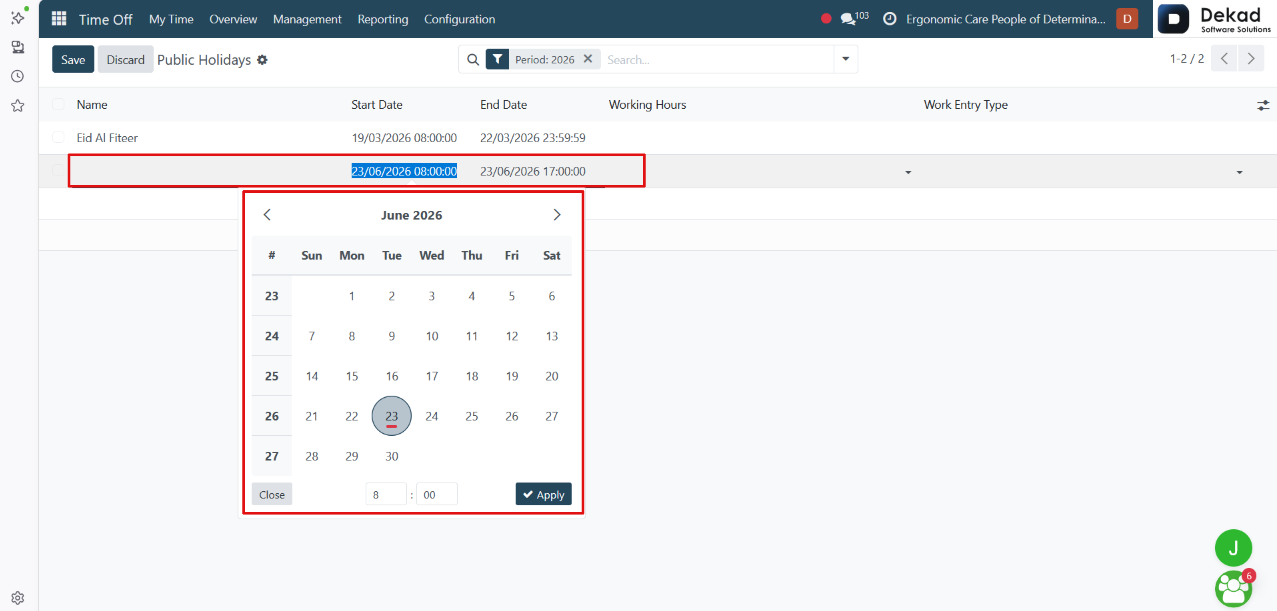
New Public Holiday
The New button allows users to add a new
public holiday record directly to the list.
When a new entry is created, users can enter
the holiday information and select the
applicable date. The date can be chosen
directly from the calendar picker for
accurate scheduling.
After entering the required information, users
can save the record to add the holiday to
the list or discard the changes if no
longer needed.
4.4 Mandatory Days
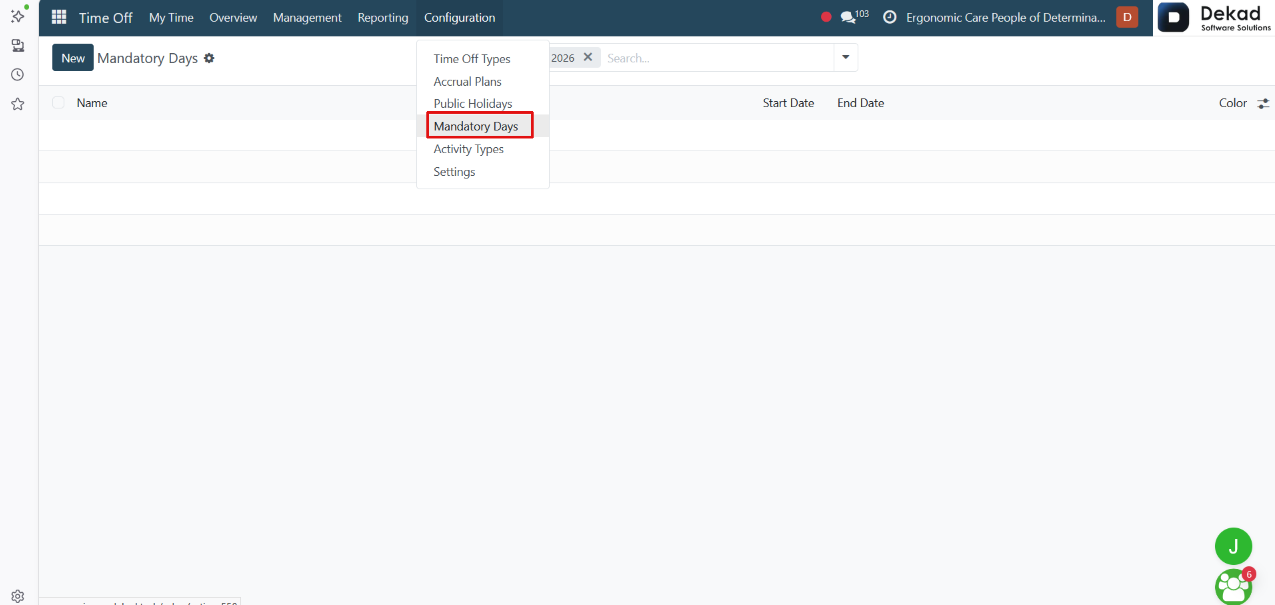
The Mandatory Days page is used to define specific
days on which employee attendance is required.
These days are configured by administrators and
can be used to ensure that employees are available
during important events, activities, or business periods.
This page helps organizations plan workforce
availability and communicate mandatory attendance
requirements to employees.
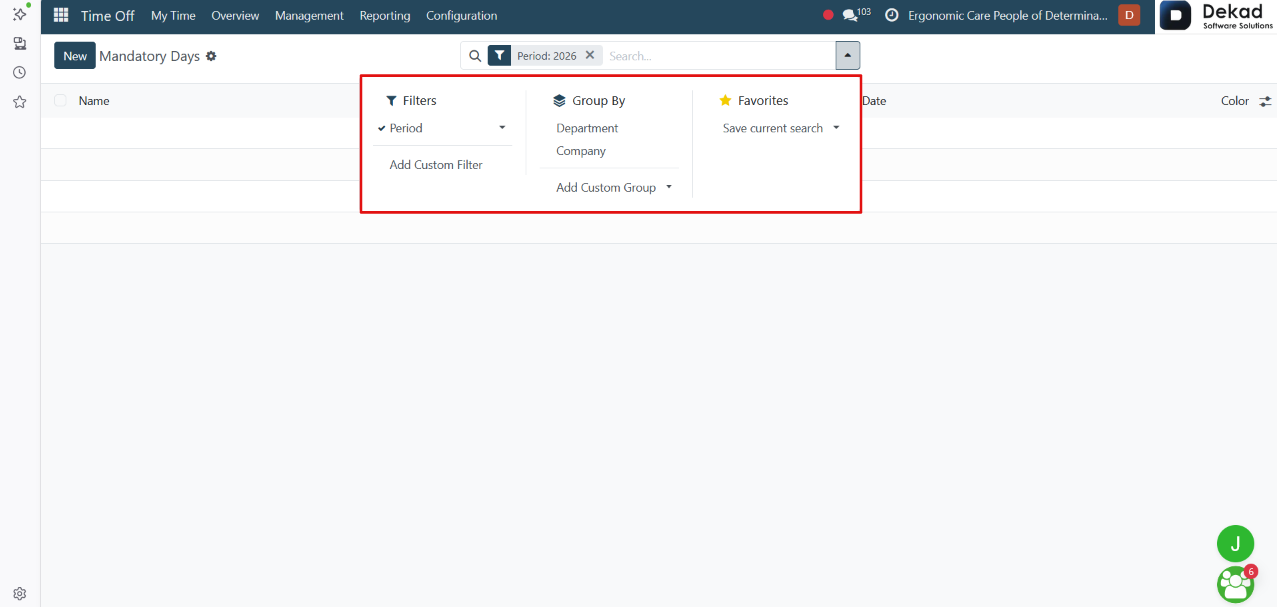
Search and Filtering
The Search and Filtering feature helps users
quickly locate specific mandatory day records.
New Mandatory Day
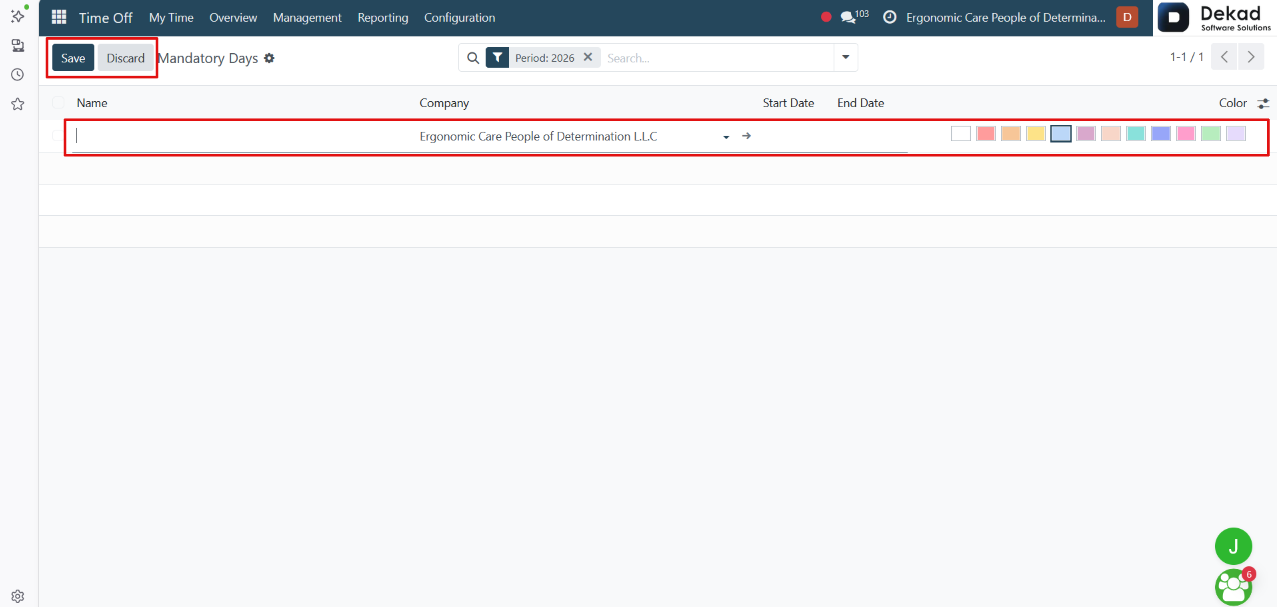
The New button is used to create a new mandatory day record.
When creating a new record, users can enter
the company name, mandatory day name, start
date, and end date. A color can also be
selected to visually distinguish the mandatory
day within the system.
After entering the required information, users
can save the record to make it available in the
system or discard the changes if they are no
longer needed.
4.5 Activity Types
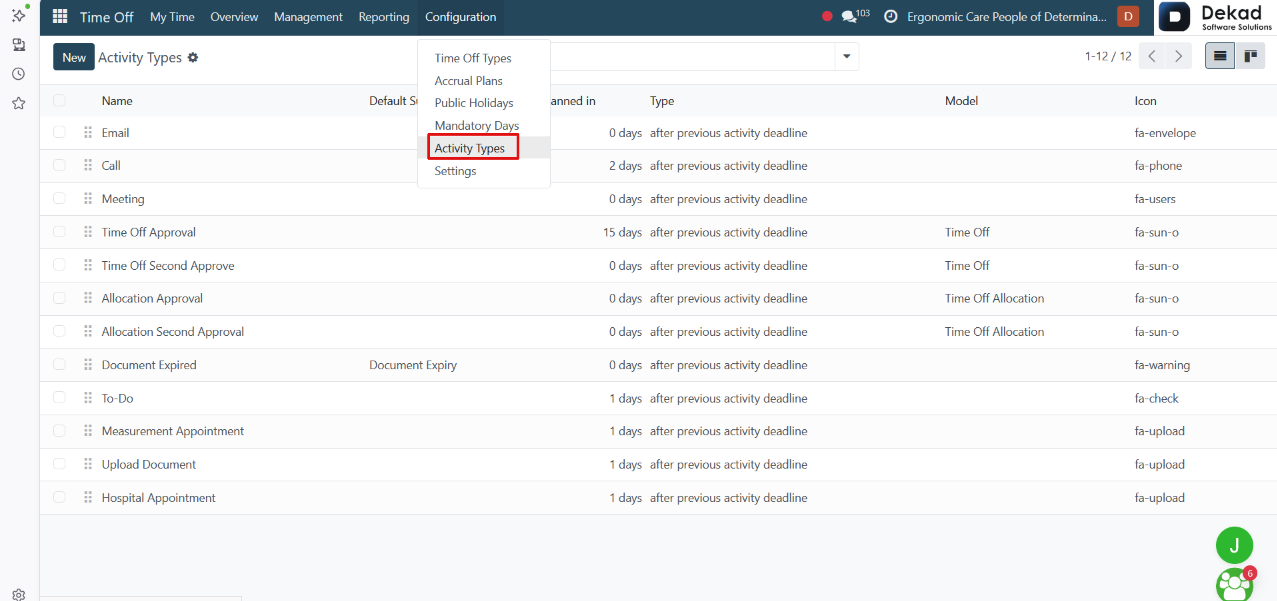
The Activity Types page is used to manage the
different activity categories available
within the system.
These activity types help organize and classify
activities, making it easier for users to track,
manage, and follow up on tasks and records.
The page provides a centralized location for
viewing and maintaining the available activity
types used throughout the system.
Search and Filtering
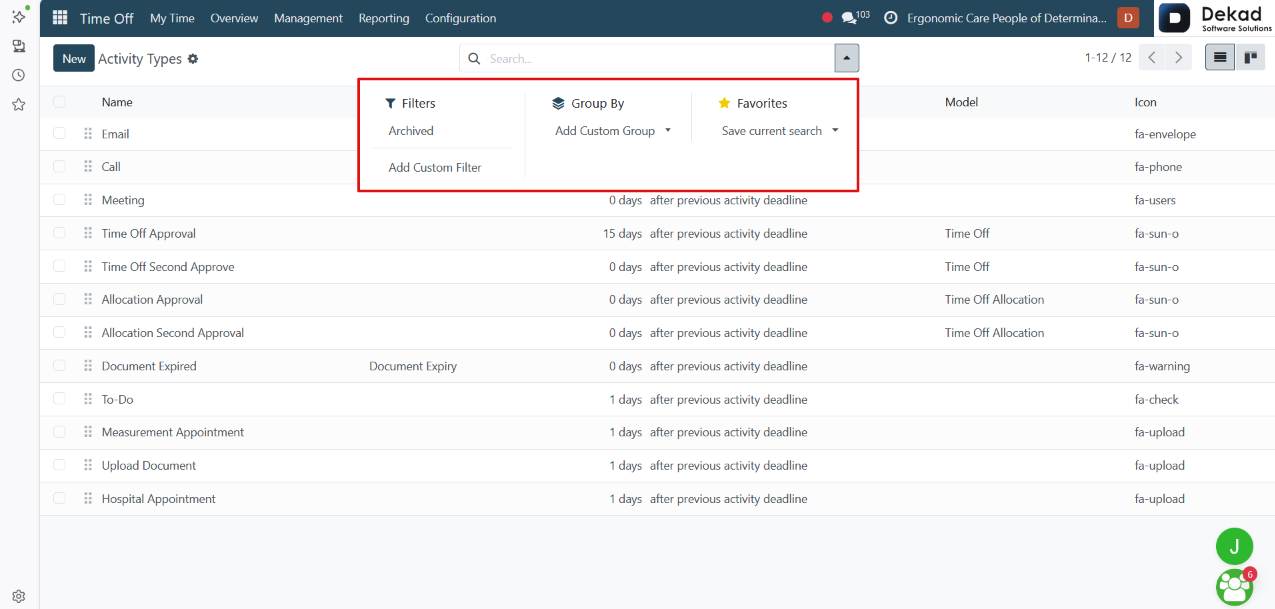
The Search and Filtering feature helps users
quickly find specific activity types and
display only the records they need.
Activity Type Details
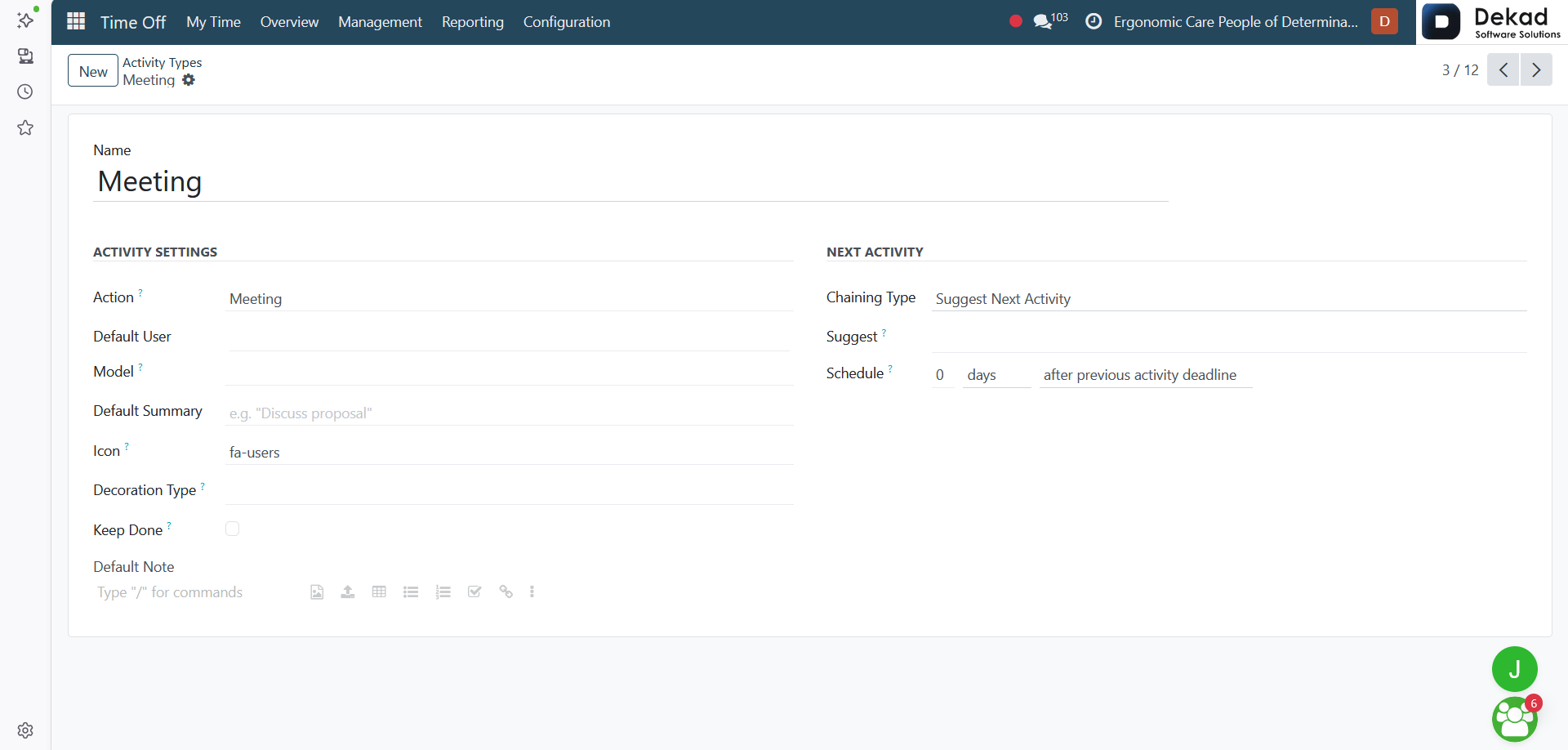
When a user clicks on an activity type,
its configuration details are displayed.
The page includes settings related to the
activity, such as the activity name, default
user, associated model, default summary,
icon, decoration type, and activity
behavior options.
It also contains configuration settings for
activity management, including activity
scheduling, suggestions, completion handling,
and next activity actions. These settings
help define how the activity type is used
and managed within the system.
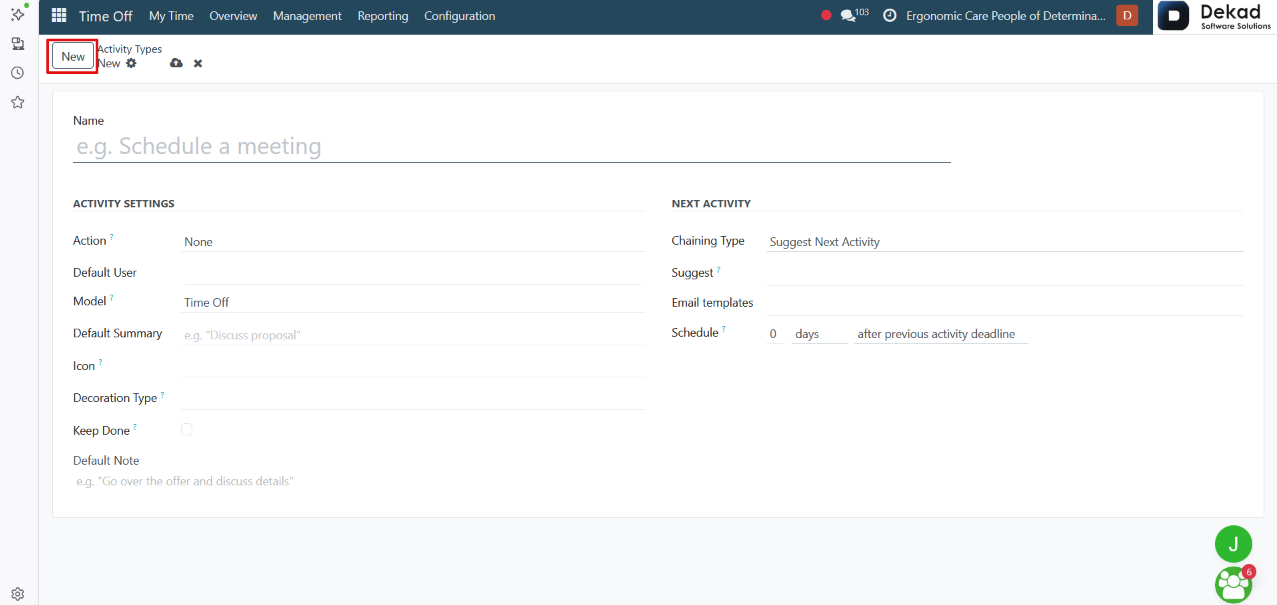
New Activity Type
The New button is used to create a new
activity type within the system.
When clicked, a form is displayed where
users can define the activity details and
configuration settings, such as its name,
behavior, default actions, and scheduling options.
After entering the required information, users
can save the activity type to make it available
for use throughout the system or discard the
changes if they are no longer needed.
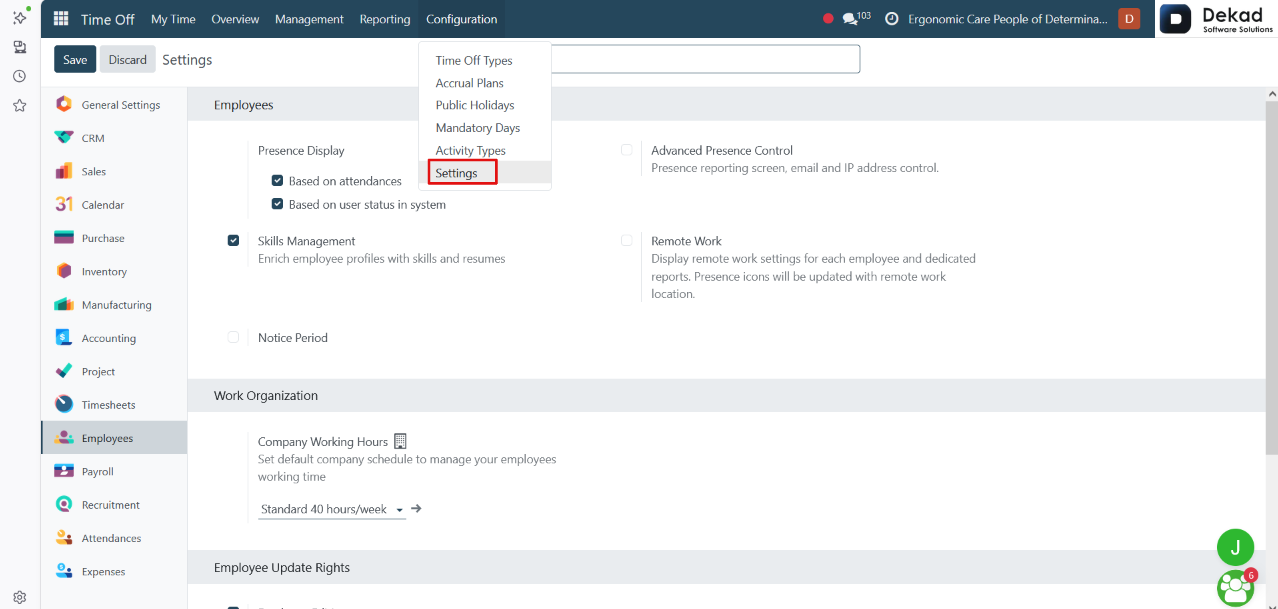
4.6 Settings
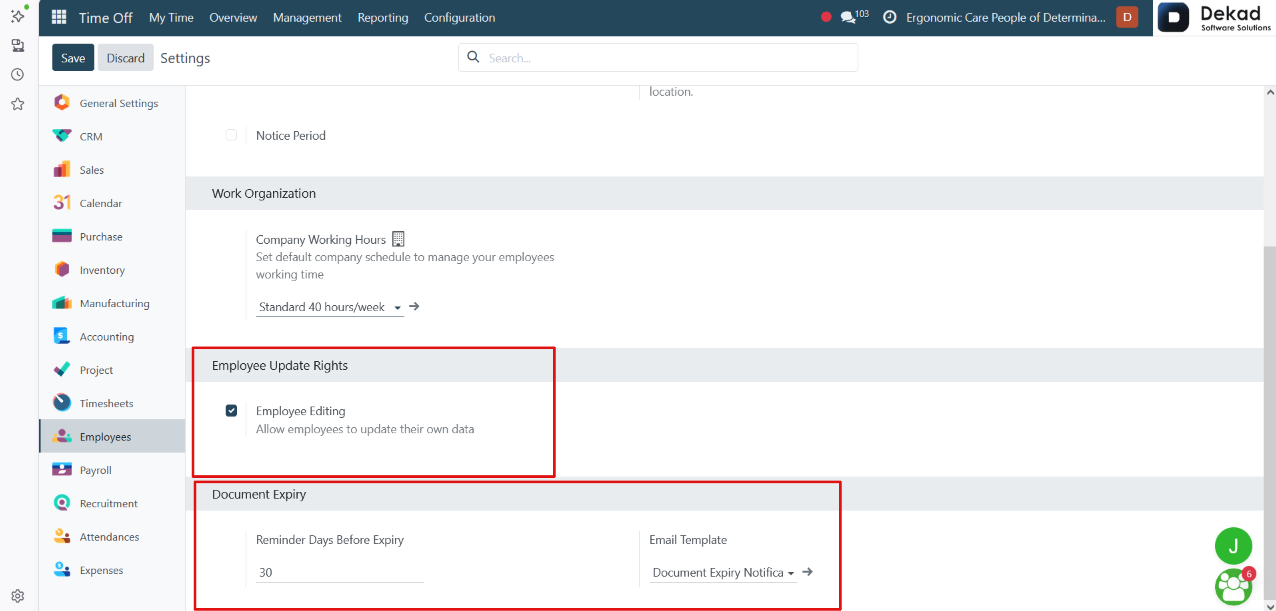
The Settings page is used to configure and manage
the general options related to the Time Off module.
It allows administrators to define system-wide settings
that control how leave requests, allocations, approvals,
accrual plans, public holidays, and other time off
features operate within the organization.
This page helps ensure that time off processes are
configured according to the organization's
policies and requirements.
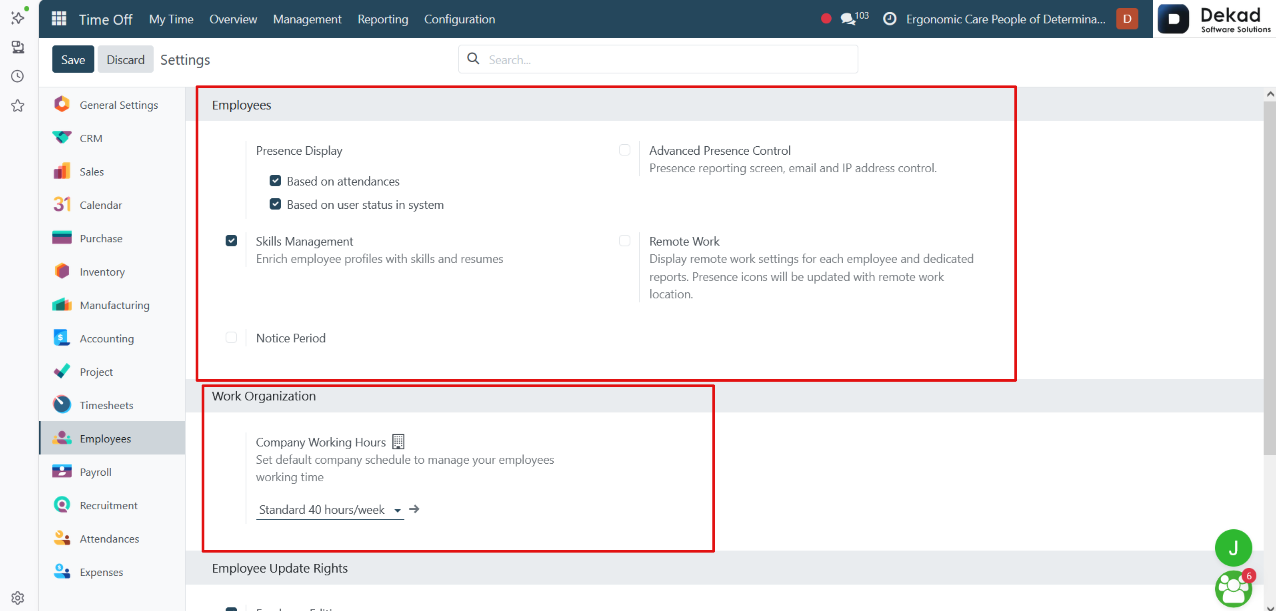
Employees
The Employees section contains settings related
to employee management and profile
information within the system.
Presence Display
The Presence Display setting determines how employee
availability and presence information is displayed.
Based on Attendances
Displays employee presence based on recorded attendance data.
Based on User Status in System
Displays employee presence based on the user's
current status within the system.
Advanced Presence Control
Provides additional options for managing presence
reporting, email tracking, and IP address controls.
Skills Management
Enables the management of employee skills, qualifications,
and resumes within employee profiles.
Remote Work
Allows organizations to manage remote work
settings and track employees working remotely.
Notice Period
Provides settings related to employee notice
periods and departure planning.
Work Organization
Contains configuration options related to
workforce organization and scheduling.
Company Working Hours
Defines the default working schedule and working
hours used across the company for employee
time management.
Employee Update Rights
The Employee Update Rights setting controls
whether employees are allowed to modify their
own information within the system.
Employee Editing
The Employee Editing option allows employees to
update and maintain their personal data and
profile information.
Document Expiry
The Document Expiry feature is used to track
employee documents and monitor their
expiration dates.
Reminder Days Before Expiry
This setting defines the number of days before a
document's expiration date when a reminder should be sent.
Email Template
The Email Template setting specifies the template
used for sending document expiry notifications
and reminders to users.